




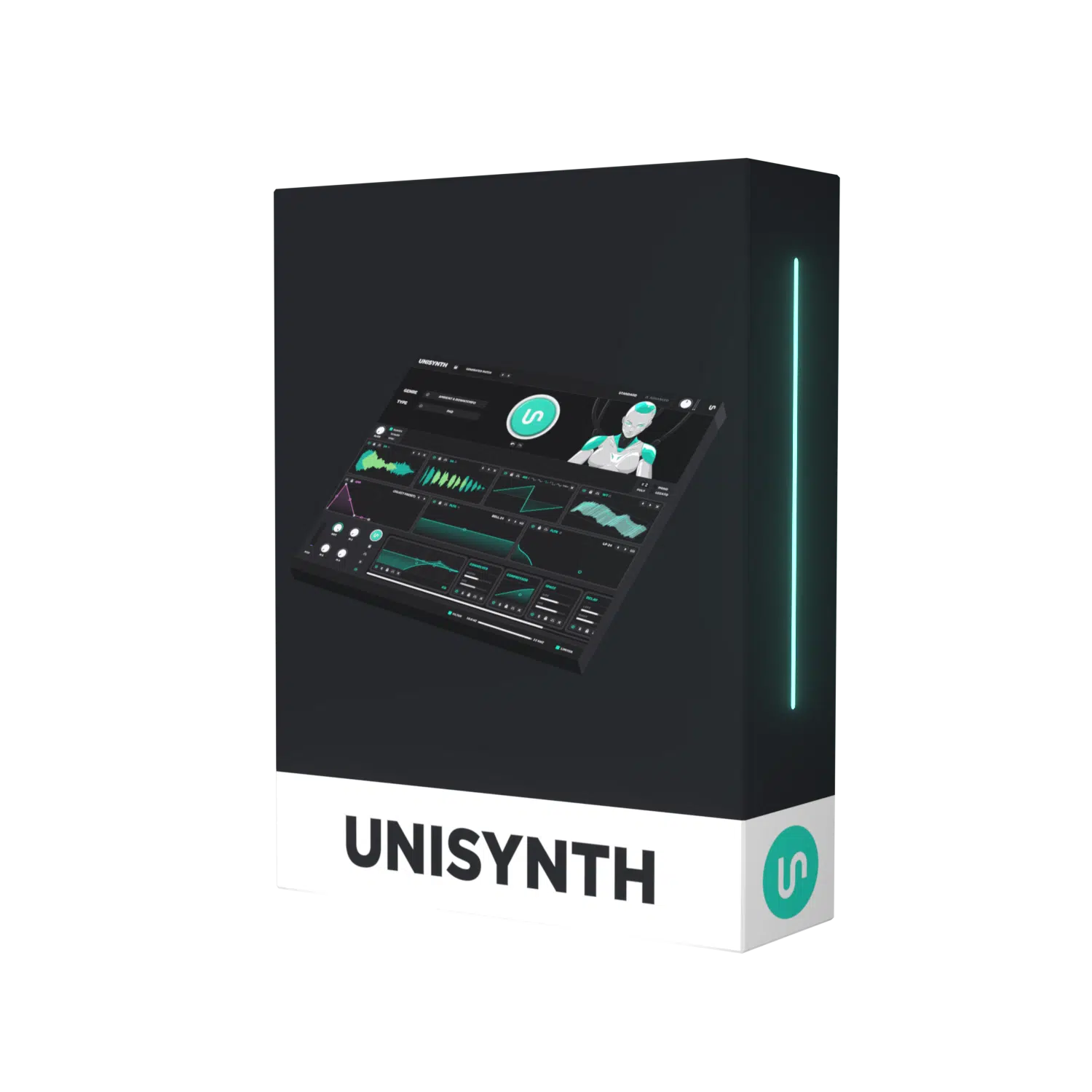
Unisynth is the most game-changing AI synth plugin in the entire world 一 already known in the industry as “the new standard.”
With it, you can do everything from generating epic sounds (in 32 genres) to using Advanced View to push all the limits of sound design as a whole.
It has 4 oscillator types and 95 filter types, a powerful modulation system, and a full FX section with free signal flow.
As well as 25 effect modules that lets you generate, shape and finish sounds without ever leaving the synth itself in minutes with no experience required.
And in today’s article, I’m going to be breaking down some awesome Unisynth tricks (part two) to help you take things to the next level, like:
- Standard View vs. Advanced View ✓
- Picking the right oscillator engine ✓
- Cleaner layering and routing ✓
- Better tuning and trigger moves ✓
- Smarter sampler workflow ✓
- More musical wavetable control ✓
- Filter shaping with intention ✓
- Modulation without the confusion ✓
- FX chains that sound finished ✓
- Lock, bypass, solo, and mute tricks ✓
- Faster workflow tweaks ✓
- So much more ✓
After today’s Unisynth tricks and tips, you’ll see even more of the things that make Unisynth the greatest of all time and learn how to master them.
You’ll be able to choose the right engine faster and successfully build cleaner, tighter, more intentional presets from the ground up (like a true professional).
Plus, you’ll know when to stay in Standard View, when to go deeper in Advanced View, and how to shape modulation, filters, layering, and FX like never before.
So if you’re ready to get crazy with sound design like never before, let’s dive in.
Table of Contents
- Unisynth Tricks (Pt. 2): Breaking it Down
- Taking Advantage of the 4 Core Oscillators: Choosing the Right Oscillator Engine For the Job
- Cleaner Layering Through Tuning, Trigger, Pan, Level, and Routing
- Better Sampler Workflow Inside Unisynth
- Getting The Most Out of Wavetables
- Filter Moves That Make Presets Feel Intentional Instead of Random
- Modulation Madness (Creativity Without Craziness)
- FX Chains That Sound Designed, Not Just Generated
- Bonus Unisynth Tips: Lock, Bypass, Solo, and Mute
- Unisynth Tricks: Final Thoughts
Unisynth Tricks (Pt. 2): Breaking it Down
The longer you spend with this revolutionary AI synth, the more you realize the smartest moves are not always the deepest ones. A lot of the best Unison Tricks come from knowing when to stay in the fast lane, trust your ears, and keep the creative momentum going. Let’s kick things off by breaking down two essential sections and what they’re used for: Standard View vs. Advanced View.
Standard View Isn’t so ‘Standard’
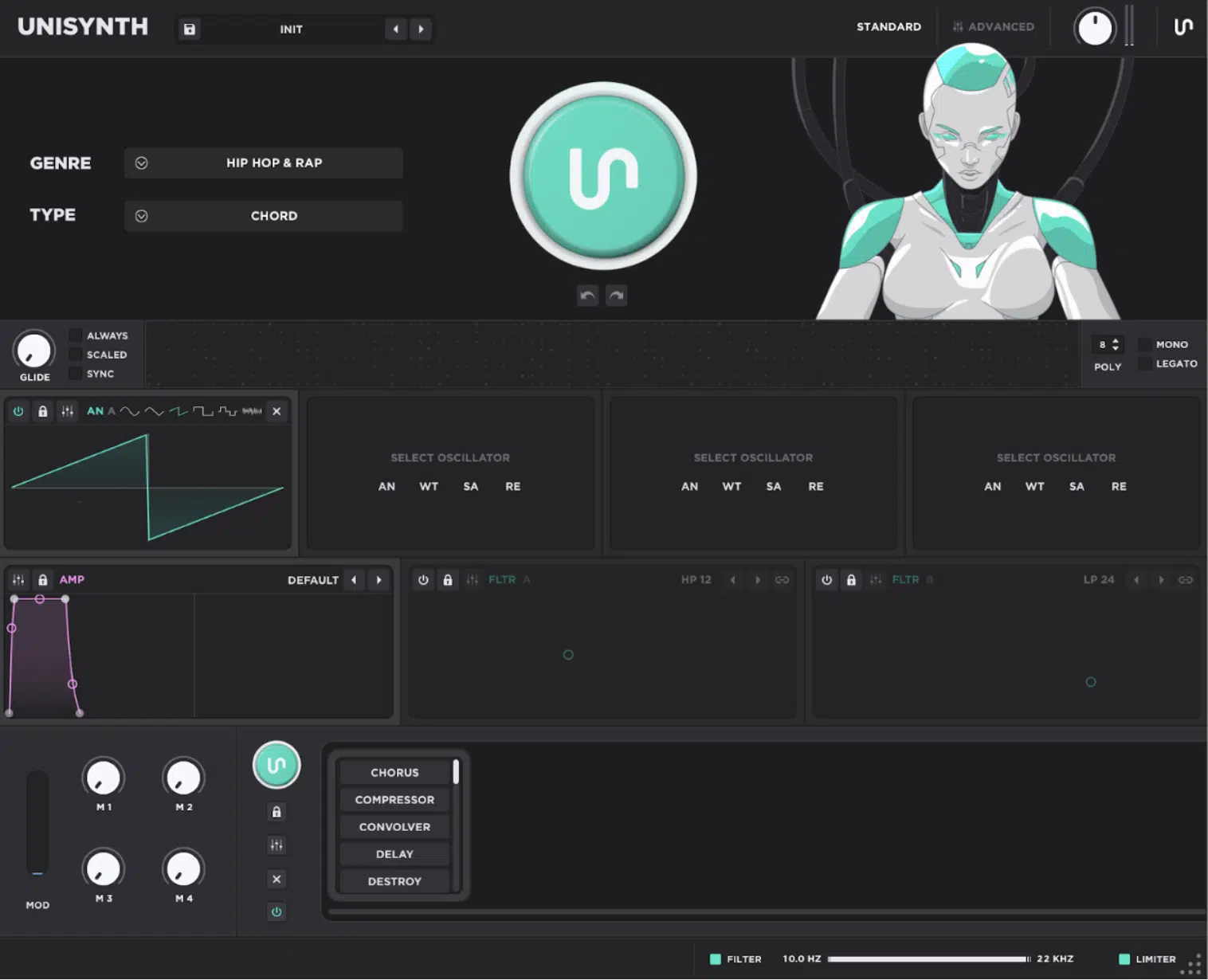
Standard View inside of Unisynth works best when you think of it as a sort of fast sketchpad 一 not a watered-down or limited interface. Just with a slightly different purpose, process, intention and workflow, of course.
The whole page is built around three unique zones:
#1. Generator Panel
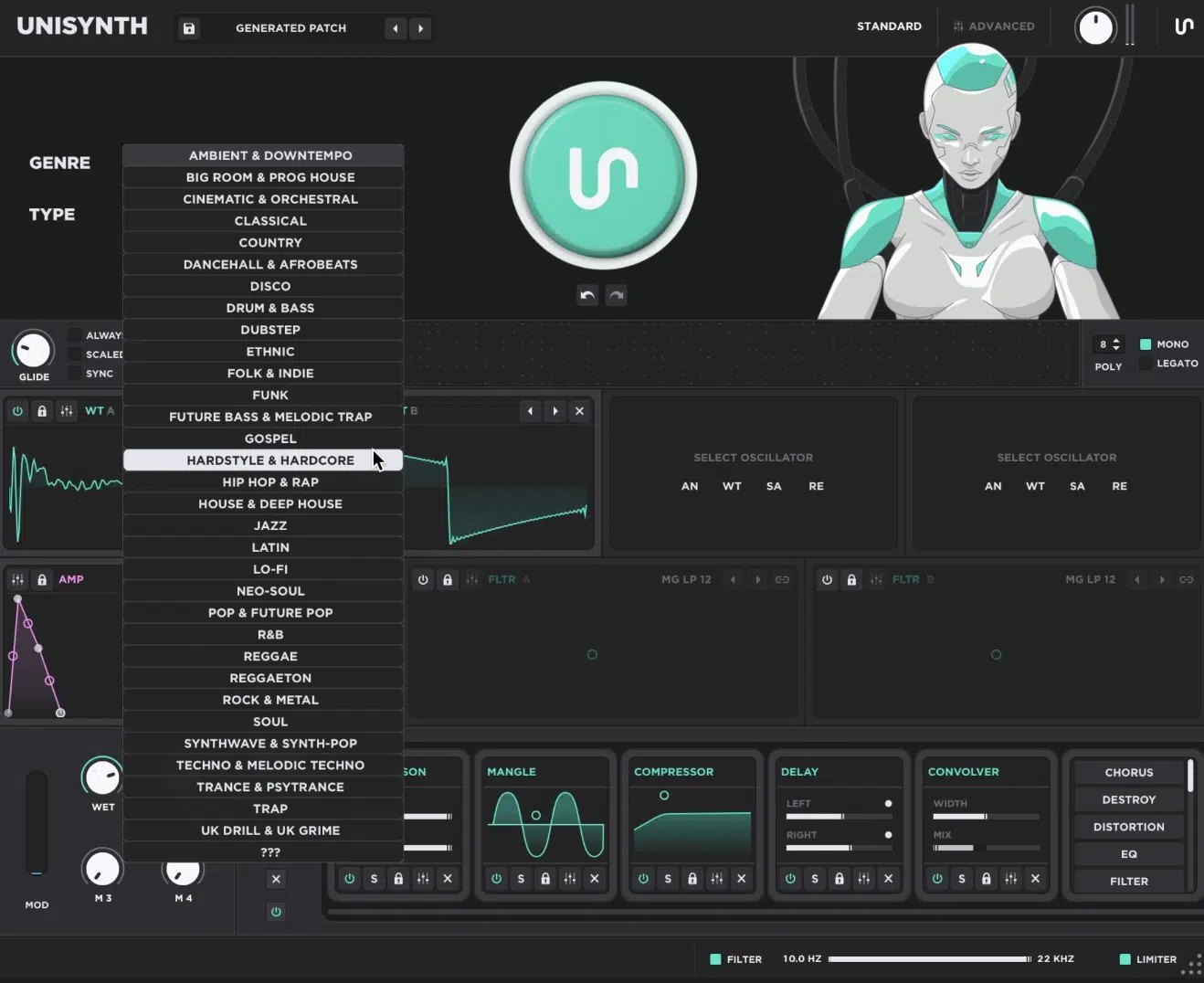
The Generator Panel handles Genre and Type, the main Patch Generator, and Undo/Redo. Here, you can easily move through directions without rebuilding from zero every time, which is pretty much a lifesaver.
#2. Synth Panel
Next up you have the Synth Panel, which keeps the general sound-shaping pieces in view, including simplified Glide and Voicing, the four oscillator slots, the AMP envelope, and the two primary filters.
#3. The FX Panel
And last but not, the FX Panel gives you the FX-Chain Generator, the current chain, the Mod Wheel, and four macros, while the preset selector, view switcher, output, global filters, and limiter stay within easy reach around the edges. This is the view to stay in when you need direction fast and do not want the idea to get away from you while you are staring at tiny controls.
Also, like we broke down in yesterday’s article, remember that you can choose from 32 genres and 6 sound types.
Simply generate a few options and you’ll feel instant inspiration, whether that’s a darker trap bass, a more open house chord, or a softer ambient pad (dealer’s choice).
Then you have the interactive XY pads, which are a big part of what makes it feel musical, expressive, and performative.
This is because the four oscillators, AMP envelope, and two filters all respond to click-and-drag moves directly on your interface.
So, say goodbye to aimless menu-diving or working with finicky traditional XY pads.
And like we’ll break down in the following section, on Analog and Wavetable engines, those pads can push things like warp amount, pulse width, or wavetable position.
Sampler and Resonator use their XY control for more source-specific moves like filter cutoff, fine tune, resonator brightness, and detune amount.
Let’s say your sound is already close, but just not quite there yet…
You can simply pull the envelope into a slower swell, darken Filter A, widen the voicing, reshape the oscillator behavior, and, most importantly, increase and alter the harmonic content at the oscillator level without killing your flow.
NOTE: Standard View should never be treated like “just beginner mode,” because I promise even experienced producers/sound designers like myself still use it to audition more ideas in less time, decide which patch is actually worth keeping, and only open the deeper pages once the sound has proven itself worthy.
Advanced View
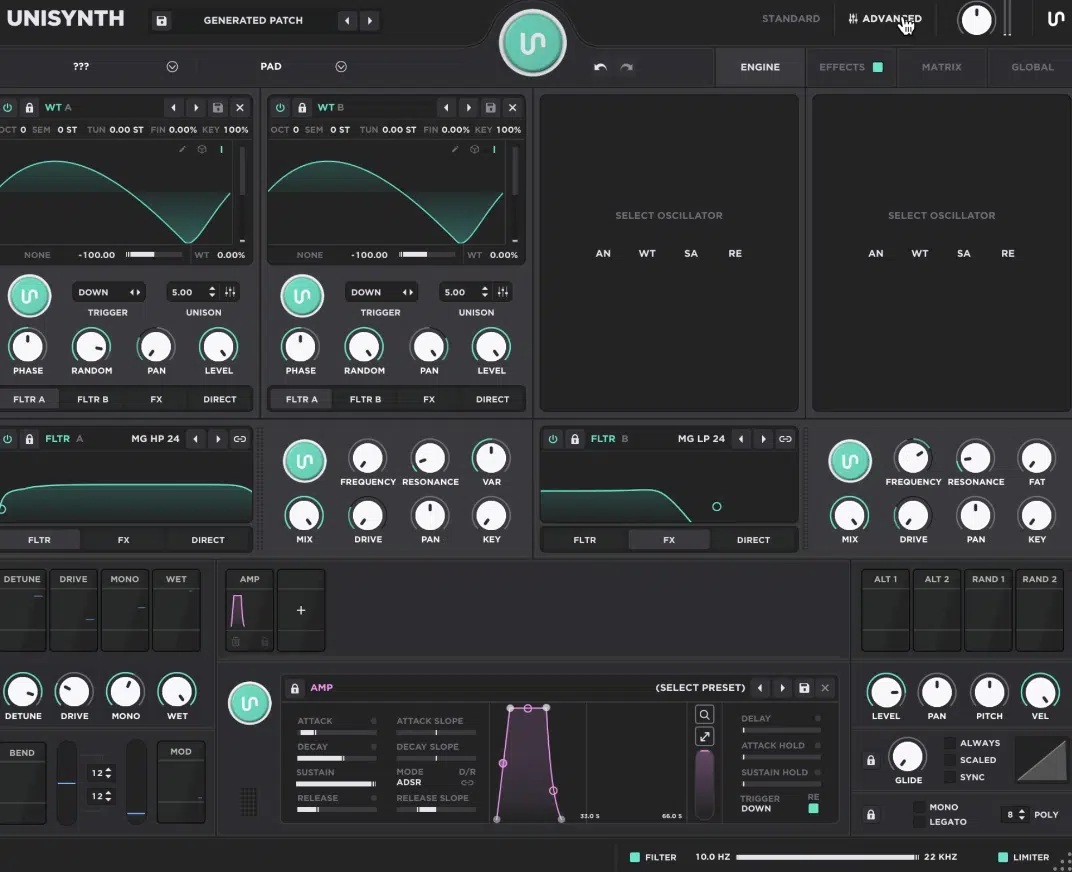
Advanced View is not a different synth hiding behind a button; it exposes literally every aspect of what is going on behind the curtain.
Once you switch over:
- The top half gives you four tabs Engine, Effects, Matrix, and Global.
- The bottom half keeps the Modulator Panel visible the whole time, so your modulation sources never disappear while you work.
The Engine tab keeps the same four oscillator slots and two filter slots you saw in Standard View, only now each section opens into much deeper controls.
You’ll be able to check out every engine’s parameters and their mini-generators for virtually every aspect of the Unisynth.
They’re responsible for the generative aspect of the synth as a whole 一 all 80 generators get triggered globally when you hit the main preset regenerator button.
In Advanced View, fine-tuned regeneration control is right at your fingertips!
So if a bass already feels close but needs a release-only layer, tighter trigger behavior, more exact routing, or a more deliberate unison setup, this is where you twerk it.
In the Engine tab, you can move past broad XY shaping and start making exact decisions, like setting a saw to 4 or 5 unison voices.
Then, opening the unison settings to dial something like 20% detune and 50% spread or pulling Filter A down to around 300 Hz before adding just a little LFO motion.
And said note, any time you see the settings icon shown below in any area of Unisynth (an icon that looks like three faders) it means there is an additional view that opens up even more parameters.
For example, the advanced unison options page, which gives you full control over every aspect of the unison engine.
In the Wavetable engine you’ll find the insanely advanced Wavetable Editor.
This is perfect for things like when your wavetable’s harmonic spectrum is almost perfect but the actual frame content still needs work.
That could mean rearranging the existing tables so you can travel a different path of harmonic spectra when modulating wavetable position.
It could also mean doing intense processing, adding or modifying the harmonics of the existing frames in the table itself with a super extensive list of processing options.
You’ll even have the ability to create freehand tables for a few frames (or the entire thing, dealer’s choice).
Think of it as being just as deep on the surface as Serum’s editor, but even better…
I know that sounds impossible, but check out this Unisynth vs Serum article for yourself if you don’t believe me.
Then the Effects tab gives you the full FX chain with full control over all 24 effects, plus:
- Effect presets
- Chain presets
- Collapsing
- Expanding
- Reordering
- Soloing
- Bypassing
- Swapping modules
And usually in this case, the page would end up getting crazy, but not with Unisynth.
Next up is the Matrix tab, which displays, organizes, and gives you access to every modulation and the full scope of additional settings in one place.
It’s ideal for when you want to sort by source, destination, or amount, see what is really moving the patch, modify the mod curves, set AUX mod sources, etc.
Then we have the Global tab, handling choices like internal sample rate, sound engine quality, default wavetable view, user preferences, and more.
When the issue is less “tone” and more “how the entire synth is behaving,” it’s absolutely perfect.
You start fast in Standard View, then open Advanced when the patch deserves more precision, deeper modulation, fuller FX control, or broader system-level shaping.
That connected workflow is part of Unisynth’s unique design, and the little settings or fader icons all over Standard View make that very clear.
They’re not decoration in the slightest, because clicking one beside an oscillator jumps straight to the Engine tab for that module, and clicking one beside an effect like Reverb opens the FX tab already focused on that processor.
PRO TIP: Those settings buttons are one of the biggest time savers in the entire plugin.
Once you start using them as direct Unisynth tricks/shortcuts instead of manually switching views and hunting for the right page, the workflow feels like one continuous instrument instead of two separate workspaces.
Taking Advantage of the 4 Core Oscillators: Choosing the Right Oscillator Engine For the Job
Once you’re a pro at moving between the fast and deep views, the next question is what you should actually build with. A lot of the most useful Unisynth Tricks start at the oscillator level because the engine you choose already decides a huge part of the patch’s weight, motion, and texture before filters or FX even enter the picture. So before you start layering on the fly, let’s break down the four core oscillator types and what each one is best at.
Analog for Classic Synth Emulation & Familiar Vintage Types
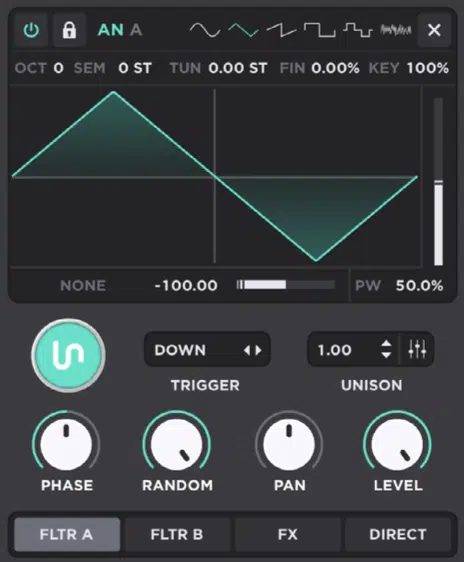
Analog is the quickest choice when you want that traditional waveform synthesis vibe, because it starts from five classic, analog-emulated and modeled basic wave shapes.
Plus it also has a few not-so-basic options and white noise, instead of frames, samples, or physical modeling.
It’s a super solid choice for subs, steady basses, simple plucks, and warm pad layers.
Wherever the harmonic job needs to stay clear and stable, while still carrying a little classic, traditional synthesizer layout.
That familiar foundation still has more range than you might expect once you start shaping the wave itself.
Also, make sure to keep in mind that Pulse Width behaves differently depending on the wave, so Triangle can skew toward a saw-like shape.
Square and pulse, on the other hand, move into that classic PWM (pulse width modulation) territory that all the older synths are known for.
But the beauty is, Unisynth doesn’t stop there… It takes things beyond a normal vintage oscillator by adding pre-unison wave-shaping warp modes like:
- Sync
- Quantize
- Bend
- Squeeze
- PWM
- Flip
- Mirror
They can all make one simple saw sound much sharper while altering the scope of the harmonic content being generated.
And, affecting the wave to make it wider, narrower, or more aggressive before any filter touches it (think of the possibilities).
It also lets other oscillators act as modulation sources for FM, PM, RM, and AM.
For example, a clean analog layer can suddenly pick up more bite, sidebands, or metallic detail without losing its basic foundation.
So when you need a bass that stays centered and trustworthy in the low end, or a chord layer that still feels warm after 4 or 5 unison voices, Analog is usually the smartest first move.
Bottom line, if you already know the oscillator at hand will be static, with no wavetable modulation 一 selecting Analog is more often than not your best bet.
Wavetable for Movement, Edge, and Modern Digital Tone
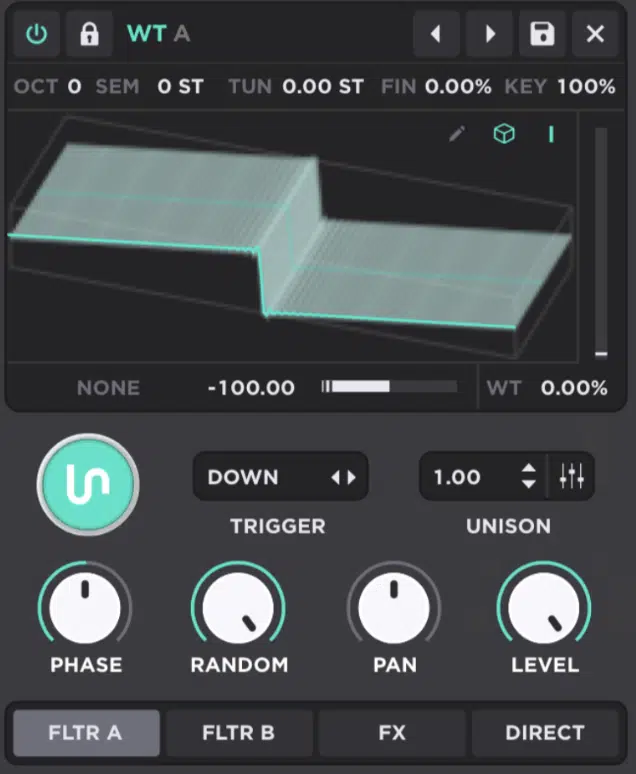
Next up we have Wavetable, which is the engine to grab when you want the harmonic spectra itself to keep changing.
This is because each table is a collection of single-cycle frames that can be scanned/modulated using any modulator available (but usually an LFO) as opposed to just one fixed waveform.
On the daily, the Table control picks the overall harmonic flavor first, while WT Position moves through the slices inside that table and changes the tone as it’s modulated and the note sustains.
You can view that motion in 2D or 3D, and that choice is more about readability than eye candy…
Some producers read a flatter 2D shape faster while others like seeing the stacked depth of 3D which gives you invaluable information as to what it’ll sound like.
Once you start sweeping the WT position, the sound can move from hollow to bright to raspy inside one held note.
This is exactly why Wavetable works so well for sharper leads, glassy plucks, and modern basses that need to evolve over 4 or 8 bars.
Interpolation plays a huge role as well, because it smooths the transition between neighboring frames 一 with it on, the motion feels fluid and polished, and with it off, the same sweep becomes more stepped, crunchy, and deliberately digital and glitchy.
While Analog is usually about stability and warm, deep, familiar shapes, Wavetable is where spectral evolution, edge, and built-in movement really start to take over.
Sampler for Realism, Transients, and Custom Source Material
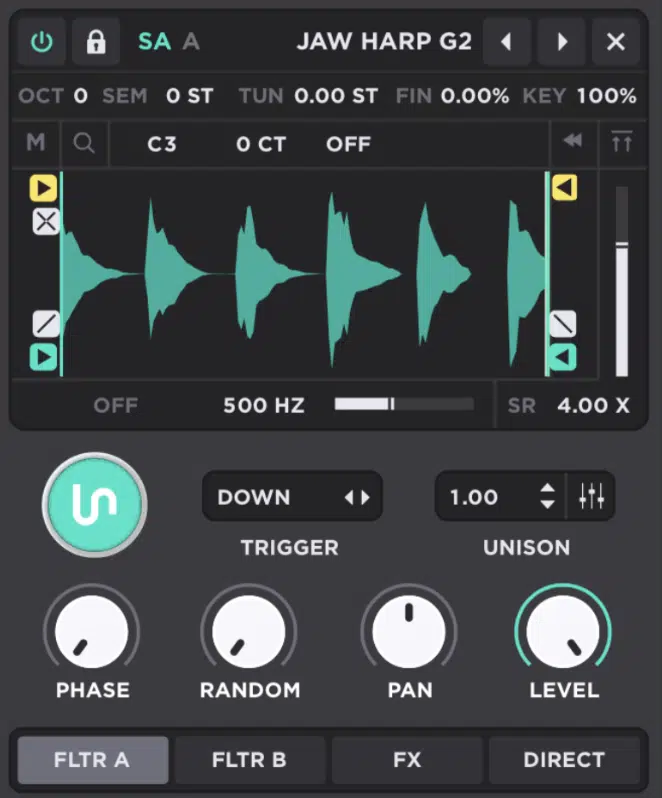
Then we have Sampler, which is where Unisynth turns real audio into raw sound-design material 一 no limits here!
You don’t have to just work with generated waves when a recording can get you to the result almost instantly and with true reliability.
Once your file is loaded:
- Root sets the sample’s pitch
- Detune lets you nudge it into tune
- Key decides how faithfully that sample follows, and is keytracked to the keyboard from note to note
That Key control is a sleeper feature, because leaving it at 100% makes the sample track normally, while pulling it to 0% keeps a transient, click, breath, or attack layer identical on every key.
This is absolutely perfect for percussive or drum sounds, or when using an attack layer or foley/found-sound sample on top of (or somewhere within) a patch.
From there, Playback Start and End shape and set the front/back markers of the sample.
Then you have Loop Start, Loop End, Fades, and Crossfade, which let you turn a short recording into a cleaner sustained layer without obvious clicks.
And, not to mention, with proper sustain looping as well.
NOTE: The loop modes give you even more control, since Looping repeats forward, Ping Pong bounces between the points, Sustain keeps looping until note-off, and Sustain PP does the same thing with that forward-backward motion.
Then, once you add Reverse, Normalize, sample-rate reduction, or the built-in LPF and HPF, a custom field recording, vocal snippet, or jaw harp hit, things get even better.
They can actually work as a realistic layer on their own or as an exciter for the Resonator when you want something even stranger and/or more unique.
Resonator for Physical-model Style Character & Unusual Tones
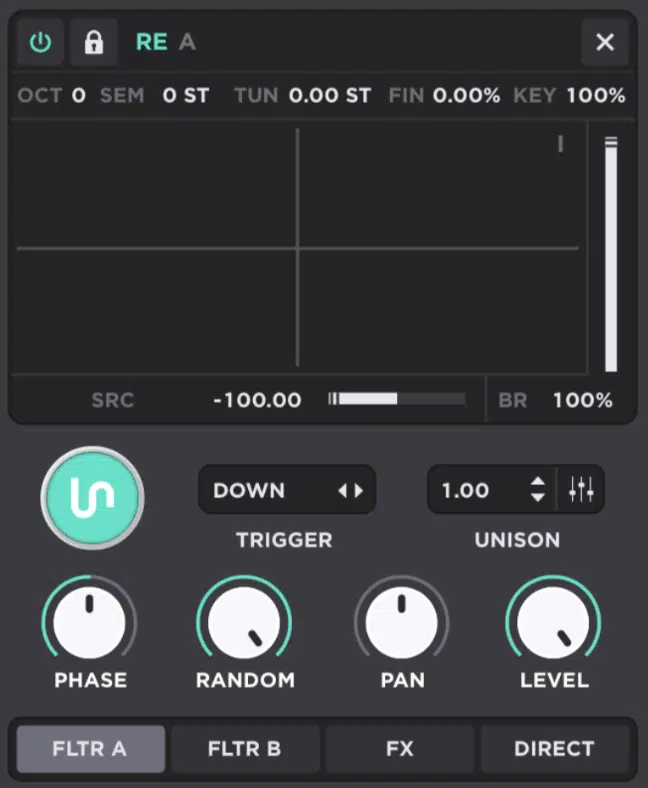
I like to think of the Resonator as a specialist rather than a standard oscillator because it generates tones that are not possible with traditional synthesis oscillator types.
It is technically considered physical modeling synthesis, and is more obscure, harder to find, and sometimes considered more complex and harder to work with.
This is because it needs another oscillator to excite it before it really does anything useful at all.
For those who don’t really have sound design experience, it’s probably a tad difficult to understand and wrap your head around…
However, once you get the basic concept down, it’s pretty simple (and fun) to create mind-blowing timbres and realistic sounds.
First, you’re going to choose a source which is the incoming oscillator feeding it.
That exciter can be anything, and any oscillator type 一 from noise to a short sampler burst to another pitched synth layer.
Just keep in mind that very short attack samples with very fast to no attack, quick decay, and no sustain usually perform best.
Second, once that signal hits the engine, the Resonator does not simply replay it back.
Instead, it creates a feedback loop that turns those incoming frequencies into new tones with a physical-model style response.
This can help you synthesize organic, acoustic, and percussive timbres, and makes more realistic reproductions possible.
That is why short, bright exciters usually work best here.
That is especially true when you want plucked string behavior, woody knocks, metallic taps, or other tones that sit halfway between acoustic and synthetic.
Third, you’re going to mess around with the Excitation Level that controls how hard the resonator is being hit.
Brightness shifts the result from darker and more muted to sharper and more ringing, so even a small move can change the entire character.
Resonator really stands apart from the other three engines because it is less about foundations or playback and more about transforming one sound into a more unusual instrument.
NOTE: Don’t forget about the XY option on the oscillator screen.
The Resonator is one of the best places to use it and automate it for the most unique and hypnotically evolving results.
Cleaner Layering Through Tuning, Trigger, Pan, Level, and Routing
Now that you understand the four engines Unisynth has to offer, the next step is making them work together in harmony without stepping all over each other. Some of the best Unison Tricks come from simple choices here, like who handles the sub, who adds the attack, who owns the width, and who should stay almost invisible. So before you keep stacking oscillators just to make the patch bigger, let’s break down the tuning, trigger, pan, level, and routing moves that make layered presets feel cleaner, more believable, and far more intentional.
Oct, Semi, Tune, Fine, and Key for Tighter Layers
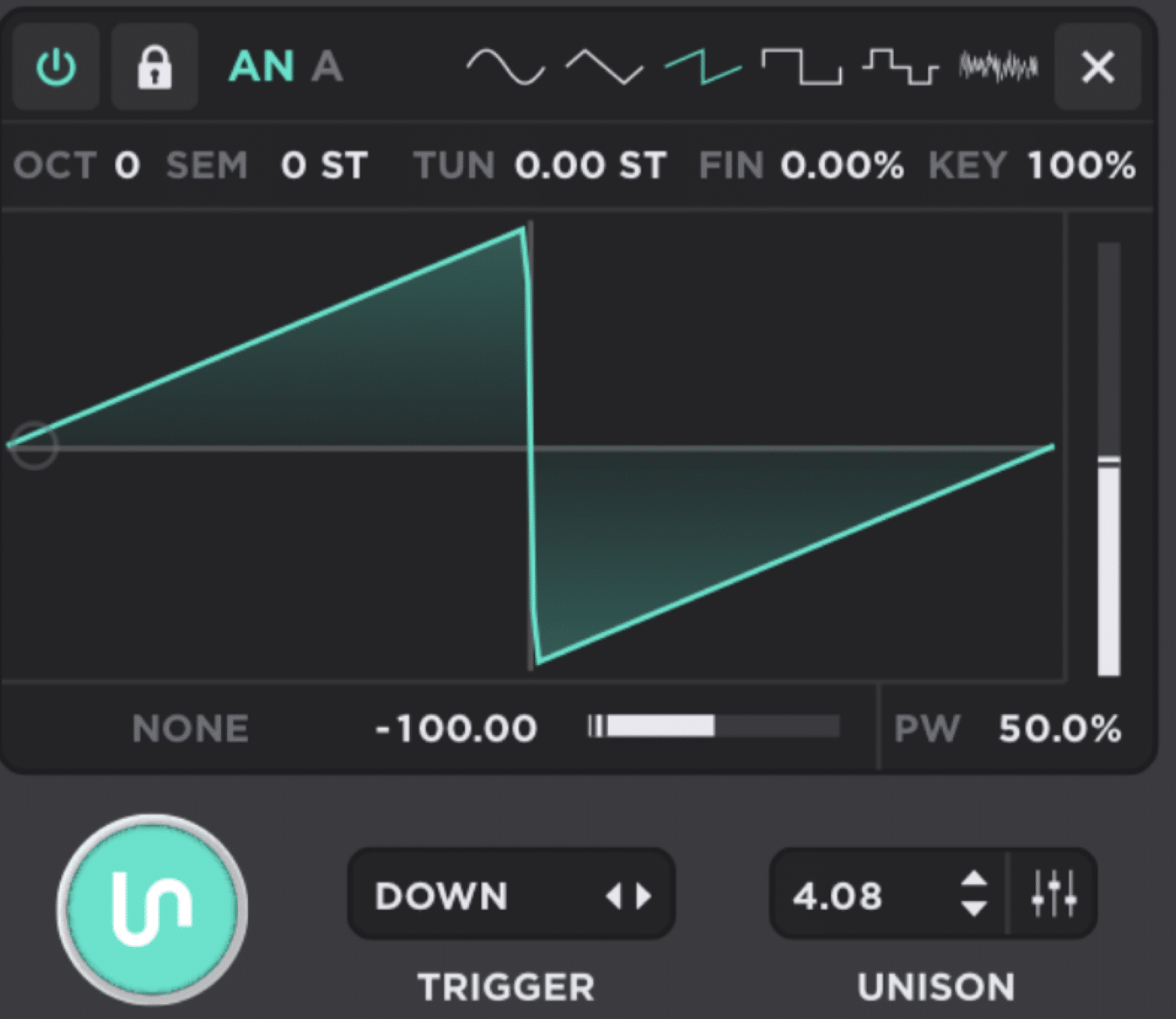
Tuning is usually the first place a layered patch either tightens up or falls apart, and in Unisynth, you’ll have to know that:
- Oct moves an oscillator by full octaves
- Semi handles semitone jumps
- Tune handles the broader pitch offset
- Fine gives you ultra-small correction within a ±1-semitone range
- Key controls how closely that layer follows the keyboard
The easiest way to remember these controls is to stop thinking of them as generic pitch settings and start assigning them separate jobs for separate layers.
What I suggest you try out first is using Oct and Semi to split jobs 一 like keeping one oscillator at 0 for the body, pushing another +12 for air.
Or, moving a character layer to +7 when you want a built-in fifth instead of a plain unison stack.
Even a small interval choice here can decide whether the patch feels open and professional or just stacked for the sake of it.
Fine is where realism starts showing up, because a few cents of offset can make doubled layers feel wider and less sterile.
However, zeroing it out keeps subs, plucks, and bass cores more solid in the center.
Key is just as important though, since 100% gives you normal tracking across the keyboard, but 0% holds the oscillator at one frequency no matter which MIDI note you play.
This is perfect for fixed attacks, noisy clicks, and transient-style layers.
Once you start using those controls as job-assignment tools instead of generic tuning knobs, your layers stop feeling lazily stacked and start sounding like each oscillator was put there on purpose.
Trigger Modes for Changing How Layers Musically Respond
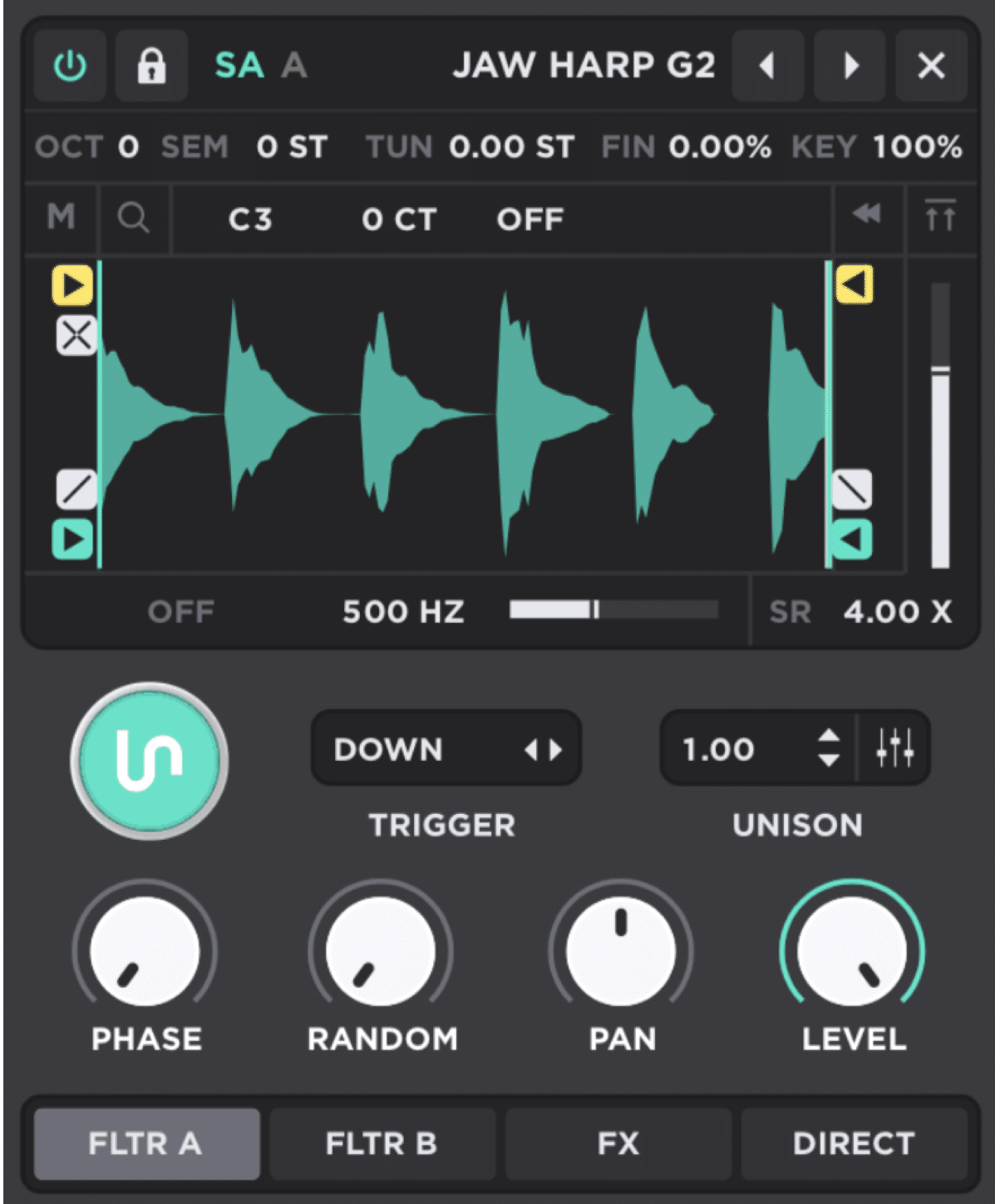
Trigger modes are easy to overlook, but they can completely change how a layer behaves in a phrase and you’ll need them for a bunch of these Unisynth tricks.
The wrong trigger choice can make a great sound feel cluttered, overactive, or oddly timed, so don’t underestimate them.
Down is the normal one, since the oscillator fires the moment you press a key, so it’s great for body layers, attacks, and anything that needs to speak right at note-on.
In other words, this is the one to reach for when you want the layer to behave in the most familiar and immediate way.
Up does the opposite and waits for note release 一 perfect for little lift-offs like airy tails, reverse-style swells, or a soft noise puff that only appears when the phrase ends.
It works especially well on supporting layers that should only show up at the edges of a phrase instead of all the way through it, so keep that in mind as well.
First is great when you want one layer to mark the start of a chord or legato phrase, because it only triggers on the first held note and then waits until every note is released before resetting.
It’s a great way to add one clear front-end accent without retriggering the same detail every time another note gets added.
Last works in a more unusual way, since it triggers only when the final active note is released.
So, if you’re working with phrase-ending textures that would sound messy if they fired on every note, you’ll definitely want to play around with it .
It can give the end of a line a more polished finish so everything doesn’t sound boring and the same (nobody wants that).
Then Down/Up gives you both behaviors at once…
So, one oscillator can add an initial hit and a release detail in the same performance, which is a slick move when you want a patch to feel more played than programmed.
Once you start treating trigger modes like phrasing weapons instead of hidden settings, your layers start feeling a lot more intentional, expressive, and alive.
Pan and Level for Instant Separation
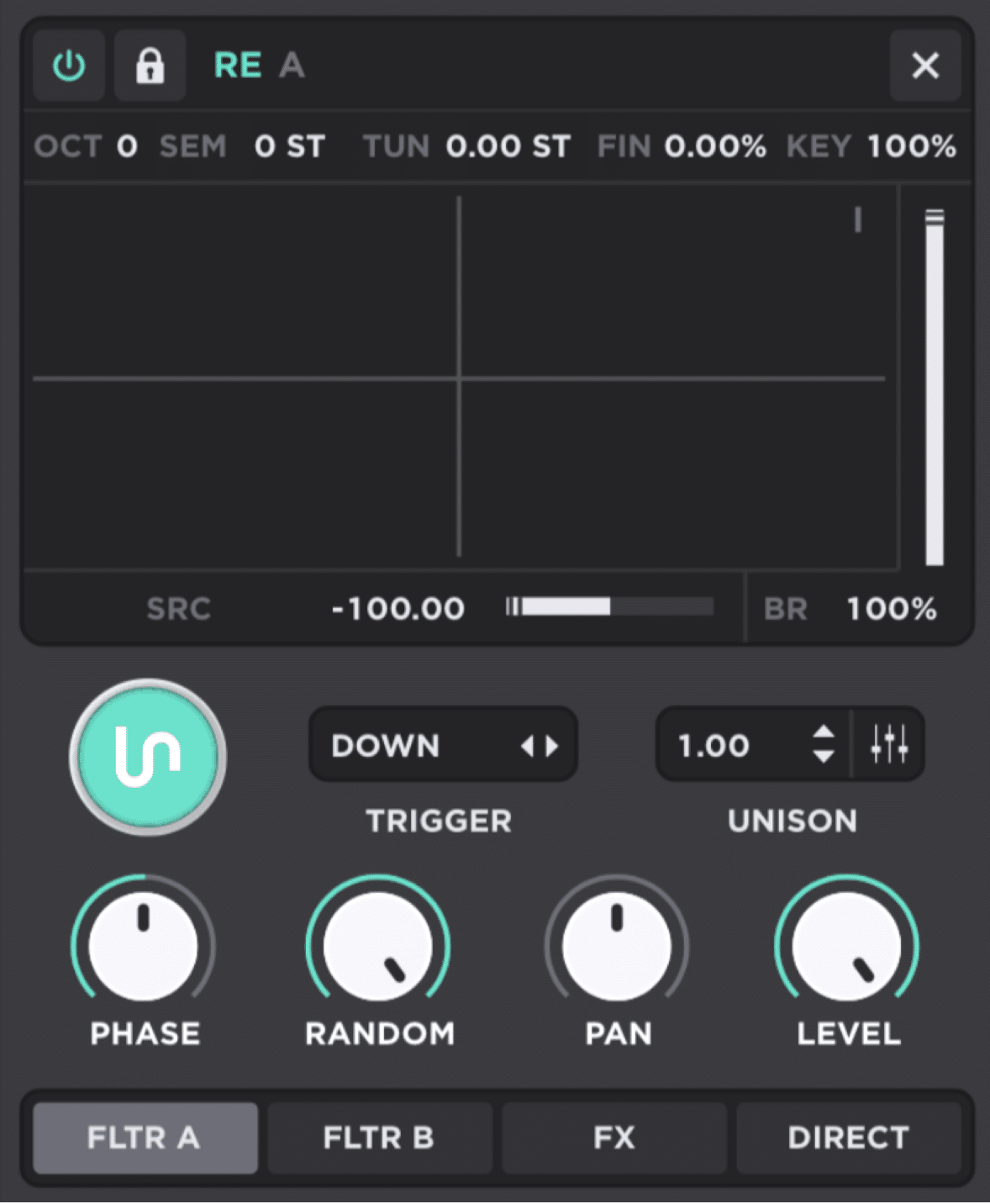
Moving on, let’s talk about Pan and Level, which are two of the fastest ways to clean up a stacked preset.
And trust me, they matter more than you might think because separation typically needs to happen before the effects chain starts making everything feel bigger…
But not with Pan and Level 一 they work even before any chorus, width, or reverb gets involved, which is pretty damn cool.
Instead of trying to “fix” the patch later, you can start organizing it right at the source.
For example, if one oscillator is carrying the low-end body, keep it near the center and slightly louder.
Then, let a brighter helper layer sit a little lower in level and off to one side so the patch stops reading like one blurry block.
That one move alone can make a layered sound feel less like a pile of random, unorganized parts and more like a professional arrangement.
For instance:
- A sub or main bass layer might stay dead center
- A midrange texture could lean 10 to 15 points left
- A thin air layer could sit 10 to 15 points right
This will already give your listener’s ear three different/unique places to grab onto.
And once each layer has its own place, the patch will start sounding wider and clearer without actually becoming busier.
The same thing applies when it comes to gain balance as well, because a noisy top layer rarely needs to be as loud as the oscillator doing the real harmonic work…
Pulling it down even 2 or 3 dB can suddenly make the whole preset feel more expensive.
In fact, in a lot of cases, that tiny level adjustment is the difference between a layer adding extra polish and a layer that’s just getting in the way.
NOTE: This is where manual width starts becoming useful, since carefully panning doubled layers apart can create a sick psychoacoustic stereo effect. Meaning, the ear hears more space and separation even before dedicated stereo FX are added.
That is a great trick when you want the patch to feel bigger, but still want to stay in control of what is actually creating that width.
All-in-all, if a patch feels crowded, don’t just assume you need more processing yet, because a few simple pan and level moves often solve the problem much faster.
Filter A, Filter B, FX, and Direct Routing Choices

Routing is where layering stops being simple stacking and starts becoming actual sound design (each destination changes what happens to that oscillator next).
That’s why routing decisions can change the entire identity of a preset, even when the oscillator settings themselves don’t change at all.
- Filter A 一 Sends the signal into the first primary filter, which is useful when that layer needs one specific cutoff shape.
- Filter B 一 Sends it into the second filter when you want a different tonal treatment running at the same time.
So, right away you’re not just choosing a destination, you’re choosing a completely different shaping path for that unique layer.
FX skips both filters and goes straight to the effects chain…
It’s definitely the way to go for layers that don’t need extra filtering but do need space, saturation, width, or motion from the back end (sounds right at the source, just needs some finishing treatment).
Then you have Direct, which bypasses both filters and the entire FX section.
It’s hands down the cleanest path in Unisynth and immediately changes how stable that particular layer feels.
It lets that oscillator keep its weight, clarity, and raw character without any extra processing getting in the way.
And once you hear how much cleaner that sounds, it gets a lot easier to start giving each oscillator its own job.
This could be like sending a warm analog body into Filter A, a brighter wavetable edge into Filter B, and a noisy texture straight to FX so each layer gets its own path instead of fighting for the same one.
You’ll get a patch that feels wider, clearer, and easier to mix because each layer is being asked to do one specific job (smooth as butter).
NOTE: When one destination is not enough, Option-click-and-drag turns the routing bar into a mixer, so you can send an oscillator to multiple places in different proportions and build way more controlled blends!
That is a huge advantage when you want one oscillator to stay partly clean while also feeding a filtered or effected version somewhere else.
Using Direct Routing for Subs & Cleaner Foundations
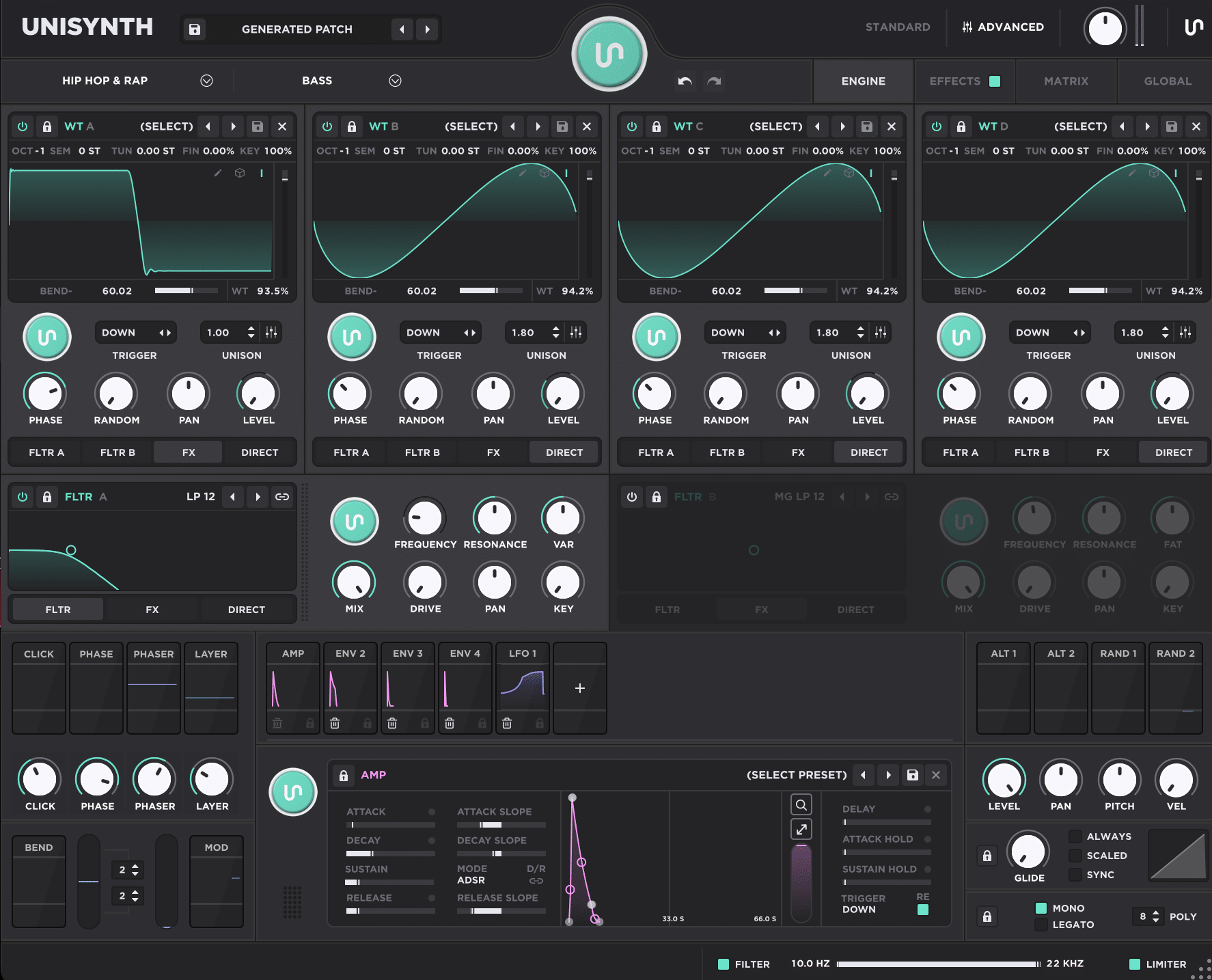
Direct routing is one of the simplest ways to keep a preset solid, especially when the lowest layer is already doing its job and doesn’t need extra shaping.
That’s usually the case with subs, clean sine foundations, or any layer that is there to hold the center of the sound together rather than draw attention to itself.
Because Direct bypasses both primary filters and the whole FX chain, a sine, triangle, or other clean foundation can stay focused.
It won’t get softened by reverb, widened by modulation, or destabilized by distortion.
So let’s say Oscillator 1 is handling the pure low-end weight… Direct lets it stay clean while the more colorful layers do the flashy stuff elsewhere.
And with subs, even a great top layer can start hurting the mix if the low end is being smeared by effects it never needed in the first place.
For example, a patch can sound massive in solo because the reverb, chorus, and distortion make everything feel bigger.
However once the kick and bassline meet in the full track, that same low end can start feeling cloudy and less reliable.
You could, for instance, send your sub oscillator Direct 一 then letting the brighter or more character-heavy layers go through Filter A, Filter B, or FX.
This keeps the weight in the center while the personality happens above it.
That kind of split works wonders on layered basses, cinematic hits, and even wide chord presets where the bottom needs to stay planted but the upper layers still need movement and color.
And better yet, it’ll translate better in mono too because the fundamental stays clear and stable while the movement lives in the upper layers where the ear is more forgiving.
You’ll be letting the most important part of the patch stay trustworthy while the less crucial layers handle the width, shimmer, grit, or stereo excitement.
So, anytime a patch feels huge in solo but weak in the track, Direct routing is one of the first things worth checking (it’ll bring the foundation back ASAP).
Better Sampler Workflow Inside Unisynth
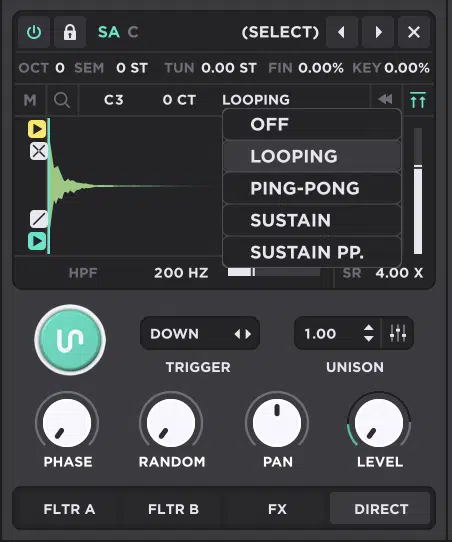
Sampler gets a LOT more powerful once you stop treating it like a simple playback slot and start treating it like a prep stage for raw audio.
I highly suggest that you get the sample behaving correctly first (do the cleanup and setup work before you start throwing modulation, distortion, or reverb at it).
This is because if the pitch, width, attack, and sustain already make sense, every filter, modulator, or effect you add later works a lot better.
And believe me when those basics are off, even a great FX chain usually ends up feeling like it’s covering up a bunch of issues as opposed to improving the sound.
Start with Root, which tells Unisynth what the sample’s original note is, then use Detune for smaller pitch correction so a vocal chop, pluck, kalimba hit, or custom recording actually tracks the keyboard the way you expect.
That alone can save a patch, because even a beautiful sample can feel cheap or “off” if the root note is wrong and starts playing back with the wrong harmonic center.
Right after that, make sure to check Key, which controls keyboard tracking, and Mono mode, which removes stereo information.
A transient layer often works better at 0% Key and in mono, while a playable tonal sample usually wants normal tracking and its original width left intact.
So if you’re layering a click, breath, stick hit, or found-sound attack on top of a synth, you usually want that layer to stay fixed and centered instead of shifting all over the keyboard.
Once the pitch and width feel on point, use Playback Start and Playback End to tighten the articulation.
Remember: moving the start point forward can remove dead air or a noisy front edge, while a small Fade In or Fade Out can smooth clicks without blurring the sound.
For example, trimming just a little off the front of a sampled pluck can make it feel tighter and more immediate, while a tiny fade can stop a looped texture from clicking every time a note starts.
Then the four loop modes start making musical sense:
- Looping is best for steady sustained tones
- Ping-Pong adds a back-and-forth motion that often feels more organic
- Sustain keeps looping only while the note is held and then lets the tail continue
- Sustain PP does the same thing with that forward-backward bounce
A smooth pad or string-like layer might want normal Looping, while Ping-Pong or Sustain PP can make shorter organic material feel less repetitive and more alive.
From there, Loop Start, Loop End, and Crossfade are what turn a short recording into a professional instrument layer.
A tighter loop can create stable sustain, while a slightly longer crossfade can hide the seam and stop the loop from chattering or clicking.
That is super useful on things like vocal textures, bowed sounds, or noisy tonal material where the loop point can get ugly fast if it is not smoothed out the right way.
On top of that, you got Reverse, Normalize, Sample Rate, and the built-in LPF/HPF work, which work like pre-FX character controls.
This is where the Sampler stops being just corrective and starts becoming creative…
You can flip the sample’s full behavior, push the loudest peak to 0 dB, add digital grit through upsampling or downsampling, or shave off unwanted lows or highs.
So a field recording can become a reversed swell and a vocal chop can get cleaner and brighter before it hits the FX chain.
Or, a rough transient can turn into something crunchy and intentionally digital just from sample-rate coloration alone.
All before the sound even hits the rest of the synth.
If you do this, you’re not just loading audio anymore 一 you’re turning raw material into a controlled instrument layer that is already ready to sit in a real patch.
PRO TIP: Whenever a real-world recording, sharp transient, or organic texture will get you to the result faster, use it!
That is one of the best parts of Unisynth, because it works like an open sound-design environment, not a closed preset machine.
Getting The Most Out of Wavetables
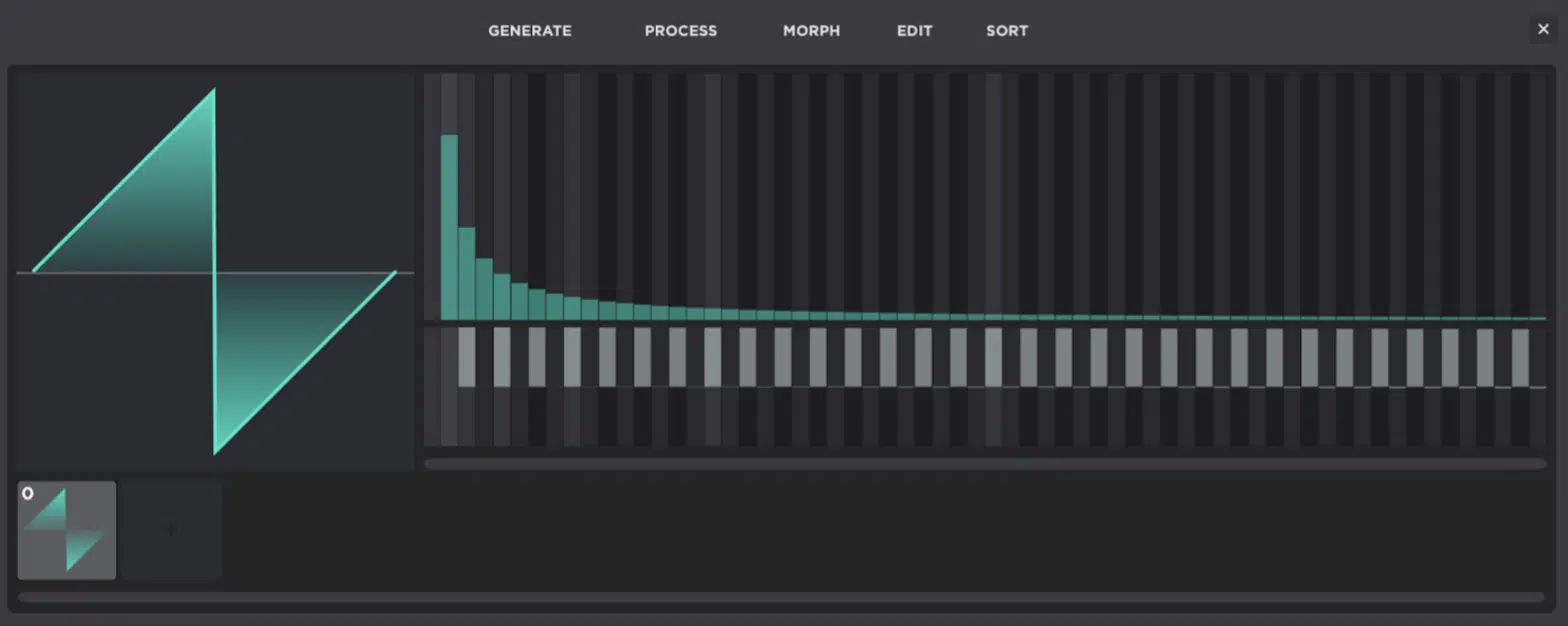
In Unisynth, Wavetable gets a lot easier to control once you stop thinking of it as “the complicated oscillator” and more of a bunch of exciting decisions to be made.
The first one is Table, because choosing the actual wavetable is a major tonal move before modulation, distortion, or filtering ever enter the picture.
And a vocal-like table, metallic table, or smoother harmonic table will each push the patch in a completely different direction from the start.
So before you touch anything else, you’re already deciding whether the patch is going to feel glassy, aggressive, hollow, bright, buzzy, or more rounded.
That tells you a lot about how much of the final sound is already being decided at the source, which I’m sure you know is essential.
After that, the 2D and 3D views are mostly about workflow, not sound…
2D often makes it easier to read one frame shape at a time, while 3D helps you see the broader depth and progression of the table across multiple slices.
That is why neither view is “better” in a sonic sense.
One just might help you work faster depending on whether you want to focus on one frame or understand the bigger movement path across the whole table.
So once the table itself feels right 一 the next thing to think about is how exactly that movement actually behaves.
Then you have Interpolation, which smooths the transition between frames (when it’s on) so a WT sweep feels fluid and polished.
Turning it off makes the same movement step harder from frame to frame and sound more deliberately glitchy and ‘digital.’
That one control is a great example of how the exact same wavetable can feel either clean and refined or more jagged and step-like without changing the table itself.
It’s exactly why WT Position should not be treated like a static tone selector…
Even a slow manual sweep can make one held note evolve from hollow to bright to raspy over a bar or two.
That is where the oscillator starts feeling less like a fixed tone and more like something you can actually perform with.
Once you start hearing it that way, WT Position starts feeling less like a browsing control and more like part of the actual performance of the sound.
Breaking it down, that means:
- A lead can feel more alive with a subtle/deliberate WT position move
- A pad can keep evolving over time without extra FX or filter manuviours
- A bass can start to growl simply by modulating the position of a more aggressive section inside the same table
For example, a held lead might only need a small sweep to stop sounding static, while a pad can slowly move across the table over 4 or 8 bars and feel like it’s naturally opening up on its own.
This is actually where Wavetable starts becoming way more fun to use, as you’re shaping motion, not just choosing tone.
The key is knowing when the main controls are already enough, because if the table is right and you just need a different slice, a smoother transition, or a little more motion, staying in the main WT engine is usually the faster and smarter move.
The dedicated editor comes into play when the problem is deeper than that or you want to manipulate the harmonic content within an existing wavetable .
For instance, when you want to change the spectra of the table itself, the frame content needs reshaping, reordering or you want to get into actual wavetable construction instead of everyday table selection.
It’s the point where you are no longer just choosing or scanning a sound, but actually rebuilding the source material it’s made from.
NOTE: Before you go hunting for deeper surgery, spend more time with the Table at hand, Interpolation, and WT Position first, because those 3 controls already handle a huge amount of real-world wavetable work.
Enhance Your Sound Design Skills in Minutes
Filter Moves That Make Presets Feel Intentional Instead of Random
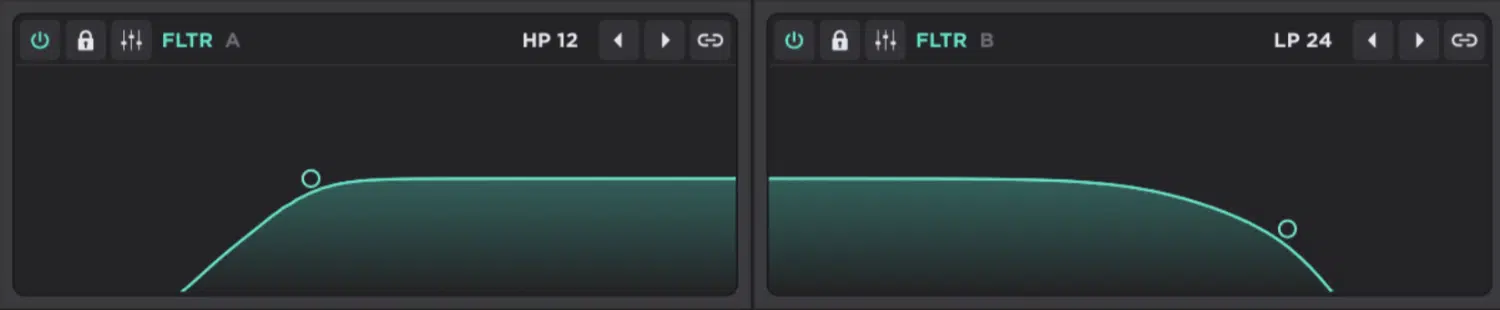
Unisynth gives you 95 filter types, but the trick is not memorizing 95 names 一 it’s learning what kind of tonal behavior each family is generally going to give you.
- Basic low-pass, high-pass, band-pass, notch, shelf, and peak shapes handle most everyday carving
- Comb and phaser-style options add hollow, resonant motion
- Vowel types push things toward mouth-like formants
- Modeled analog sets like Moog ladder, Korg, Oberheim, diode, and half-ladder bring more familiar hardware color
Once you have the right family, Frequency sets the cutoff point, Resonance boosts the edge around that cutoff, and VAR changes a filter-specific behavior.
VAR is super important to pay attention to…
It does something different depending on the filter, which is why it can completely change the personality of the shape you started with.
Even one small move there can turn a plain shape into something with much more character and life.
From there, Link is where things start feeling deliberate, because Filter A and Filter B can move together while still keeping whatever offset they already had.
For example, if Filter A starts at 100 Hz and Filter B starts at 200 Hz, pushing one up by 50 Hz lands them at 150 and 250 instead of collapsing both onto the same number.
It’s absolutely perfect for when you want one filter holding the low-mid body while the other tracks a brighter band above it.
That way, the two filters can stay related to each other without becoming identical, which is exactly what makes the movement feel controlled, not flattened.
And this section is very hands-on as well since the display works like a visual controller…
Instead of only turning knobs, you can actually shape the filter in a way that feels more calculated and precise.
Drag left or right for cutoff, drag up or down for resonance, hold Shift to isolate Frequency, hold Cmd/Ctrl to isolate Resonance, and hold Option when you want to reach VAR on filters that support it.
Side note, the knobs people skip are usually the ones that make a patch feel finished, because Drive adds filter-stage grit and Mix lets you keep some dry signal underneath.
Sometimes the sound does not need more movement or more EQ, it just needs a little extra bite or a little more of the original source left intact.
Also, Pan repositions the filtered result in the stereo field 一 Key decides whether the cutoff follows the keyboard 1:1 at 100% or stays more fixed as you pull it lower.
So even after the filter type is chosen, you’re still deciding how wide it feels, how it tracks across the keyboard, and how polished the final result sounds.
For instance, a lead that feels flat can wake up fast with a touch of Resonance and Drive around a mid cutoff.
On the flip side, a pad often sounds more expensive when Mix is backed off a little and Key tracking is reduced so the top notes do not get too bright.
You could also use that same approach on chords or textures that feel too sharp in the upper register, because lowering Key tracking can stop the filter from opening too much as you play higher notes.
That way, the filter stops being a vague dark-or-bright control and starts acting like a placement tool that decides where the sound sits, how much personality it has, and how consistently it behaves across the keyboard.
PRO TIP: The two synth filters are per-voice filters inside the engine, so every note hits them before the voices are summed together.
The FX filter happens later in the signal path, after those voices are combined.
That means the synth filters shape each note individually, while the FX filter works more like a final-stage tone control on the full combined sound.
It has no keytrack control, so use the synth filters for note-by-note shaping and reach for the FX filter when you want to filter the whole summed sound after distortion, reverb, or other effects.
Modulation Madness (Creativity Without Craziness)
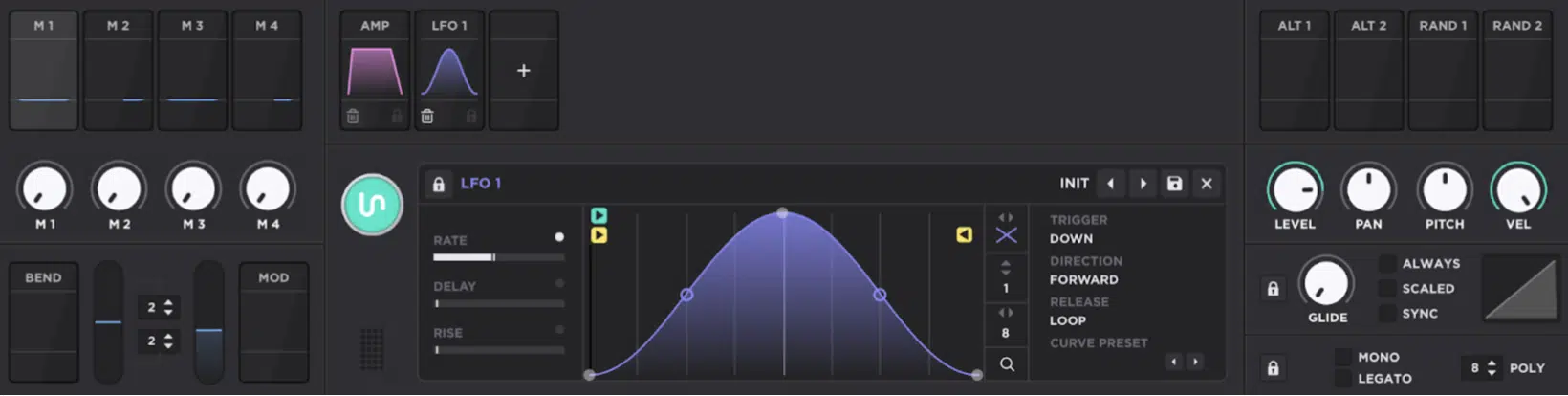
If you’re like me, you love messing around with modulation, and Unisynth’s modulation system is unmatched.
It lets you move fast without making the whole system feel shallow or clunky.
The fastest workflow is drag-and-drop:
- Grab a source from the modulator panel or even the thumbnail box around it
- Watch the valid targets flash that same color
- Drop it onto the parameter you want to move
Instead of digging through menus, you’re basically pointing at the movement you want and placing it exactly where it should go.
Right-click assignment is the cleaner option when you already know the destination, because right-clicking a modulatable control opens its assignment list.
When you already know what needs to move and just want the most direct way to get there, it’s the way to go.
It also highlights anything that is already active and lets you add or remove a source without dragging across the whole interface.
Once routing is in place, hovering the destination reveals floating depth handles.
So, you’ll be able to easily trim the amount on the spot instead of diving into the Matrix every time you want a smaller wobble or a bigger sweep.
From there, choosing the source is up next.
Envelopes are one-shot shapes for plucks, swells, and note-by-note articulation, while LFOs are repeating shapes for tremble, wobble, drift, and rhythmic movement that keeps cycling.
If the motion should happen once per note, an Envelope usually makes the most sense, but if it needs to keep looping underneath the sound, an LFO is usually the better call.
Then you have my absolute fav: Chaos (a little less predictable, but that’s what makes it so fun).
Now, Chaos sits in a different lane since it generates changing random values at the rate you choose, with Step, Line, and Sine modes deciding whether that motion feels abrupt, smoother, or more fluid.
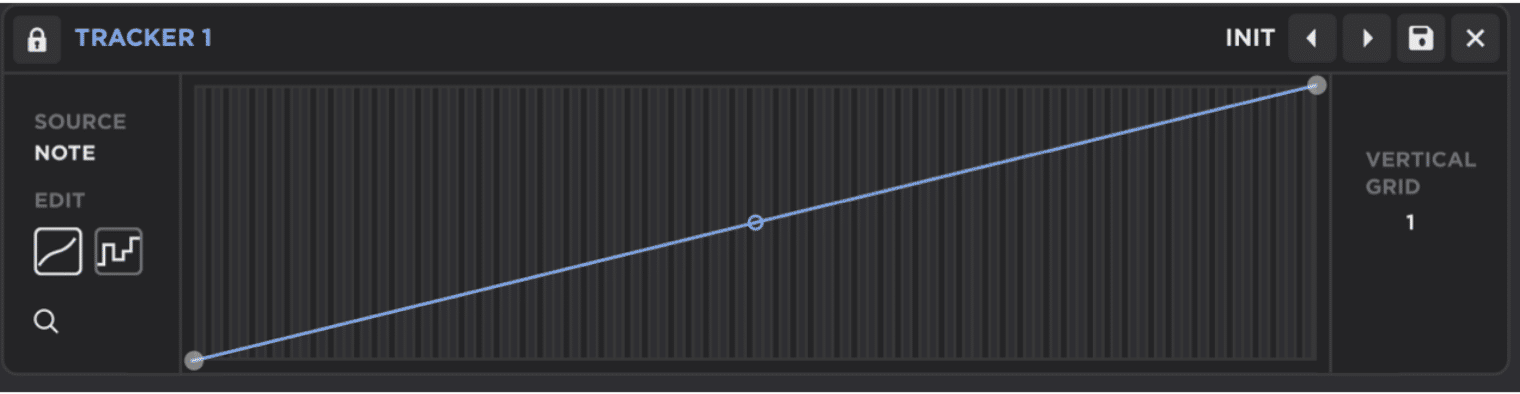
Then you have Trackers which are more about mapping than motion, because they turn note number, velocity, off-velocity, pressure, timbre, or MPE pitch bend into control curves.
It’s perfect when higher notes should get brighter, harder hits should open a filter more, or one key range should behave differently from another.
So rather than just creating movement, Trackers let the patch respond to how you actually play it.
NOTE: Macros, Mod Wheel, Bend, Alt, and Random are where performance starts to feel alive, since a macro can move several controls at once, Bend is bipolar pitch-wheel modulation, the Mod Wheel is unipolar, Alt flips between minimum and maximum states on each note, and Random sends a fresh value every time a note is triggered.
Bottom line, the sweet spot with modulation in Unisynth is the fact it’s fast to assign, easy to control, and deep enough to get seriously creative.
And remember, when each source is doing a specific job, the whole patch will feel more intentional, expressive, and alive.
Floating Modulation-depth Controls
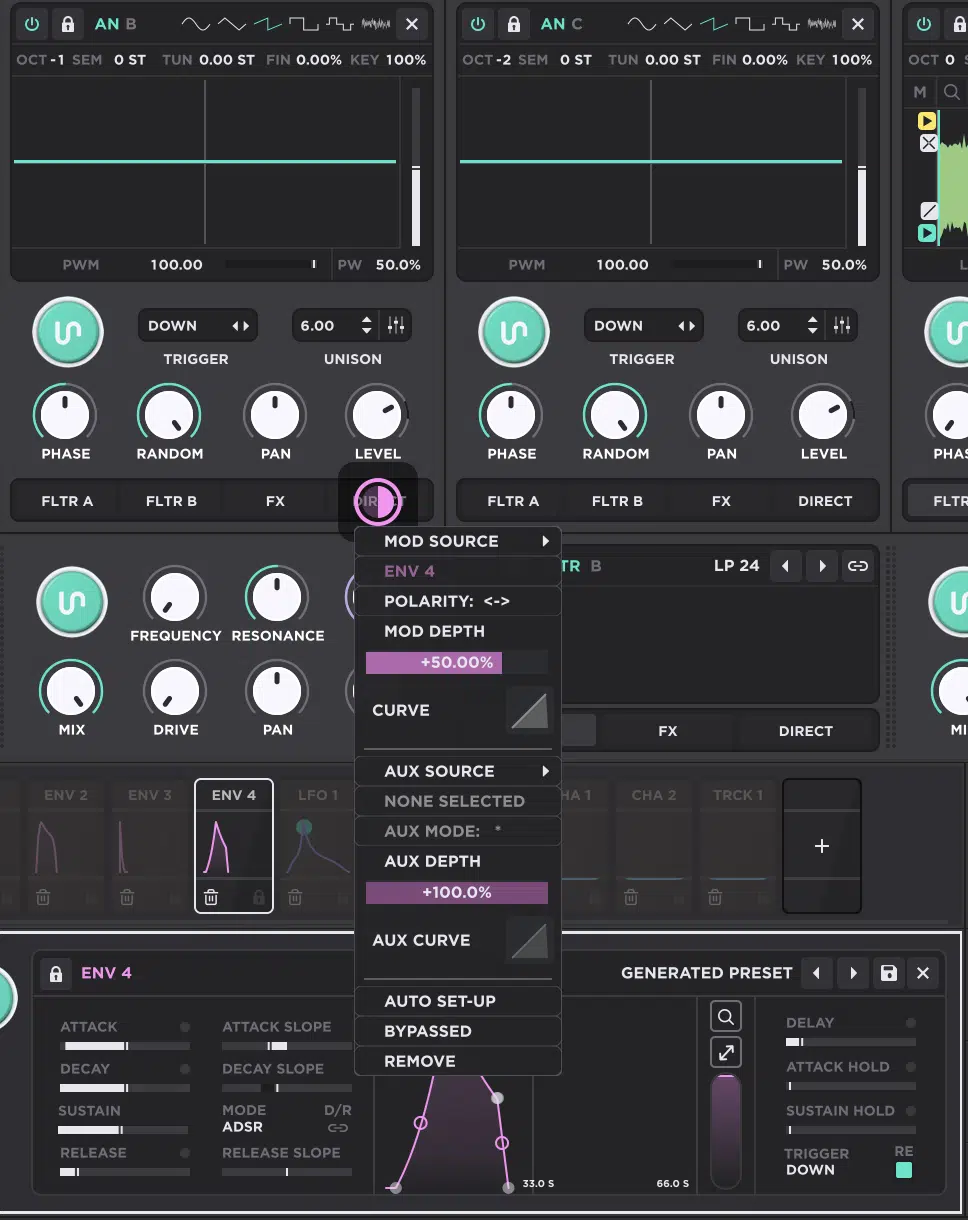
One of the best quality-of-life features in Unisynth is the floating modulation-depth control that appears when you hover over a parameter that is already being modulated.
It is one of those small workflow details that ends up saving a TON of time once a patch starts getting busy (and every second counts when you’re in the groove).
Instead of jumping straight to the Matrix, you can grab that little handle right on the destination and change the amount in place.
It’s much faster when you are just deciding whether the filter should move a little or a lot.
So if you are shaping something by ear (like a filter wobble, wavetable sweep, or macro amount), you can make that call right there without breaking your flow.
If more than one source is hitting the same target, Unisynth shows multiple color-coded depth knobs there; you can tell at a glance which source is doing what.
And trust me, that little detail is important because when two or three modulators start pushing the same control, it can get confusing very quickly.
It’s perfect for denser patches, too…
You can pull an LFO back, push an envelope further, or rebalance macro control against automated motion without losing the page you are on.
For example, if Cutoff is being moved by an LFO, a macro, and an envelope all at once, you can see which one is overdoing it and trim that specific source instead of guessing.
Then, if a routing is not helping anymore, double-clicking the floating control can remove that modulation entirely.
It’s a super clean way to undo one move without digging through menus.
That makes experimentation a lot smoother, because you can try more aggressive movement without worrying that cleanup is going to turn into a chore later.
NOTE: When you do need the deeper stuff, right-clicking that same floating control opens matrix-style options, so the shortcut stays fast when you are sketching ideas but still leads straight into the more surgical controls when the patch calls for them.
The whole feature really gives you the best of both worlds 一 quick tweaks when you are moving fast, and deeper control the second the patch starts needing more precision.
Envelope vs Chaos vs LFO vs Tracker
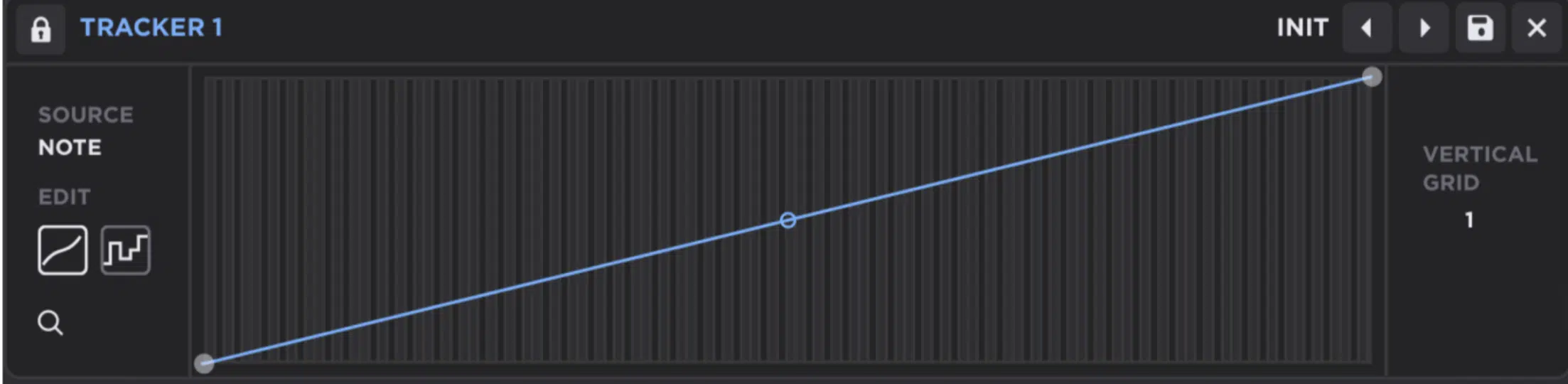
When you are choosing a modulation source in Unisynth, the best question is not “what can move this knob?” but “what kind of behavior do I actually want?”
An Envelope is the right call when the move should happen once per note.
This is because it gives you a defined contour with attack, decay, sustain, and release, plus extra controls like delay, attack hold, and sustain hold.
And even ADR mode when you do not want a true sustain stage.
So if a pluck needs a 20 to 40 ms filter snap, a pad needs a 2 or 3 second fade-in, or a release shimmer should bloom only after note-off, an envelope will usually get there faster than anything else.
An LFO (low-frequency oscillator) makes more sense when the motion needs to repeat, whether that is a synced 1/8 wobble, a free-running vibrato around 2 Hz, or a custom drawn curve that loops through a specific region again and again.
Chaos sits in a different lane, as we touched upon, because it’s built for controlled instability.
Its Step, Line, and Sine modes let you decide whether the randomness feels abrupt, gliding, or smoother.
This is perfect for pitch drift, pan wander, or wavetable motion that should never ever loop the exact same way twice.
Tracker is the smart choice when the patch should react to performance data instead of time, since it can (with either a smooth curve or stepped bins) map:
- Note number
- Velocity
- Off-velocity
- Pressure
- Timbre
- MPE pitch bend
It’s great when harder hits should open the filter more or only the top octave should get brighter.
So, for most cases 一 use Envelopes for one-shot articulation, LFOs for repeating motion, Chaos for evolving unpredictability, and Trackers when the player’s touch or note range should decide what happens.
Macros, Mod Wheel, Bend, Alt & Random
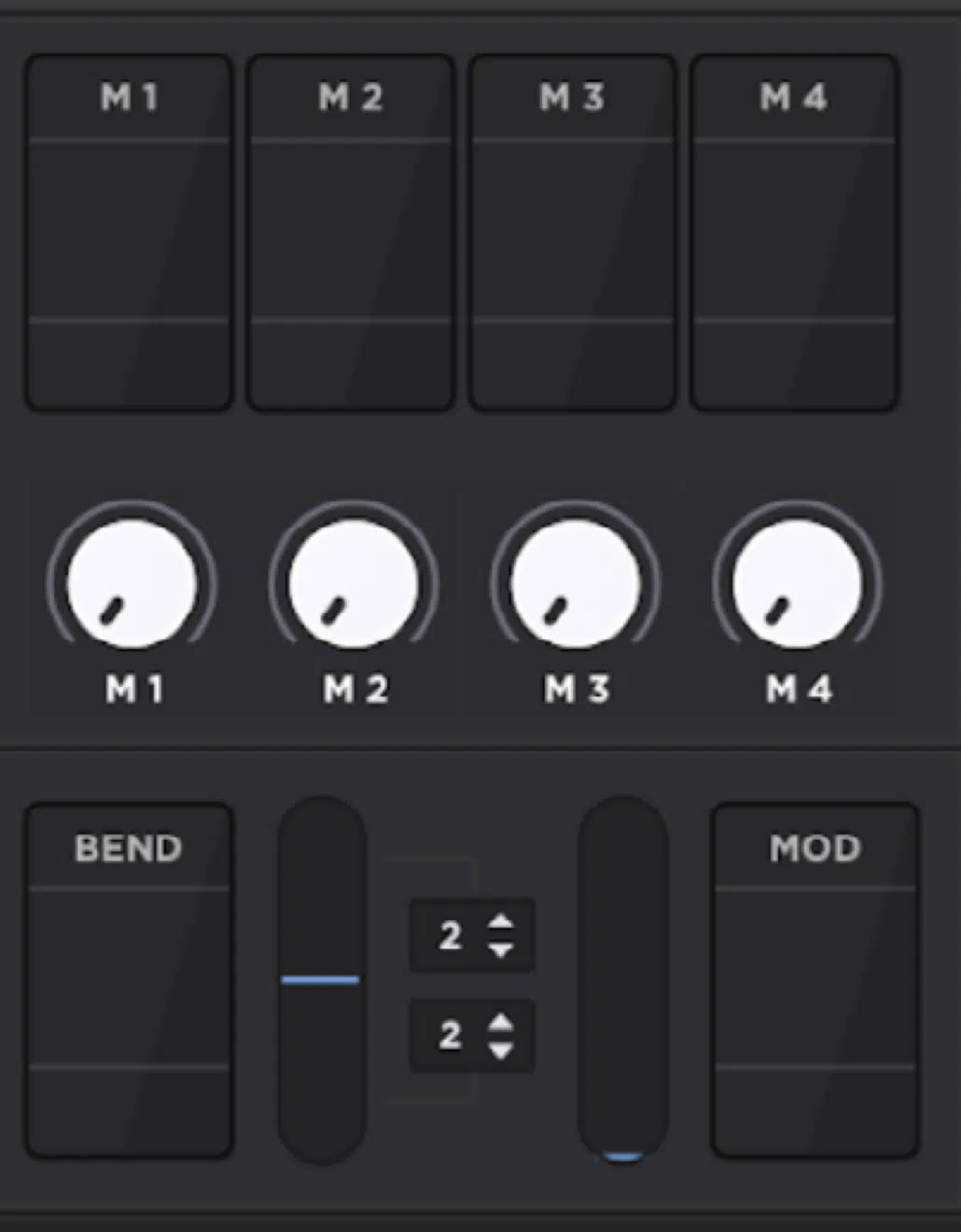
Not every modulation source is there to create constant movement.
In fact, a lot of the most useful ones are really about performance control, playable variation, and quick access.
Macros are the most flexible of the group, because each of the four macro controllers can hit one control or several at once.
Therefore, one knob on screen or on your MIDI controller can open filter cutoff, raise delay mix, and add a touch of drive together instead of making you jump across pages.
They also let you shrink the usable range of a parameter, which is great for when you only want to sweep cutoff between about 100 Hz and 1 kHz.
Or, when you want to push reverb mix from maybe 8% to 22% instead of the full 0 to 100%.
The Mod Wheel is simpler, but it is very musical because it is unipolar, so it works well for bringing in vibrato, brightness, or extra FX intensity as you play.
Bend is bipolar, so it moves above and below center.
This one is a better fit for pitch expression or any move that should swing both ways around a starting point.
Alt 1 and Alt 2 alternate between minimum and maximum states on each new note, with Alt 2 acting as the inverse of Alt 1.
So, when you want every other hit to flip pan position, sample start, or layer level, this is the way to go.
Random 1 and Random 2 send fresh values at each note-on.
It’s a quick way to stop repeated notes from feeling cloned by slightly varying attack brightness, wavetable position, or transient level every time you play.
FX Chains That Sound Designed, Not Just Generated
Unisynth’s FX section is where you’re going to turn a solid patch into something that’s tweaked to perfect.
The FX-Chain Generator is excellent for getting you in the neighborhood fast, especially because it responds to the current Genre and Type…
So if you already know you are working on a trap bass, house chord, ambient pad, or aggressive lead, it can get you close without making you build the whole chain by hand from scratch.
However, the strongest results usually come to play when you generate for direction first and then take over manually.
That is really the sweet spot because the generator gives you momentum, then your ears take over from there.
Once you do that, effect order becomes a real sound design decision, because the chain runs left to right, and a distortion before reverb feels very different from distorting the reverb tail after it has already bloomed.
For example, driving the sound before it hits the reverb usually makes the source itself feel more aggressive 一 while distorting after the reverb can make the tail feel dirtier, bigger, and more dramatic.
The same thing is true with delay and filtering, since a filter before the repeats changes every echo going into the feedback path.
A filter that’s place after/later, on the other hand, shapes the combined result after the motion is already there.
That is why even one simple reorder can completely change the feel of the patch without changing a single oscillator setting.
Advanced View (as we talked about earlier) makes that editing process much easier.
It gives you full control over all 24 effect units, lets you add or swap effects manually, drag them into a new order, and use presets at both the individual effect level and the full-chain level.
So whether you just need to swap one chorus for a phaser or rebuild the whole back half of the chain, you can do it successfully without slowing your workflow down.
Just as importantly, the Collapse and Re-expand controls keep longer chains readable, and the only one effect expanded preference is a big help once the tab starts filling up.
And one of the most important Unisynth tricks is to think in term of roles:
- Delay handles echoes, slap, width, and groove
- Distortion adds bite and harmonic weight
- Dynamics like Compressor or the 3-band OTT control peaks and energy
- Filter or EQ units handle the tone shaping that still needs to happen after the synth engine
Then you have the modulation effects (like Chorus, Flanger, Phaser, Super Unison, Tremolo, and Vibrato) that bring motion and stereo animation.
Spatial effects on the other hand, like Convolver, Reverb, Space, and Panner set depth and environment.
And Utility + Width take care of last-mile fixes like gain staging, mono bass cleanup below a cutoff, channel balance, polarity, or a fast delay-based spread.
For example, a lead that already has enough bite might only need delay and a little space, while a dry pad may need chorus, reverb, and some cleanup before it feels wide/polished.
This way, the FX tab stops being a place where sounds just get “different” and starts becoming the place where they get organized, polished, and finished on purpose.
PRO TIP: If a patch already has a strong oscillator and filter identity, be careful not to blur it with six more layers of width, modulation, saturation, and reverb just because the slots are available.
A shorter chain with one clear job per effect usually keeps the sound’s personality more intact than a huge chain where every processor is competing for attention.
Bonus Unisynth Tips: Lock, Bypass, Solo, and Mute
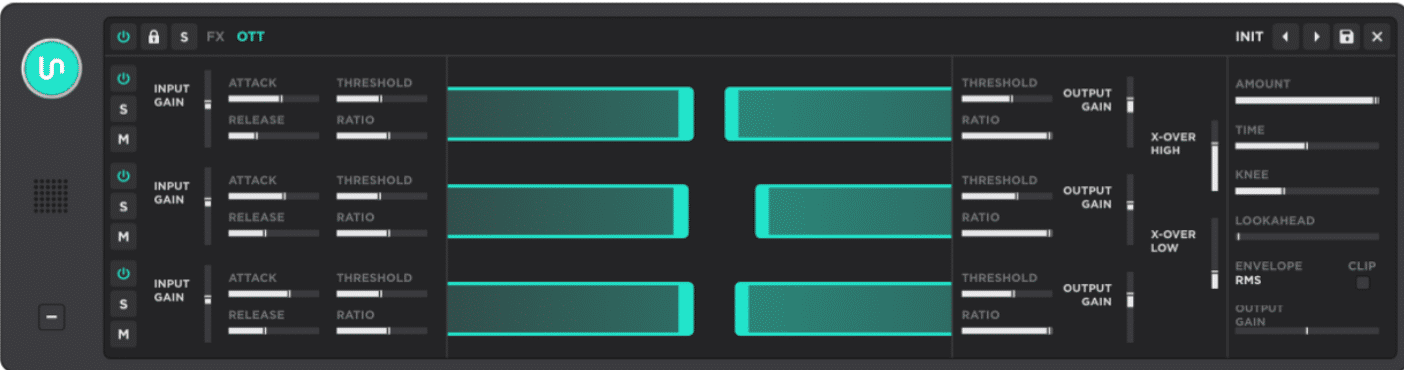
Lock, bypass, solo, and mute controls might look small, but they’re some of the smartest tools in Unisynth when you want to:
- Protect what already works
- Troubleshoot a messy patch
- Study why a generated sound feels so good
Locks are the first thing to reach for once one part of the sound is already right.
This is because oscillators, the amp envelope, the primary filters, the full FX chain, and even individual effects can all be locked so the generators stop changing them while the rest of the preset keeps evolving.
That makes iteration a lot cleaner.
For example, if Oscillator A already nails the midrange body and Filter B is shaping the top end the right way, you can lock both, regenerate around them, and audition ten new directions without losing the core of the patch.
Bypass is the next diagnostic move, and it helps to think in levels…
Bypassing one oscillator or one effect tells you what that single module contributes, while bypassing the entire FX section or shutting off a whole filter stage gives you a much clearer before-and-after of the broader signal path.
Solo goes even further, believe it or not, because soloing an effect temporarily bypasses the rest of the chain and lets you hear exactly what that processor is adding.
Whether that’s a delay creating groove, a chorus adding width, or a distortion supplying the bite you thought was coming from somewhere else, you’ll hear it all.
Mute, on the other hand, is valuable in places where frequency or layer isolation matters, and the OTT effect is the best example since each of its three bands has its own power, solo, and mute controls.
This makes it super easy to hear whether the harshness is really in the top band, the boxiness is living in the middle, or the low band is simply being over-pushed.
These aren’t just on/off buttons 一 they’re collaborative tools that let you freeze the good parts, remove one layer at a time, and hear the patch in slices instead of as one big finished sound.
For example, you can lock the oscillator or filter you want to keep and bypass the entire FX tab, then bring effects back one by one and solo the suspicious ones,
That will usually tell you within 20 or 30 seconds whether the magic is in the engine, the processing, or the interaction between both.
And once you get used to using lock, bypass, solo, and mute together, saved presets and generated patches stop feeling mysterious and start feeling readable, which sets up a much deeper reverse-engineering mindset for the advanced stage later on.
Unisynth Tricks: Final Thoughts
Bottom line, Unisynth isn’t just powerful because it can generate insane sounds fast with its revolutionary AI engine, but because it gives you ultimate control and freedom.
You can sketch ideas quickly in Standard View, go deep in Advanced View when the patch deserves it, and shape everything from oscillator choice to routing, modulation, filtering, and FX with way more intention.
It doesn’t box you into one workflow, sound, or level of complexity 一 it covers all aspects, for all levels.
So whether you’re after cleaner layers, more expressive motion, tighter low end, or more polished presets, these Unisynth tricks will seriously help.
And if you haven’t already, make sure to download the #1 AI synth plugin in the world: Unisynth.
Until next time…
Enhance Your Sound Design Skills Like a Pro



Leave a Reply
You must belogged in to post a comment.