




Unisynth is already insane when it comes to generating genre-specific sounds fast, that’s a no-brainer.
But once you open up the wavetable editor and start building waveforms with harmonics by hand, things get absolutely crazy.
You’ll be able to shape the source itself from the ground up — controlling the harmonic content, changing the phase alignment and balancing the spectrum.
Plus learning exactly why certain waveforms come out smooth, bright, hollow, sharp, buzzy, or super rich, which is a huge advantage.
Most producers never really get this far because they simply load a wavetable synth, flip through a few stock shapes, maybe automate the position knob, and call it a day.
That won’t be you though, because in today’s article I’ll be breaking down everything you need to know about creating waveforms in Unisynth like a professional.
I’ll be covering everything you need to know, like:
- What the FFT editor actually is ✓
- The words/definitions you’ll need to know ✓
- How to start with the fundamental the right way ✓
- How to add harmonics for more texture ✓
- Odd vs even harmonics ✓
- How to shape the spectrum so it stays balanced ✓
- What the phase row really does ✓
- The fastest Generate and Process shortcuts ✓
- How to turn one frame into a moving wavetable ✓
- 5 Bonus tips to get better results faster ✓
- So much more ✓
So by the end, you’ll be able to build waveforms like an absolute boss and know exactly how to work inside the FFT editor.
You’ll be able to build cleaner sounds, more custom sounds, and way more intentional sounds from scratch inside of Unisynth.
Plus have a much better feel for how to make the wavetable position sweep sound smooth, musical, and actually worth modulating.
By the end, you’ll understand waveforms on a much deeper level instead of just memorizing what a saw, square, or triangle is supposed to sound like.
Let’s get right down to it…
Table of Contents
- Unisynth: The #1 AI Genre-Specific Generative Synth Plugin Ever
- Building Waveforms with Harmonics In Unisynth (The Perks!)
- Creating Waveforms in Unisynth: Step-by-Step
- Step 1: Load a WT Oscillator, Open the Wavetable Editor & Start With One Frame
- Step 2: Understand the FFT Editor Before You Start Drawing Harmonics
- Step 3: Start With the Fundamental to Create a Base Wave
- Step 4: Add More Harmonics to Reshape the Wave and Increase Texture
- Step 5: Use Odd and Even Harmonics on Purpose (No More Guessing!)
- Step 6: Shape the Spectrum So the Wave Feels Balanced, Not Harsh
- Step 7: Edit the Phase Row to Change the Wave’s Shape Without Rebuilding the Spectrum
- Step 8: Use Generate and Process Tools to Speed Up the Workflow Without Losing Control
- Step 9: Expand From One Frame Into a Real Wavetable With Movement
- Bonus Wavetable Tips & Tricks
- #1: Use One Frame as a “Reference Tone” Before You Build a Full Table
- #2: Use Set Slope and Balance Odd-Even Before You Start Redrawing Everything by Hand
- #3: Keep the Top Row and Bottom Row Mentally Separate
- #4: Create Contrast Across Frames, Not Chaos
- #5: Study Familiar Shapes by Rebuilding Them From the Fundamental Up
- Final Thoughts
Unisynth: The #1 AI Genre-Specific Generative Synth Plugin Ever
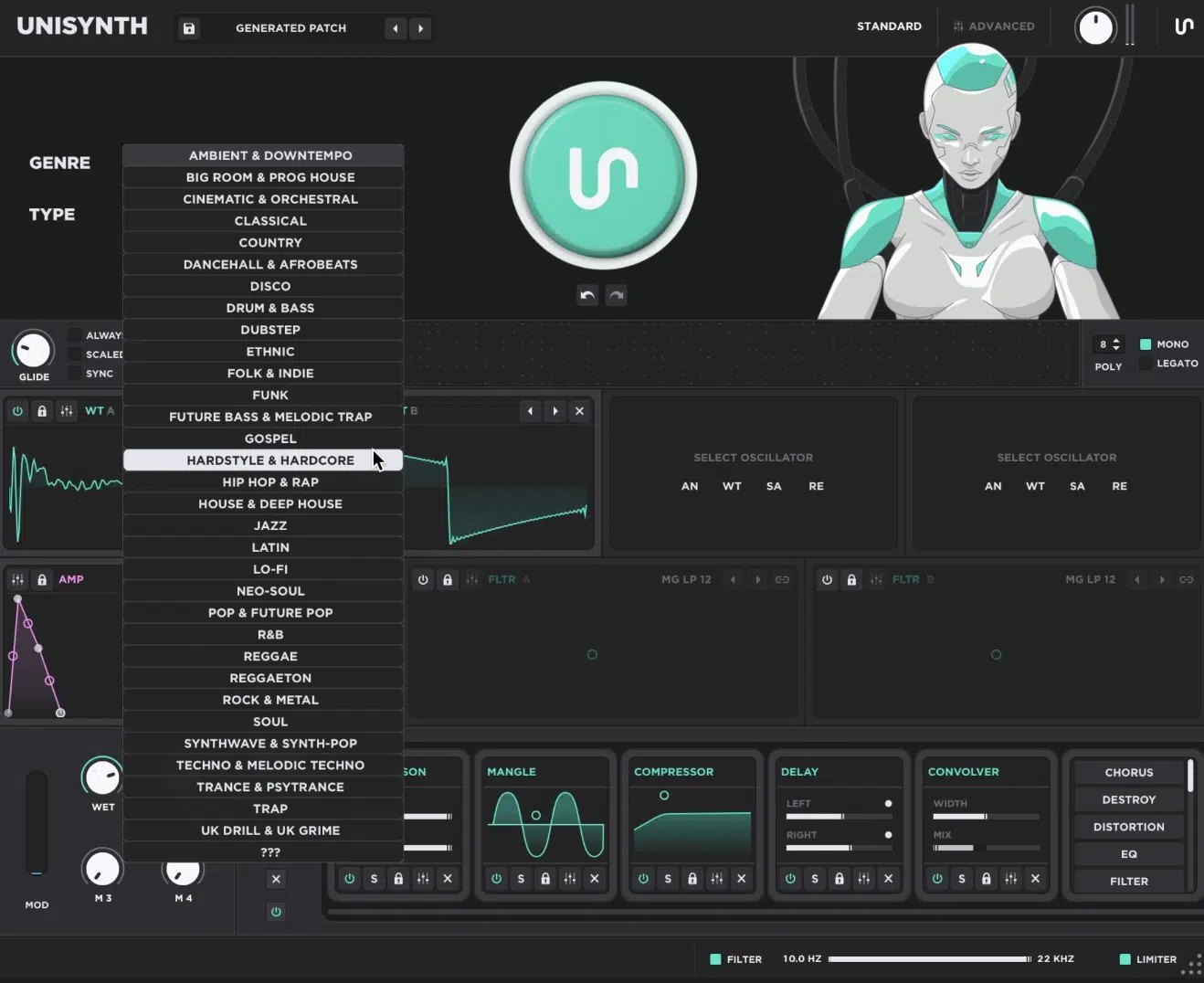
Unisynth is the #1 AI-powered, genre-specific synth plugin in the world, letting you generate sounds in 32 genres and 6 sound types.
But really that’s just a tiny bit of what it’s capable of.
You’re also getting 4 oscillators, each one able to run in 4 different engine modes (Analog, Wavetable, Sampler, and Resonator).
As well as:
- 2 primary filters with 95 filter options each
- Deep modulation
- Up to 24 FX units
- An internal wavetable editor for getting more hands-on with the source itself
Unisynth isn’t some one-click wonder that you mess around with for like 30 seconds and move on from…
Once you open up the deeper side of it, there’s a full-on sound-design playground sitting there waiting for you (yes, even the most experienced sound designers love it).
You’ve got Standard View for moving fast and getting results instantly, and Advanced View for when you want to get super deep and start shaping things to perfection.
In today’s article I’m going to be focusing on the wavetable (WT) engine side of Unisynth because it’s going to blow your mind.
It’s where the wavetable editor and FFT area live, which means you can actually build or reshape waveforms by hand at the harmonic level from scratch.
So, instead of just flipping through ready-made shapes and hoping something works 一 you can literally get in there and control the harmonic content and phase information.
Basically additive-style waveform building inside a wavetable workflow.
NOTE: And if you want the faster route without getting super deep into the technical side right away, go ahead and jump to Step 8. This is where Unisynth’s Generate and Process tools start doing a lot of the heavy lifting for you.
That shortcut is invaluable when you want to start from a Sine, Saw, Square, Triangle, Noise, or Pulse instead of drawing every part of the base waveform from zero by hand.
But, for my producer and sound designer fam who want to get down to the nitty gritty, trust me, you’re going to absolutely love this one, so tune in and let’s get started.
Building Waveforms with Harmonics In Unisynth (The Perks!)
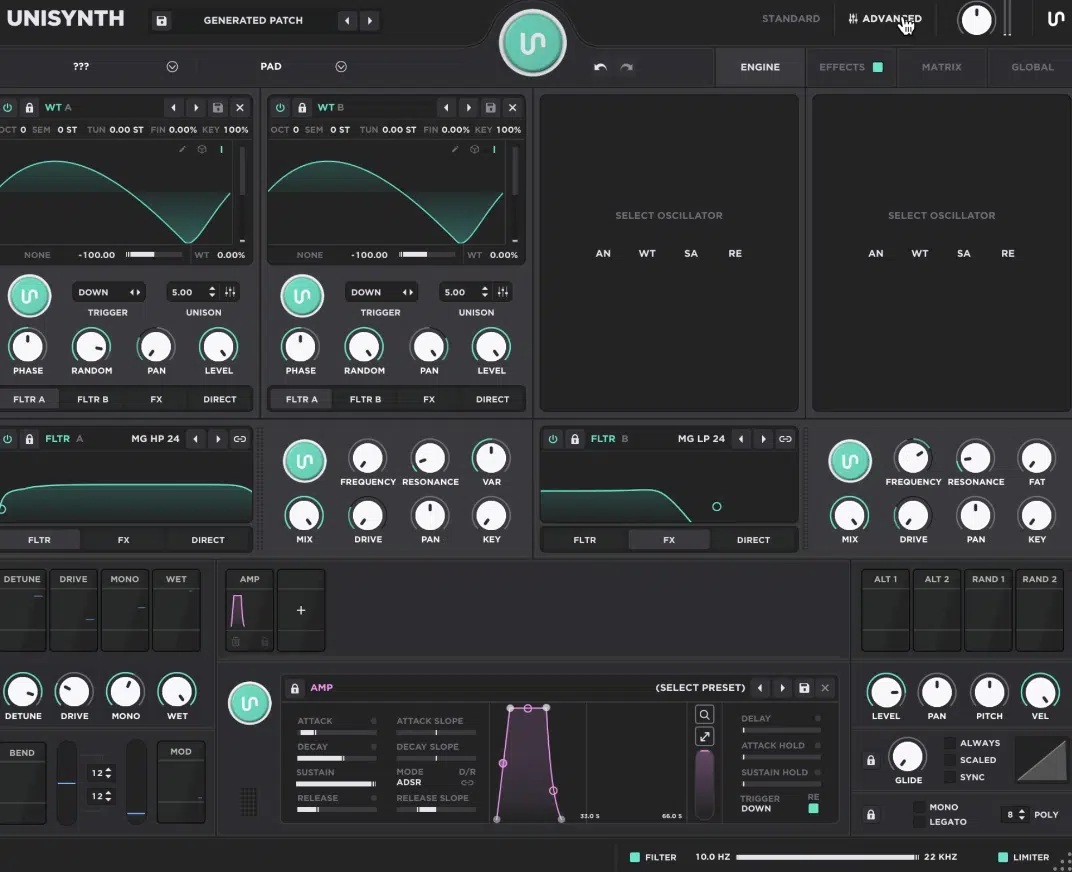
Building waveforms with harmonics means shaping a sound by controlling the strength of individual harmonics (the layers sitting on top of the fundamental).
That gives you way more control than just picking a stock wave and calling it a day.
In plain English, every time you raise one of those harmonic bars, you’re adding another sine-based component into the waveform (aka technically additive).
It helps you understand why a waveform actually sounds the way it sounds instead of just memorizing what a saw or square is supposed to do.
So, when you start changing the lower harmonics, upper harmonics, and phase by hand, you’re not guessing anymore…
You’re moving like a boss by expertly steering the tone on purpose and hearing exactly why it gets:
- Smoother
- Brighter
- Buzzier
- Fuller
- More aggressive
Inside Unisynth, this all happens in the wavetable editor’s FFT area 一 where the top half controls the volume of each harmonic and the bottom half controls phase.
You’ll be able to see the waveform and the harmonic recipe behind it at the same time, which makes learning sound design way faster and way more visual, by the way.
And that’s really the perk of doing it this way, understanding tone, texture, and wave-shape design from the inside out instead of only working from the outside in.
Once that clicks, even simple waveforms stop feeling simple, because you can really see how a clean tone turns into a harmonically rich one (step by step).
Keywords You’ll Need to Know (Definitions)
Before we dive into the actual steps of building waveforms with Unisynth, I felt that you guys would benefit from learning certain words (because you’ll need to know them).
Once you lock them down, the rest of the articles/steps will feel way more smooth and way less technical.
#1. Bin: A bin is one vertical bar in the FFT editor, and each one represents a specific harmonic you can raise, lower, or reshape. So, when you move a bin up, you’re increasing how much of that harmonic gets added into the waveform.
#2. Fundamental: The fundamental is the very first harmonic and the main pitch your waveform is built around. If you only hear or draw the fundamental, you’ll get the purest and simplest version of the sound.
#3. Harmonic: A harmonic is a frequency sitting above the fundamental that adds tone, color, texture, and complexity. The more harmonics you add (and the stronger they are), the more detailed and busy the waveform usually becomes.
#4. Amplitude: Amplitude is just the strength or level of something. In this article, when I’m talking about the top FFT row, it simply means how loud or strong each harmonic is inside the waveform.
#5. Phase: Phase is the position of a waveform inside its cycle. So, when you change phase, you’re not always changing the harmonic content itself — you’re changing where that content starts or how it lines up over time.
#6. Spectrum: The spectrum is the overall spread of harmonics across the waveform, from low to high. It’s the full harmonic picture of the sound, not just one bin by itself.
#7. FFT Editor: FFT stands for Fast Fourier Transform, but you really don’t need to obsess over the name. Just think of the FFT editor as the place where Unisynth lets you shape a waveform by editing its harmonics directly instead of only editing the final wave shape visually.
#8. Wavetable (WT): A wavetable is a collection of waveform frames that can be scanned through for movement. So, instead of having one static shape, you can have multiple related shapes evolving over time.
#9. Frame: A frame is one individual waveform snapshot inside a wavetable. For example, if a wavetable has 4 frames, that means it has 4 separate waveform states you can move between; very straightforward.
#10. Odd Harmonics & Even Harmonics: Odd harmonics are the 1st, 3rd, 5th, 7th, and so on. These are a huge part of why certain shapes, like square- and triangle-style waveforms, have their own unique tone.
Even harmonics are the 2nd, 4th, 6th, 8th, and so on. Adding or reducing them changes the balance of the waveform and can push it toward a different overall shape and sound.
#11. Set Slope: Set Slope tilts the harmonic balance across the waveform. It’s a faster way to create more of a left-to-right taper without redrawing every bin manually.
#12. Balance Odd-Even: Balance Odd-Even shifts the balance between odd and even harmonics. It’s super useful when the waveform feels too hollow/sharp or just a little off and you want a faster correction.
#13. Morph: Morphing is the process of creating smoother transitions between multiple frames in a wavetable. So, instead of each frame feeling disconnected, the movement between them becomes more natural and flexible.
#14. Zero Crossing: A zero crossing is the point where the waveform crosses the center line. Shifting a waveform to a zero crossing can help clean up the start of the shape and sometimes make the result feel more controlled.
#15. Additive Synthesis: Additive synthesis is the process of building a sound by stacking individual harmonics on top of the fundamental. That is basically what you’re doing in this workflow when you shape the waveform by drawing harmonic bins in by hand.
Creating Waveforms in Unisynth: Step-by-Step
Now that you know some keywords, what Unisynth is all about, and the perks of building your own wavetables, let’s get to the fun stuff. I’m going to start simple so you’re able to hear every move clearly, and then build from there without things getting muddy. By the end of these steps, you’ll have a super solid grip on how Unisynth’s FFT editor really works and your sound design game will be on point in a major way.
Step 1: Load a WT Oscillator, Open the Wavetable Editor & Start With One Frame
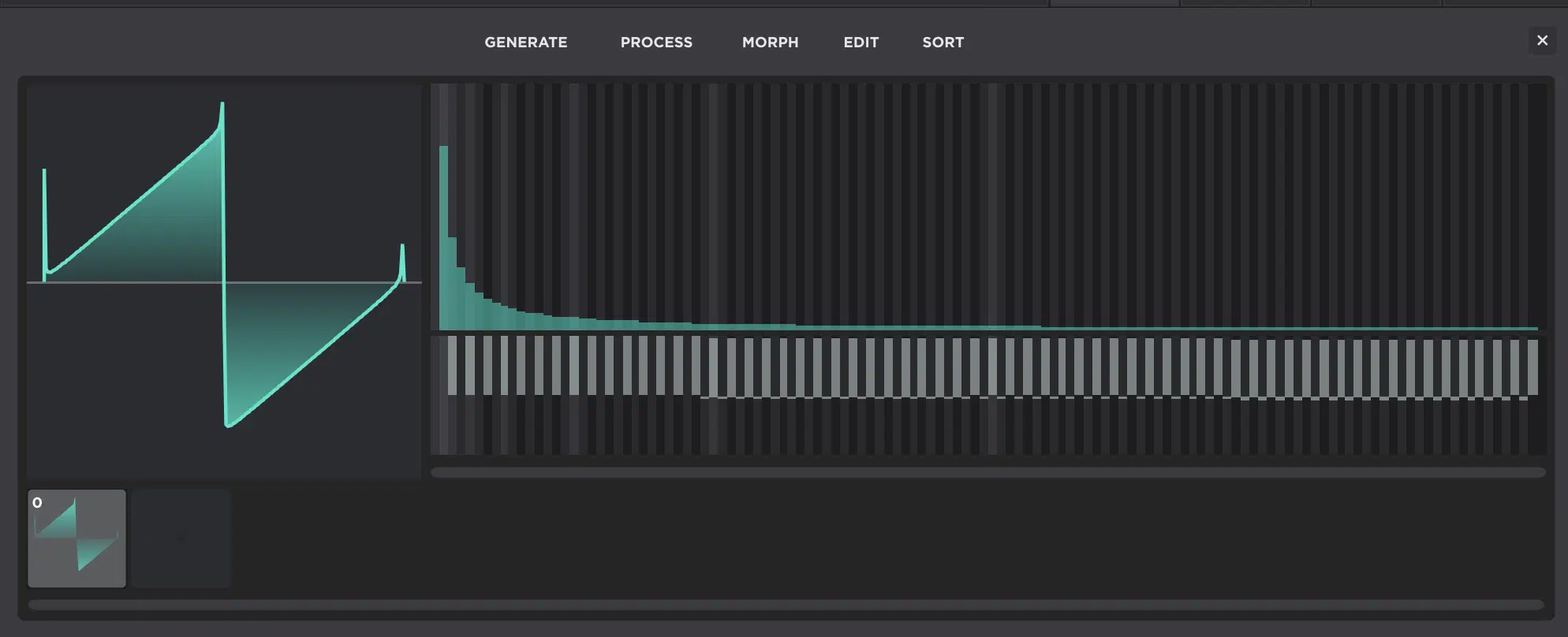
A WT oscillator (wavetable oscillator) gives you access to the wavetable editor, and it’s where you’re going to actually shape the source waveform itself, not just tweak after.
So what you’re going to do first is load one oscillator in WT mode, then open its wavetable editor.
This way you’ll be working directly inside the part of the synth that handles wavetable creation and editing.
Once you’re in there, it’s very important to start with one frame only…
If you jump right into editing a bunch of frames right away, it gets way harder to tell whether the change you’re hearing is coming from the harmonic structure itself or from movement between frames.
Working with one frame keeps everything super clear; one shape, one set of harmonics, one result.
It’s the best way to slow the whole process down so you can actually understand what each bin edit is doing instead of making a bunch of changes and losing the plot.
At the bottom of the editor, Unisynth lets you click a frame to select it, add frames with the + / Add Frame controls, and drag frames later to rearrange their order once you start building actual wavetable motion.
But for now, keeping it to one frame is the right move as it’ll give you the cleanest possible starting point for hearing and seeing the harmonic edits properly.
Think of this like building a sound in slow motion.
You’re not trying to make a huge evolving wavetable yet — you’re just locking in one solid waveform first so everything you do from the next step on makes perfect sense.
Step 2: Understand the FFT Editor Before You Start Drawing Harmonics
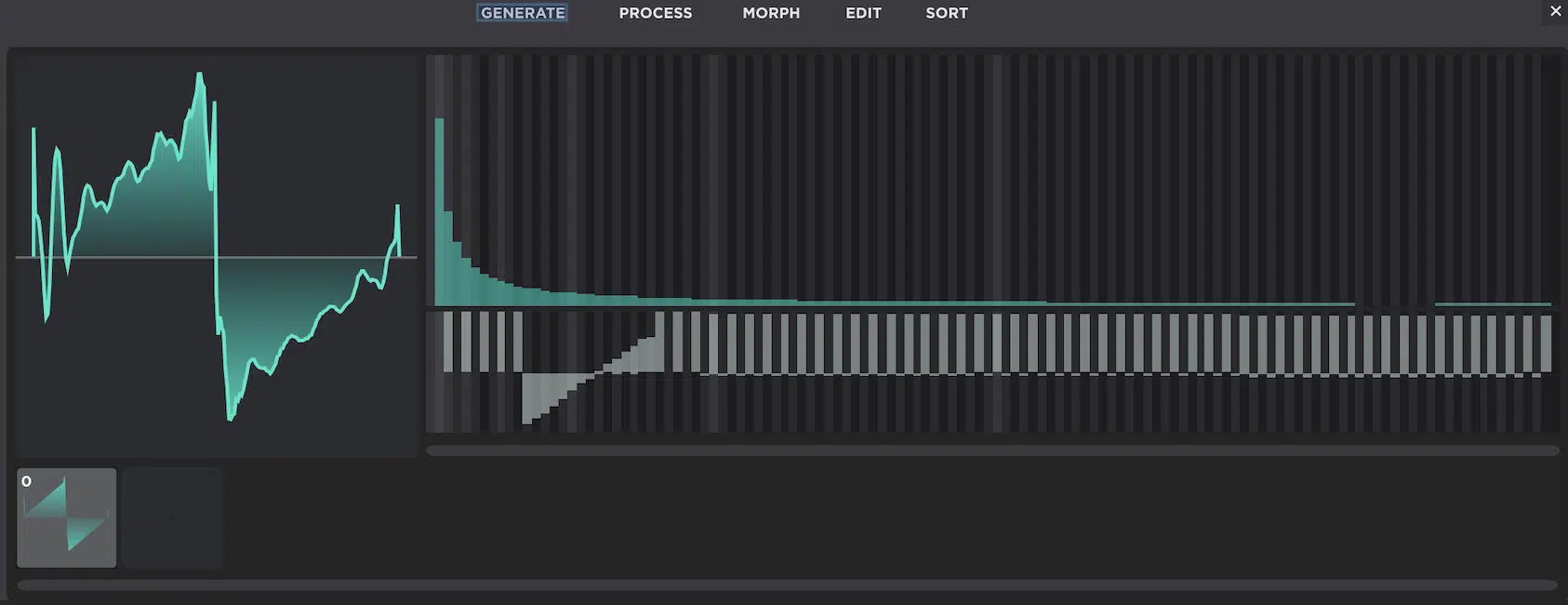
The FFT editor (the part of the wavetable editor that lets you shape harmonics directly) shows you the building blocks of the waveform instead of hiding them behind a finished shape.
In Unisynth, the bins run left to right, and each one represents a harmonic in the currently selected frame.
So, the farther right you go, the higher the harmonic number gets and the more upper-frequency content you’re dealing with.
The layout is split into 2 main halves, and this is the part you want to get clear in your head right away:
- The top half controls the volume/amplitude of each harmonic
- The bottom half controls that harmonic’s phase
So, if you raise a bin in the top section, you’re simply adding more of that harmonic into the sound.
On the flip side, if you change the lower section, you’re changing how that harmonic is aligned in the waveform cycle instead of just making it louder.
Unisynth also gives you some visual help here too, which is super nice because the fundamental and its octave multiples are highlighted differently in the display.
The fundamental and powers of two stand out in lighter shades, making it easier to spot the core structure of the waveform before you start drawing all over the place.
And when it comes to actual editing, you’ve got a bunch of built-in gestures that make the whole thing way faster once you know them…
You can click to set a bin, drag across multiple bins to draw them in, right-click for finer control, Shift-click to affect all bins above the selected one, Cmd/Ctrl-click to isolate one slider, and Option-click to draw a line.
Once you really understand that it’s top = harmonic amount and bottom = phase position, the editor will feel logical beyond belief.
After that, every move you make has a purpose…
You’re either changing what harmonics exist in the wave, or you’re changing how those same harmonics are lined up.
Step 3: Start With the Fundamental to Create a Base Wave
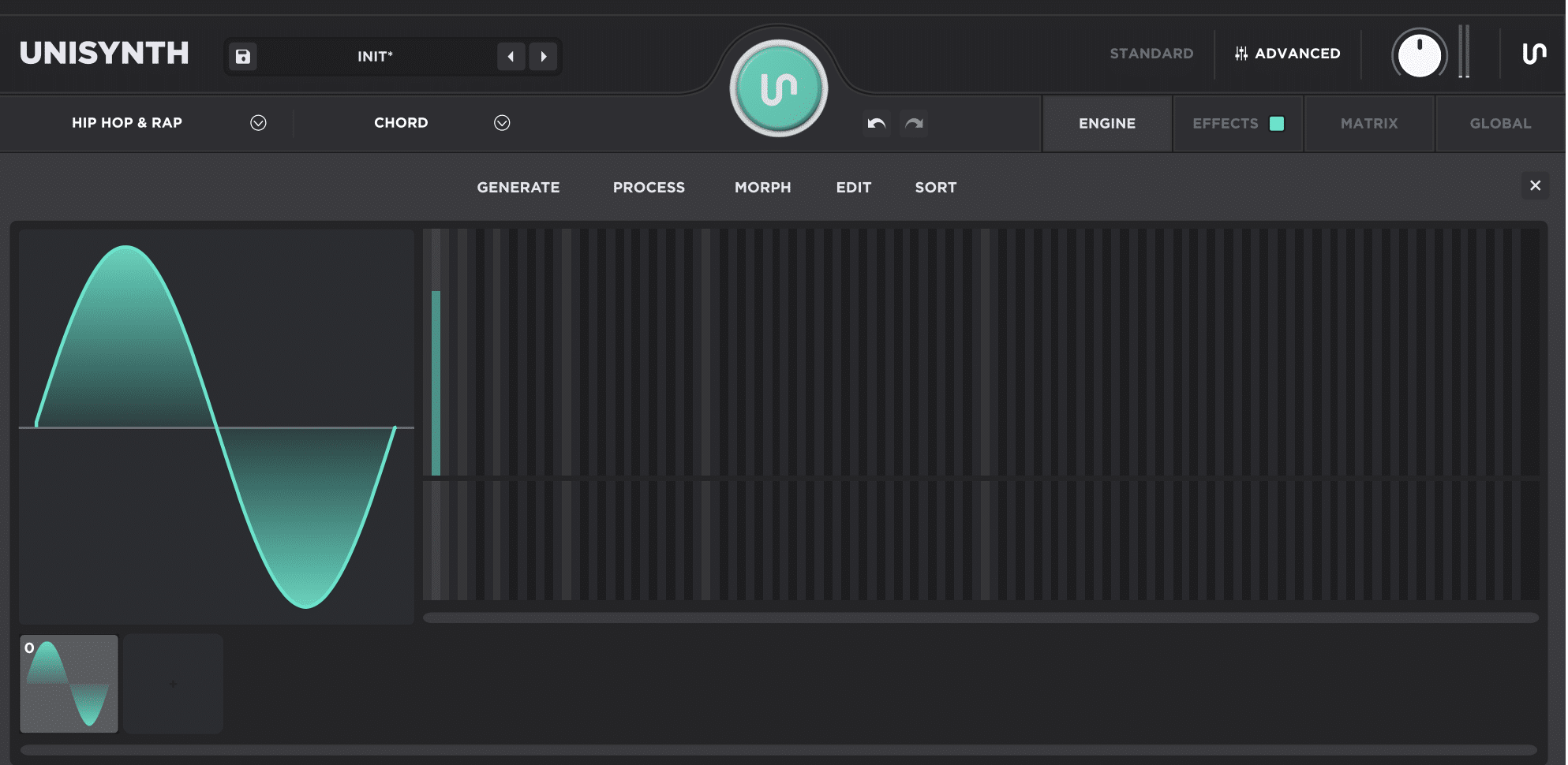
The fundamental (the first harmonic, and basically the core pitch of the waveform) is the best place to kick things off.
It gives you the cleanest, purest possible base before things get more complex
Keep in mind that it’s the “first bar and you get a standard sine wave” concept, and that same idea carries over perfectly here.
So, when you’re building from scratch in Unisynth, you’ll want to:
- Keep the first bin active
- Leave the rest at zero or close to it
That gives you a crazy smooth, round, low-complexity tone with barely any buzz/edge, which is exactly what you want if the goal is starting from a clean slate.
This is also one of the best ear-training moves in the whole workflow as well.
It can successfully teach you what “pure” actually sounds and looks like before you start stacking extra harmonics on top.
You’ll hear that the tone feels stable and simple, and the waveform will look a lot less busy (visually) than something packed with upper bins.
But if you skip the fundamental and start drawing somewhere in the middle of the spectrum, things will start feeling thinner, weaker, and less grounded.
If you just start somewhere in the middle without the fundamental in place, the table may not end up working as well as you want.
So at this stage, don’t overthink it my friends…
Lock in that first harmonic, listen for the smoothness, and get that clean sine-like base right first because everything you add after that is going to make way more sense.
Step 4: Add More Harmonics to Reshape the Wave and Increase Texture
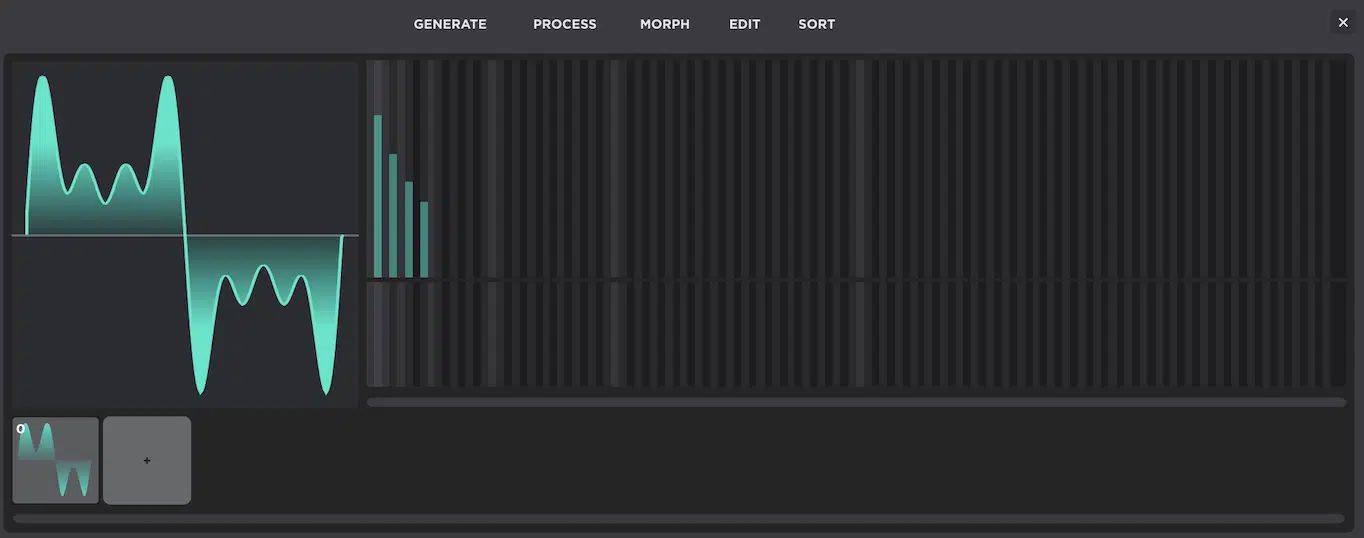
A harmonic (an extra frequency layer above the fundamental) is what starts giving a waveform real character.
And adding more of them is how you turn a plain base tone into something brighter, sharper, richer, or more textured.
Once the fundamental is in place, every extra bin you raise adds another sine-based layer into the shape.
This is why the waveform starts changing visually and sonically the second you move beyond bin number 1 (always keep that in mind).
For example, if you add just a second harmonic, the sound usually stops feeling like a perfectly pure sine and starts picking up more tone and texture.
Then, as you bring in a third, fourth, fifth, and beyond, the waveform will get more harmonically on point and the sound will feel more detailed and alive.
Where you place those harmonics makes a huge difference as well:
- Lower harmonics (the ones closer to the left side) tend to make the waveform feel fuller, thicker, and stable
- Higher harmonics (the ones farther to the right) start adding more bite, buzz, and obvious upper detail
Also, the height of each bin matters just as much as the position, because taller bins mean that harmonic is contributing more strongly to the final sound. Think of it as the volume/level.
For example, a tiny bump at harmonic 6 is going to do way less than a huge spike at harmonic 6, even though they’re in the same spot.
This is one of the most important lessons 一 the farther right you go, the busier the waveform tends to get.
That means you can shape the overall feel of the sound with a clear goal in mind.
Left-heavy usually feels smoother and more solid, while right-heavy usually feels more aggressive, complex, and sometimes way more edgy than you wanted.
So, instead of drawing bins randomly, think of it like layering tone in stages…
Start with the fundamental, add a couple of nearby harmonics, listen to what changed, and then keep building out from there.
This way, the texture will grow in a super controlled way, which is what you always want.
Step 5: Use Odd and Even Harmonics on Purpose (No More Guessing!)
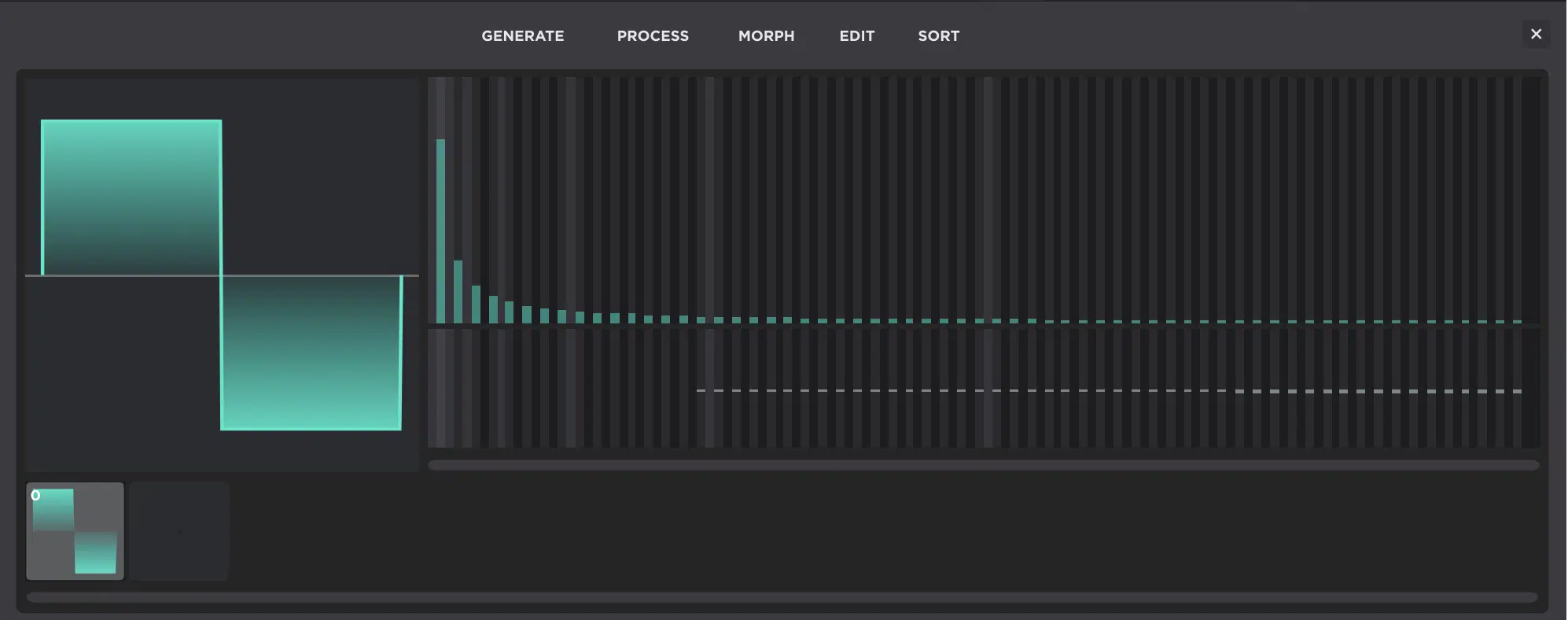
Odd and even harmonics are one of the biggest clues to why common waveforms sound so different.
Once you actually understand the mechanics of how they work, it’ll make waveform design feel way less random, way more professional.
To break it down simply:
- Odd harmonics are 1, 3, 5, 7, 9 and so on
- Even harmonics are 2, 4, 6, 8 and beyond
The balance between those two groups changes both the tone and the overall final shape.
If you lean harder into odd harmonics, you’ll get shapes/tones that feel more like a square or triangle style vibe.
This is especially true when the higher harmonics taper off in a certain way.
A square wave is built from odd harmonics only, while a triangle also leans on odd harmonics but with those upper harmonics dropping off much faster.
That’s the reason it ultimately sounds softer and less buzzy.
But if you bring in both odd and even harmonics more evenly, you move closer to something like a saw, as saw-type waveforms are packed with a fuller harmonic series.
In other words, saw waves usually sound brighter, more aggressive, and more harmonically dense than square or triangle waves right out of the gate.
For example, if you build out bins 1, 3, 5, and 7 while keeping the even bins low or empty, you’ll usually hear a more hollow, focused tone start to come together pretty fast.
This is exactly why square-style shapes have that distinct bite that people love without sounding as packed as a saw.
So to build this balance in Unisynth for an odd-heavy result, simply spend more time shaping bins 1, 3, 5, 7, 9…
For a more even-inclusive result, start bringing up 2, 4, 6, 8 as well and listen to how the tone opens up (the difference will be very clear).
Then, once you start adding those even harmonics back in, the waveform usually fills out right away and gets more forward, bright, and dense.
So, this is definitely one of the best hands-on ways to hear exactly how harmonic balance changes the end result in real time.
NOTE: Unisynth gives you ‘Process → Balance Odd-Even,’ which is a super useful shortcut when you already have a harmonic shape started and want to quickly push it more toward one side of that balance.
Bottom line, don’t just draw bins because they look cool.
Make sure to strategically use odd and even harmonic choices like a roadmap, because that’s one of the fastest ways to start rebuilding familiar wave types.
No more stumbling into them by accident like an amateur; it’s time to get precise people!
Step 6: Shape the Spectrum So the Wave Feels Balanced, Not Harsh
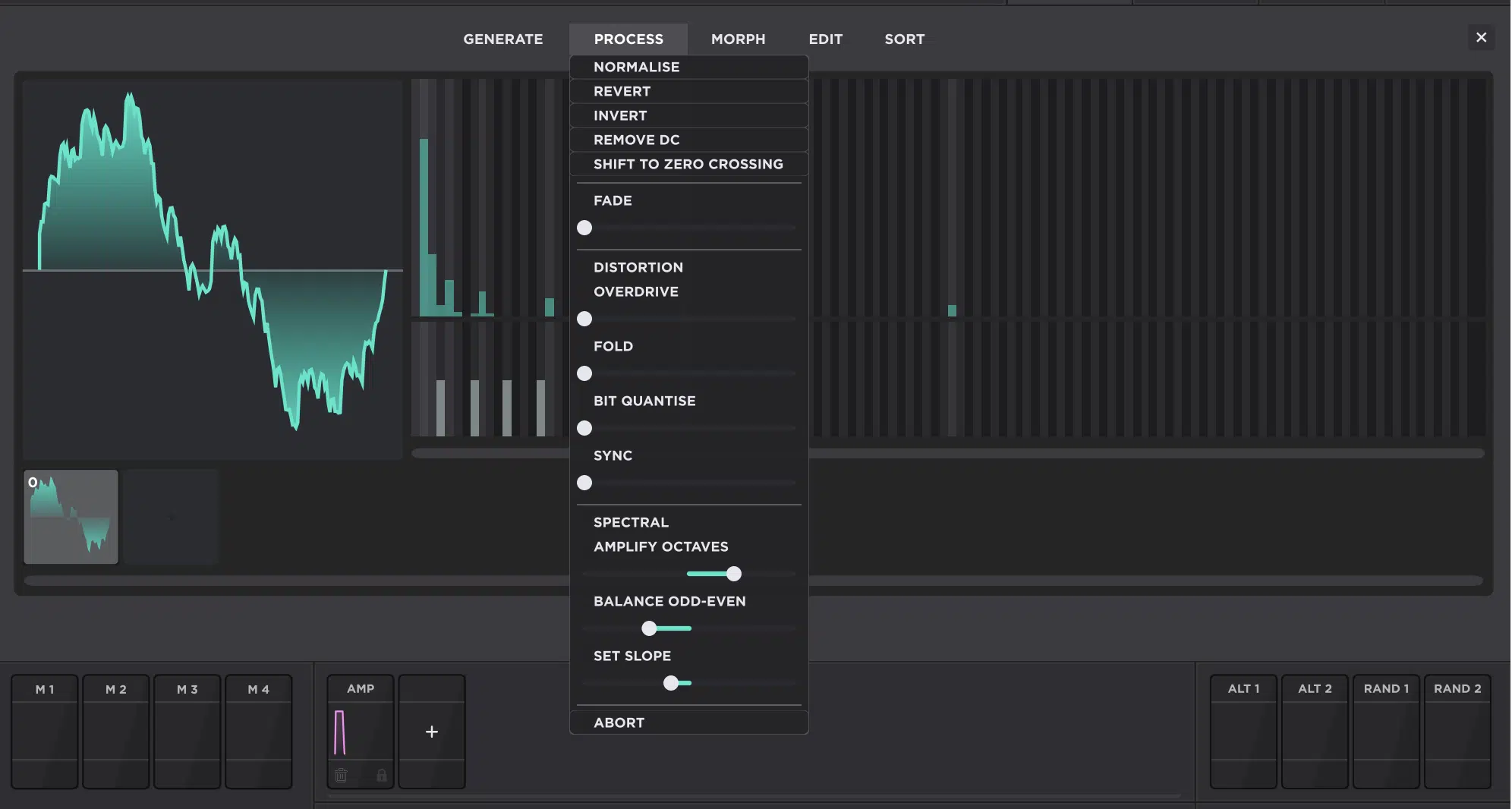
The spectrum (the overall spread and strength of your harmonics) is what decides whether a waveform feels smooth and on point or sharp and annoying.
So, needless to say, this is where balance starts to matter a lot.
The lower bins usually want to be louder than the higher ones, which I consider a key rule of thumb because it tends to give you a fuller, more grounded result right away.
Instead of making bins 1 through 16 all the exact same height 一 you’ll typically want a gradual taper from left to right.
That can be done by hand if you want total control, but Unisynth also gives you faster ways to get there (especially Process → Set Slope).
This will apply more of an EQ-style tilt across the waveform instead of forcing you to redraw every single harmonic one by one.
You can also use:
- Amplify Octaves if you want to push the octave-related harmonics harder
- Balance Odd-Even if the waveform feels too square-ish, saw-ish, or just a little off
With them, you’ll be able to easily rebias the spectrum quickly, then you can go back in and fine-tune by hand after the overall shape is closer to where you want it.
However, if the upper bins get too dominant, the sound usually starts feeling brittle, edgy, thin, fizzy, or overly busy.
Especially once you hit a few higher harmonics hard in a row.
But if you barely give the upper harmonics anything at all, the waveform will stay too plain, soft, and close to a boring sine-style base.
It won’t have enough character to even do anything interesting, really.
On the flip side, if bins 1 through 4 are doing most of the work and bins 5 through 12 are only supporting them a little, you’ll usually land in a much sweeter spot.
This will provide it with enough body to feel solid, but still enough upper detail to keep the tone interesting and alive.
So, the trick that I do all the time (and what I highly suggest you do as well) is think in terms of ranges…
For example, bins 1 through 4 often do a lot of the heavy lifting for body and stability, while bins 5 through 12 can add more presence, bite, and identity without instantly making the sound feel wrecked.
The more methodical you are here, the faster your ear starts catching on.
After a while, it’ll become second nature and you’ll stop seeing random bars and start recognizing patterns, like when a left-heavy taper feels more natural.
Or, when a top-heavy spread is obviously going to come out harsher than you want.
Once you get to that point, you’re not just editing harmonics anymore, you’re actually reading the waveform before you even hear it (therefore, magic can happen!).
Step 7: Edit the Phase Row to Change the Wave’s Shape Without Rebuilding the Spectrum
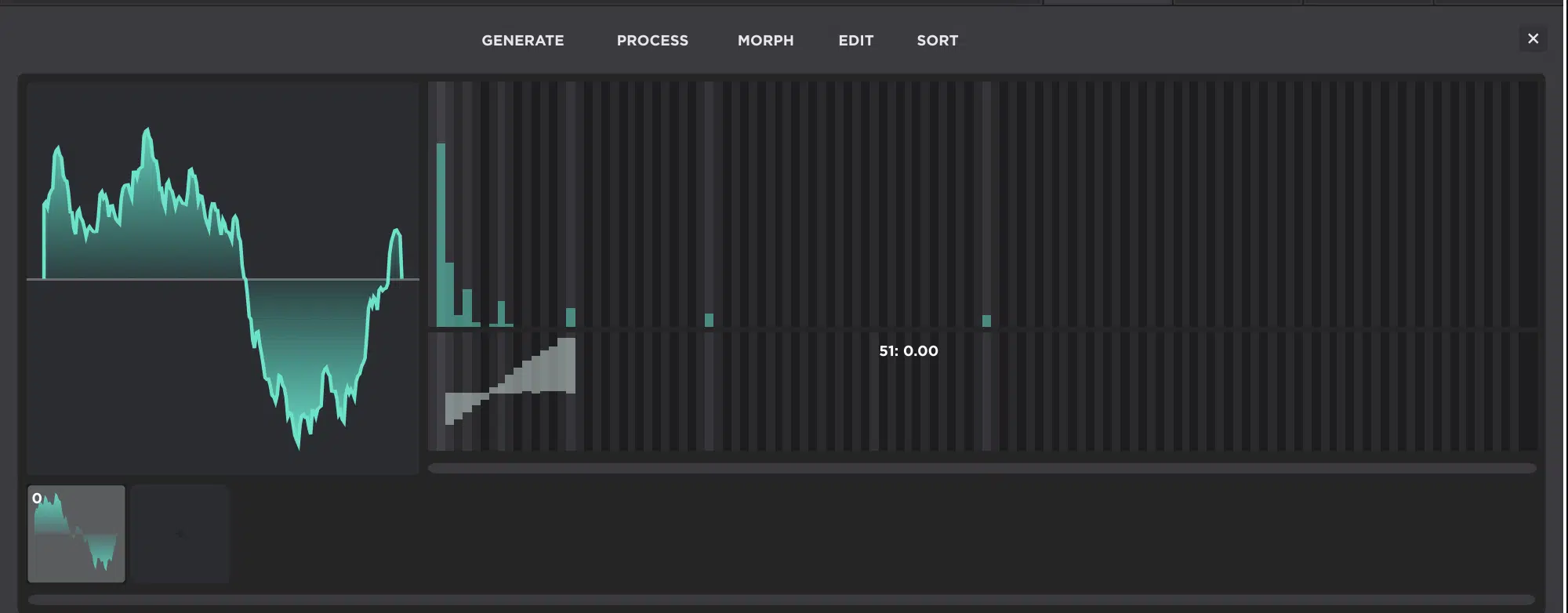
The phase row (the lower half of the FFT editor) lets you change how the existing harmonics line up in the waveform cycle.
All without having to rebuild the whole harmonic recipe from scratch.
That’s the part a lot of people miss at first honestly, because phase doesn’t necessarily mean “new harmonics.”
It usually means the same harmonics are starting or aligning differently over time.
So, if you keep the top row exactly the same but start changing the bottom row, the waveform can look surprisingly different even though the spectral ingredients are broadly still the same.
That’s why phase editing is not just some weird technical extra, it can literally change:
- How the beginning of the waveform feels
- How symmetrical or asymmetrical the shape looks
- How the tone reacts once you run it into filters/distortion/other processing
For example, if the harmonic balance already sounds right but the wave still looks a little awkward or feels oddly lopsided, the phase row is usually the next place to check out.
You might not need more harmonics at all — you might just need the harmonics you already have to be aligned better.
This’ll also help you separate spectral problems from shape problems as well.
If the sound is too bright, too dull, too thin, or too crowded, that’s usually a top-row issue, but if the harmonic makeup feels fine and the contour still seems off, phase is the fix.
Eventually, the lower row will stop feeling mysterious (or even overwhelming) and start feeling like the cherry on top.
Just remember, you’re not throwing random phase changes around…
You’re refining the shape, tightening the start point, and learning how alignment changes the result without confusing that with outright harmonic redesign.
Step 8: Use Generate and Process Tools to Speed Up the Workflow Without Losing Control
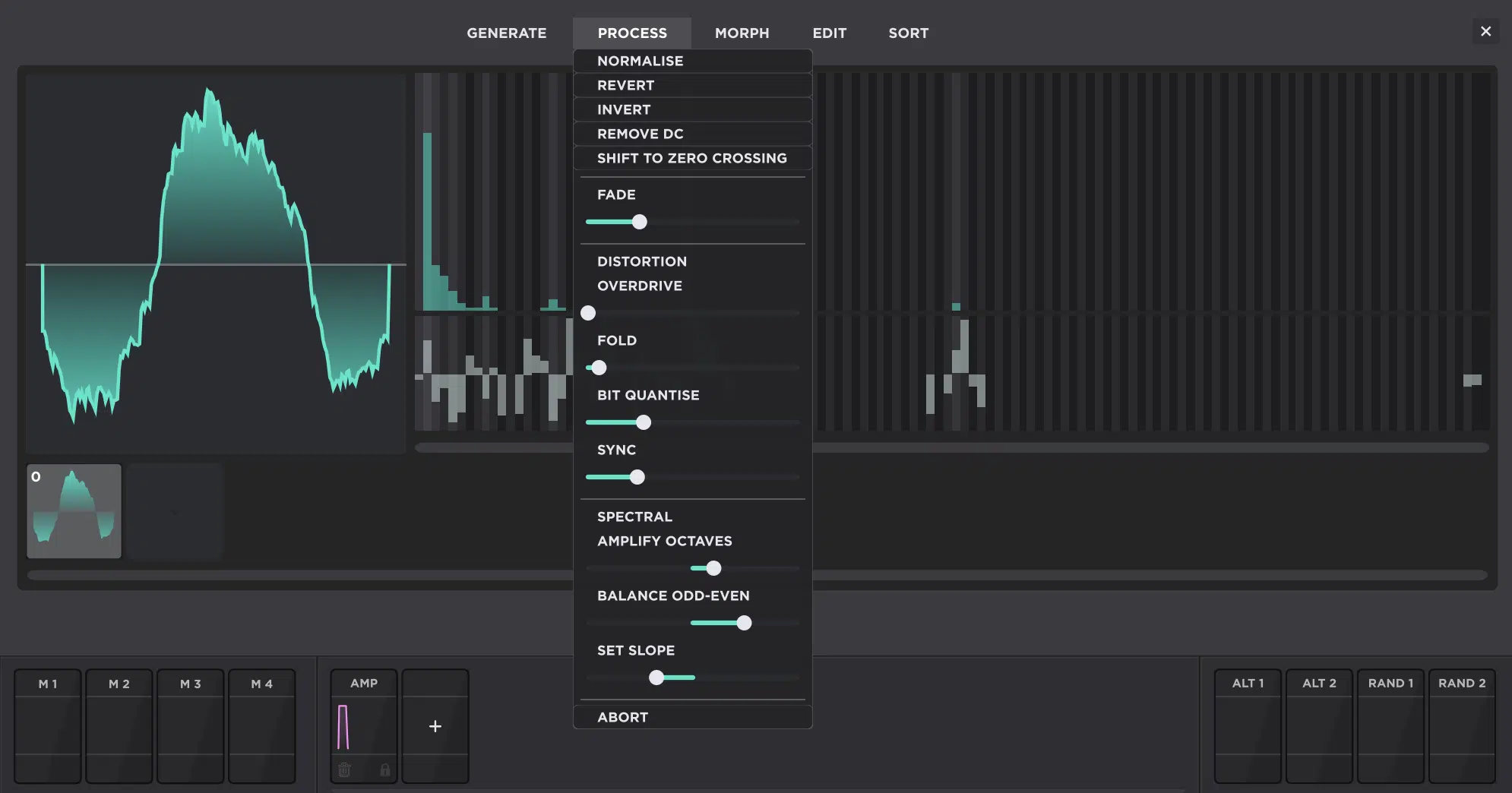
You’ll need to be familiar with the Generate and Process menus because they let you move way faster once you already understand what the FFT editor is doing.
This way, you can start from a strong base instead of drawing every waveform from absolute zero every single time.
This is the shortcut section for a reason, because Unisynth can generate Clear, Sine, Saw, Square, Noise, Triangle, and Pulse right inside the wavetable editor.
It saves a ton of time when you already know the kind of starting shape you want.
So, let’s say you want a saw-style base with a little less aggression 一 don’t draw 15 or 20 harmonics by hand if you don’t have to.
Instead, just generate a Saw, then start reshaping it from there by lowering certain bins, changing odd/even balance, or tweaking the phase row after the fact.
The Process menu is where things get even more fun, because that gives you a bunch of spectral-shaping moves in one place, like:
- Normalize
- Revert
- Invert
- Remove DC
- Shift to Zero Crossing
- Fade
- Overdrive
- Fold
- Bit Quantize
- Sync
- Amplify Octaves
- Balance Odd-Even
- Set Slope
Let’s be honest, this is a pretty serious list for speeding up this kind of work.
Normalize brings the waveform amplitude up so you’re working with a stronger, more usable level and Set Slope helps create a more natural left-to-right taper.
Then you’ve got Balance Odd-Even, which helps you rebias the harmonic makeup quickly, and Overdrive or Fold to thicken or complicate the structure.
Without you having to manually draw a whole new series of bins, mind you.
There’s also Shift to Zero Crossing, which can help clean up the way the waveform starts, and Bit Quantize or Sync, which can push the result into a more digital, stepped, or aggressive direction.
So, instead of thinking of the FFT editor as just a bin-drawing area, think of it as a full waveform-building environment with both manual and assisted control baked in.
That’s why this part is such a big shortcut…
You still stay in control, of course, but you stop wasting time building every sine, saw, square, or triangle from scratch.
Instead, Unisynth can hand you the base shape first and let you do the fun part after (big time-saver and inspiration sparker!).
Step 9: Expand From One Frame Into a Real Wavetable With Movement
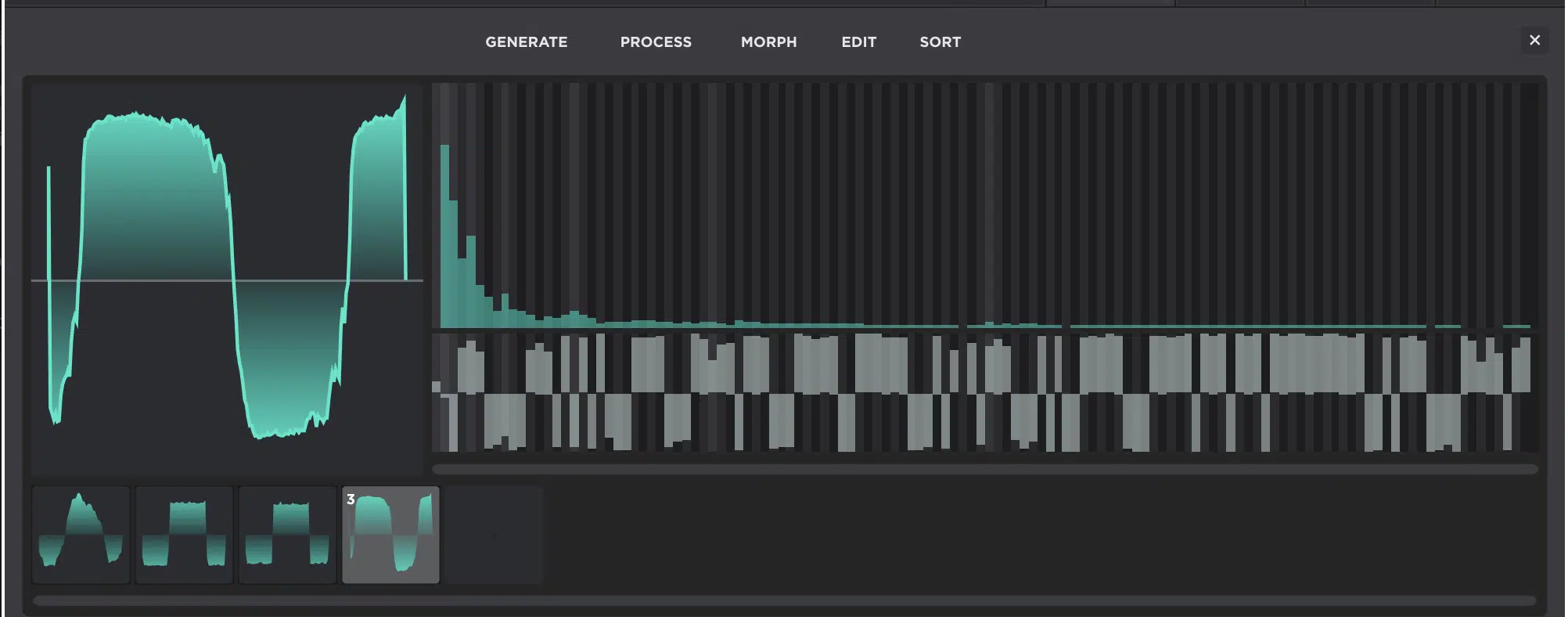
A wavetable is what takes you from one static shape into something way more expressive, and this is where the editor starts opening up in a major way.
Once your first frame sounds solid and you want to get a little crazy, you can start:
- Adding more frames with Add Frame
- Clicking individual frames to select them
- Dragging them into a different order for the movement to uniquely unfold
The key here is not to think of each frame like a random disconnected experiment, because it works way better if you treat each one like a checkpoint.
Maybe frame 1 is smoother, frame 2 adds a little more upper-mid content, frame 3 gets brighter, and frame 4 leans harder into the top end or changes phase for a different contour…
This gradual movement usually sounds way better than making frame 1 a sine, frame 2 a wrecked buzz wave, frame 3 some weird hollow shape, and frame 4 total chaos.
Remember, small changes across 4, 8, or even more frames tend to feel a lot more ideal once the wavetable starts scanning.
And once you’ve got multiple frames selected, Unisynth also gives you 4 Morph options to help connect them 一 Crossfade, Spectral, Zero-Phase Fund, and Zero-Phase All.
Crossfade is great for when you want a more straightforward blend between neighboring frames.
Spectral is better when you want the harmonic content itself to interpolate more intelligently.
Zero-Phase options help line up phase relationships across selected frames so the movement feels tighter and less messy.
This stage is very important because one frame can already sound sick on its own, but a full wavetable can breathe, evolve, and react in a way a static waveform just can’t.
At the same time, you really don’t want to jump here too early; if the first frame does not make sense yet, adding 3 more or 7 more usually just multiplies the confusion.
So, the smart move is simple… Lock in one frame first, then expand outward.
That way the movement is built on top of a waveform you already understand instead of being built on guesswork (makes sense, right?).
Bonus Wavetable Tips & Tricks
Now that the main workflow is locked in, here’s where things get a little deeper (and more fun, of course). These next bonus tips that I’m sharing with you are less about the basic mechanics and more about getting sicker, cleaner results, moving faster, and making sure the whole process stays professional as opposed to random.
#1: Use One Frame as a “Reference Tone” Before You Build a Full Table
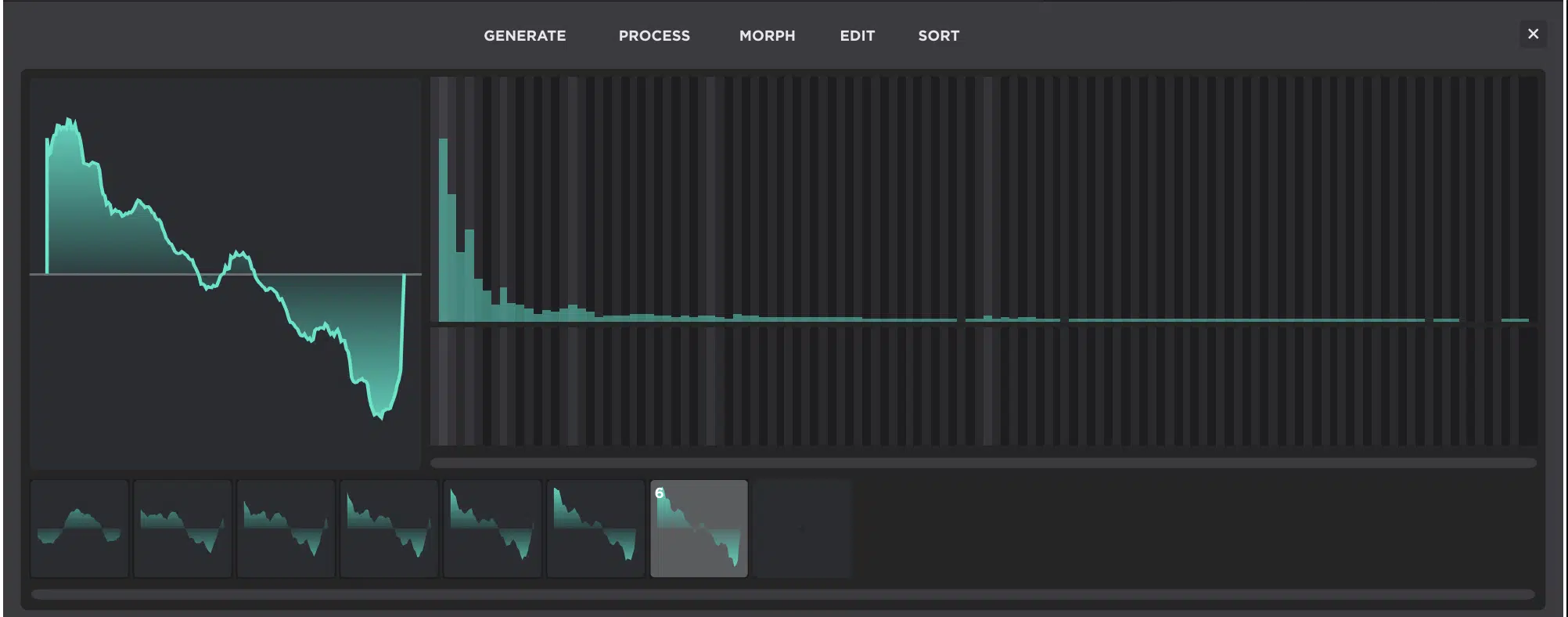
A reference tone (your strongest single frame before adding movement) gives the rest of the wavetable something solid to branch off from so there’s no random frames.
If frame 1 already sounds clean, balanced, and intentional, then frames 2, 3, 4, and beyond can be judged against something that actually works.
For example, let’s say frame 1 already has the right amount of body in bins 1 through 4, enough presence in bins 5 through 8, and a shape that feels musical on its own…
You’ll then have a real baseline to compare everything else against.
That makes it way easier to hear whether the movement is adding something dope or just making the whole table weaker.
So instead of wondering why frame 6 suddenly feels thin or why frame 10 sounds way harsher than the rest, you can compare them back to that original frame.
Then you’ll clearly see the exact point(s) where things started drifting.
It also helps keep the wavetable cohesive, because the scan has a clear center of gravity instead of jumping between unrelated shapes.
When the wavetable moves, it feels like one sound evolving over time — not like 8 or 16 separate waveforms fighting each other for attention.
So before you build an 8-frame or 16-frame table, make sure one frame could already stand on its own and you’ll be good to go.
#2: Use Set Slope and Balance Odd-Even Before You Start Redrawing Everything by Hand
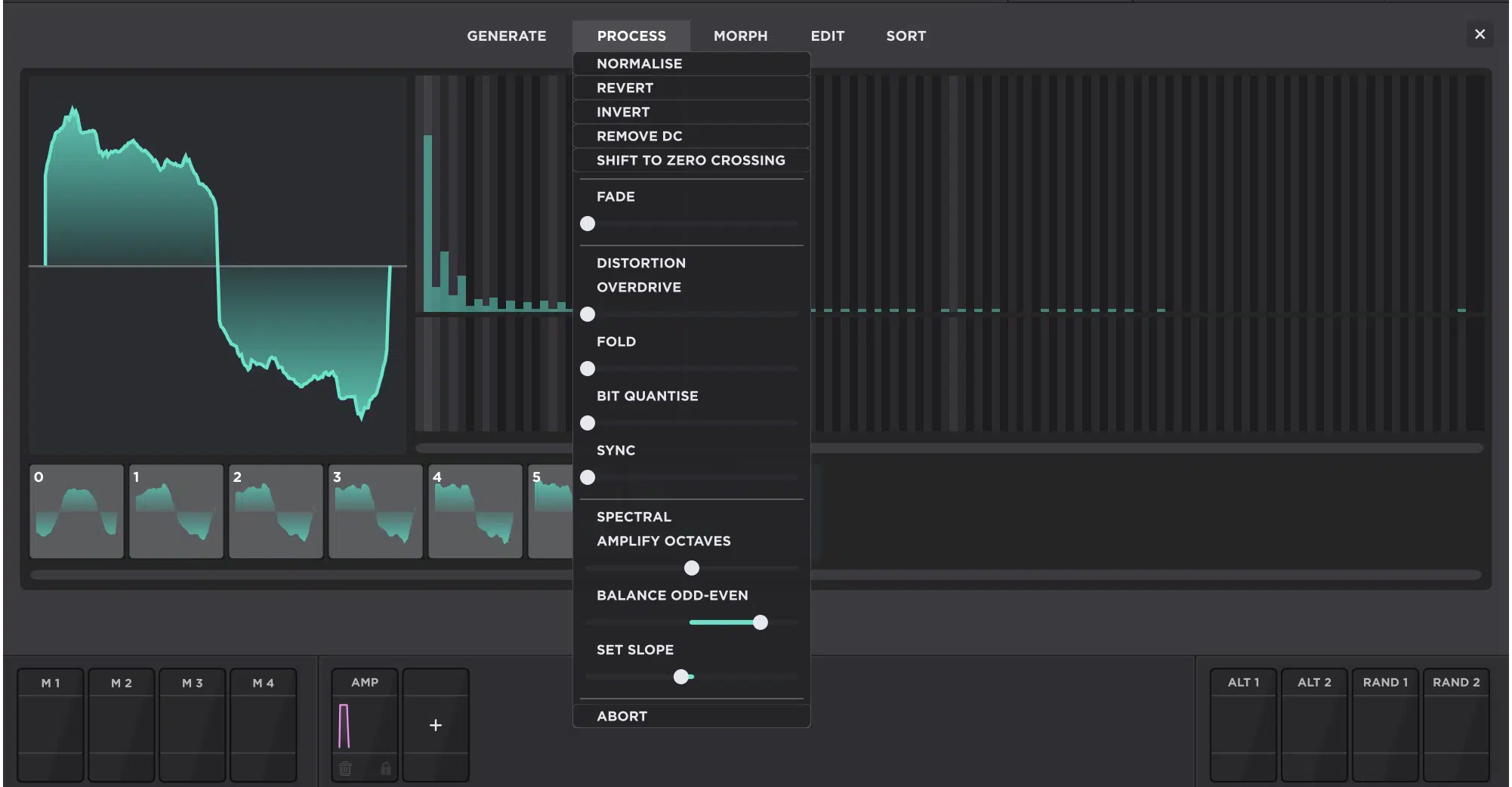
Set Slope and Balance Odd-Even let you rebalance the whole waveform in a few seconds instead of fixing 10, 20, or 30 bins one at a time.
f
If the overall shape is close, but the top end feels too bright, too flat, or just a little off, Set Slope can tilt the harmonic curve faster than manual redrawing ever will.
And usually more precisely too, mind you.
For example, if bins 1 through 4 feel solid but bins 8 through 12 are sticking out too much and making the tone feel fizzy, Set Slope can come to the rescue.
It’ll smooth that whole curve out way faster than dragging each one down by hand.
Or, if the waveform feels too dull and the upper harmonics are not carrying enough presence, Set Slope can lift that top end in a more controlled way without wrecking the balance of the lower bins.
Then, if the tone still leans too hard toward an odd-heavy or even-heavy character, Balance Odd-Even can push it back toward center.
All without you having to rebuild the whole thing from scratch, which is awesome.
For example, if the waveform is starting to feel too square-ish, too hollow, or a little too narrow, Balance Odd-Even will fill it out faster by shifting that harmonic relationship more evenly.
On the other hand, if it feels too packed, saw-ish, or just overly dense, that same tool can help pull it back into a cleaner and more focused shape.
Now, don’t get me wrong, that doesn’t mean you stop editing by hand 一 it just means you handle the overall correction first, then do the smaller cleanup after.
It’s a workflow-speed move, not a lazy move, and honestly it can save a stupid amount of time once you start doing this regularly.
Think of it like a cleanup macro you’d use after the fact in photo editing or cropping.
You get the big correction out of the way first, and then you go back in and fine-tune the smaller details once the overall shape is already looking a whole lot better.
PRO TIP: You can select all the frames and apply the active options in the Process menu across the entire table. This will give you a more cohesive table (and quicker workflow).
#3: Keep the Top Row and Bottom Row Mentally Separate
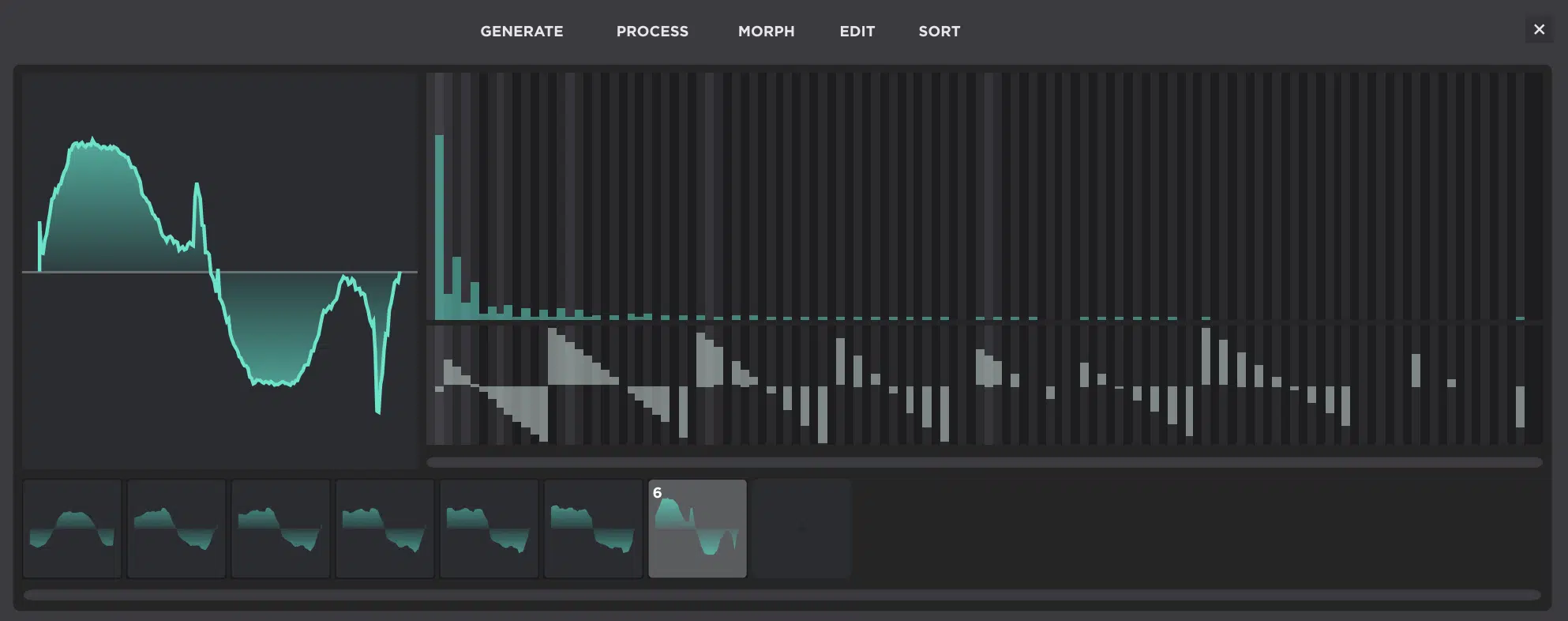
The top row (harmonic volume) and bottom row (phase) need to stay mentally separate, period, end of story.
Mixing those two jobs up is one of the fastest ways to start making edits that don’t solve the real problem, so you definitely don’t want to do that.
If the sound is too dull, too buzzy, too dense, or too empty, that usually points to the top row and the actual harmonic balance.
For example, if the waveform feels too close to a plain sine and doesn’t have enough bite, presence, or texture, that means the upper harmonics in the top row need attention.
On the flip side, if a few higher bins are hitting too hard and the tone starts feeling fizzy, sharp, or overly packed, that is also a top-row issue — just in the other direction.
But if the spectral makeup already feels right and the waveform still looks awkward, starts strangely, or feels a little off in contour, that is typically a phase-row issue instead.
You might have the exact harmonic balance you want, but the waveform still feels lopsided or the start of the cycle looks weird…
That’s where phase becomes the smarter fix.
A good rule that I’m sharing with you today is: fix the ingredients with the top row, then fix the alignment with the bottom row (simple and straightforward).
Think of it like the top row decides what is in the recipe, and the bottom row decides how those same ingredients are lined up.
This way, the editor gets a lot easier to read and your changes get way more precise.
#4: Create Contrast Across Frames, Not Chaos
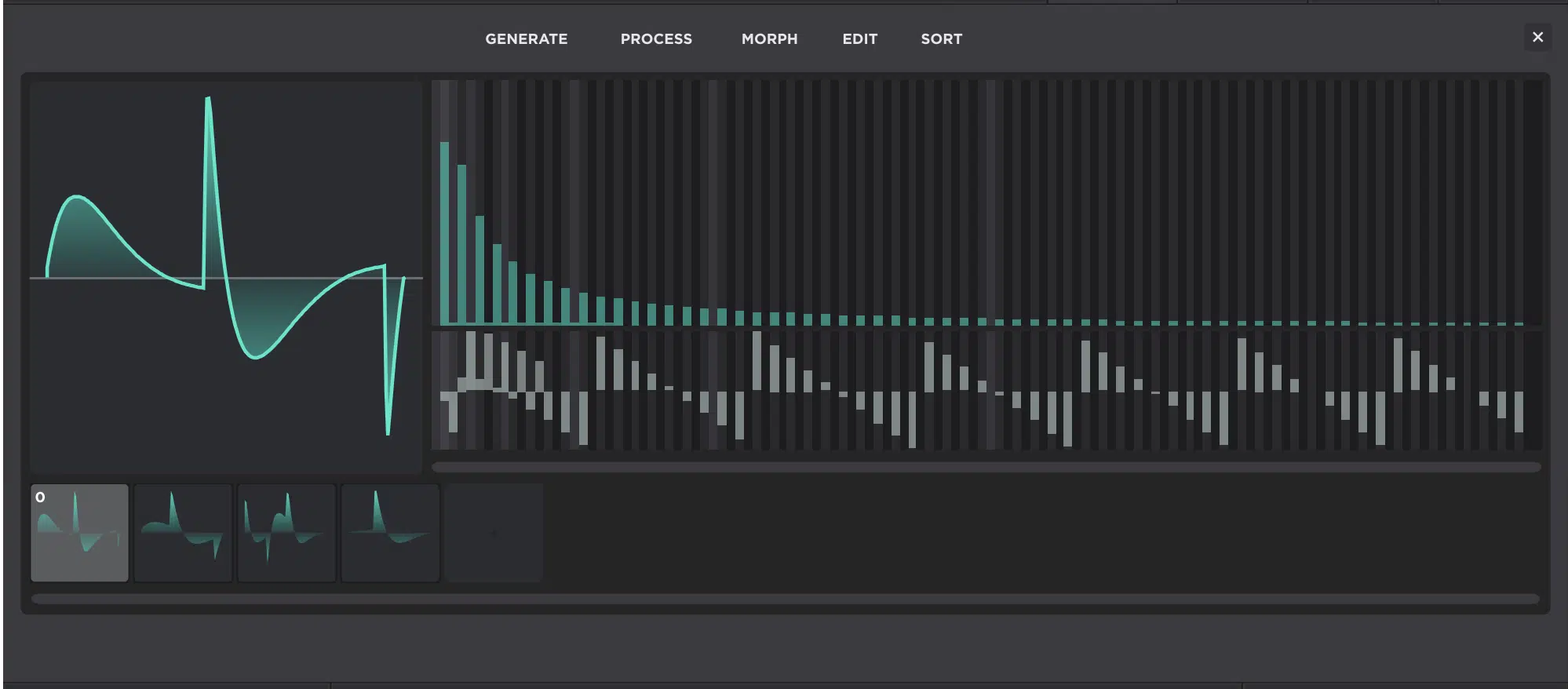
Contrast across frames is all about giving the wavetable movement and evolution without making the scan feel unstable or all over the place.
Instead of making frame 1 soft, frame 2 insanely bright, frame 3 hollow, and frame 4 completely wrecked, you can try something more sensible…
Try smaller harmonic shifts that build over time in a way your ear can actually follow.
For example:
- Frame 1 might stay more fundamental-heavy
- Frame 2 could add a little more upper-mid harmonic content
- Frame 3 might push the top end a bit harder
- Frame 4 could tighten the phase or odd/even balance without completely changing the waveform’s identity
That might mean adding a little more upper content every 1 or 2 frames, or changing odd/even balance gradually.
You could also slightly reshape the phase so the contour evolves without breaking the identity of the table.
Another super solid move is keeping the first few frames relatively smooth, then letting the later frames get more harmonically dense.
This way the wavetable opens up as you move through it instead of sounding chaotic right away (because, nobody wants that).
For example, frames 1 through 3 could stay pretty controlled and smooth, while frames 4 through 8 gradually introduce more upper harmonics, more bite, and a little more spectral complexity.
It’ll give you a result that’s way smoother, more musical, and easier to use in an actual patch.
Just keep in mind that if you want motion, think progression — not random shock value from frame to frame.
NOTE: The best tables are made to increase in harmonic spectra as you raise the Wavetable Position slider.
It’s all about making them sound good when modulating that vital parameter, because that’s what turns a static waveform into something that actually evolves in a satisfying way.
So, when the position sweep moves from a simpler frame into a brighter, richer, and more harmonically packed one, the motion feels intentional instead of messy.
And that my friends is usually where the best-sounding tables start to separate themselves and come to life.
#5: Study Familiar Shapes by Rebuilding Them From the Fundamental Up
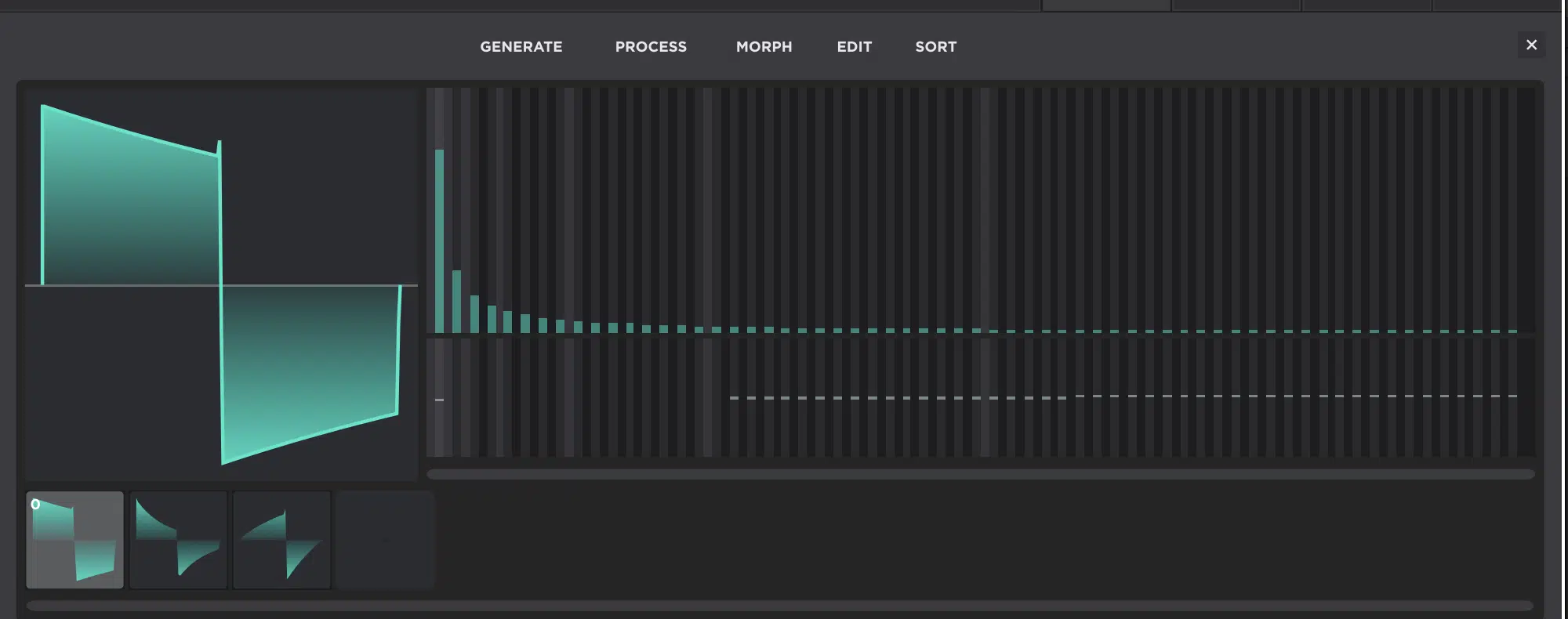
Rebuilding familiar waveforms from the fundamental up trains both your ear and your eye at the same time.
It’s one of the best long-term payoffs of working in an FFT editor.
Start with the first bin, then try building something that behaves like a sine, square, triangle, or saw by adding harmonics on purpose instead of just generating it.
For example, you can start with only the fundamental for a sine-style base, then add only odd harmonics to move toward more of a square- or triangle-style result.
Or you could even start filling in both odd and even harmonics to get closer to a saw-type shape.
After you do that a few times, you start recognizing the difference between:
- A wave that is odd-heavy
- A wave that is more fully packed
- A wave where the upper harmonics fall off faster
That kind of repetition builds real instinct 一 you stop memorizing labels and start understanding why each waveform has its own feel.
Once that clicks, designing your own custom waveforms/shapes gets way easier because you’re working from pattern recognition instead of pure trial and error.
Plus, you can take any wavetable you’re curious about, open up the editor, and see in the FFT/additive editor exactly what is going on behind the curtains.
Study what arrangement of the bins creates what kind of wave, and what modifying existing tables and phase relationships does to the resulting waveform.
That means you’re not only building from scratch, you’re also reverse engineering existing tables and learning what actually makes them what they are.
And honestly, that is one of the fastest ways to level up, because once you can analyze and rebuild the shapes you like, you stop guessing and start designing with real intent.
Final Thoughts
At the end of the day, building waveforms with harmonics in Unisynth is one of the absolute best ways to stop guessing and start designing sounds like a pro.
Once you understand how the fundamental, harmonic balance, phase, and frame movement all work together, the whole wavetable editor is your playground.
So whether you’re rebuilding classic shapes, modifying existing tables, or creating your own from scratch, Unisynth can help you every step of the way.
This is the kind of skill that will keep paying you back every time you open Unisynth up, I promise you that (if you take advantage of it, that is).
And the more you practice it, the more natural it gets; before long, you’ll be shaping sounds from the source like it’s nothing.
Until next time…
Create Your Own Waveforms with Harmonics Now!




Leave a Reply
You must belogged in to post a comment.