




Unisynth is an absolute monster when you use it at face value, that’s a fact… But once you really get to see what it’s capable of, it’s going to blow your mind.
It’s not just a simple AI generator, no way 一 it’s a true sound design beast.
With it, you’ll be able to generate sounds instantly, shape them deeper than most people expect, and build patches that will completely change the game for you.
And I’m not just talking about the obvious tricks either, trust me.
From tighter bass movement and more expressive leads to wider textures, cleaner transients, and way more controlled modulation overall, you’ll be able to do it all.
Once you start combining the modulation system, the filters, the sampler engine, the unison controls, and the performance routing together, you’ll be unstoppable.
For the past dozen or so articles, we compared it to the most popular, impressive synths in the game, and Unison blew them all of the water.
So today, I’m going to break down all the different Unisynth techniques that can help take your production, sound design, and creativity skills to the next level.
This way, you’ll be able to see why it’s rated the #1 AI synth in the world, covering:
- Width tricks ✓
- Filter movement ✓
- Unison control ✓
- Chaos modulation ✓
- Velocity response ✓
- Aftertouch expression ✓
- Phase control ✓
- Sampler layering ✓
- Pitch bend moves ✓
- LFO breakdowns ✓
- Quantized bass motion ✓
- Key tracking ✓
- Aux modulation ✓
- Vibrato setup ✓
- Super Unison tricks ✓
- So much more ✓
By the end, you’re going to have a super solid grip on how to make your sounds bigger, cleaner, more expressive, and way more custom.
You’ll also see how some of its most overlooked features can completely change the way your patches move, hit, and sit in a track.
And once all of this clicks, you won’t be just tweaking presets anymore, you’ll be masterfully driving the synth to dominate your competition.
Plus, you’ll be able to take the foundation of any of these techniques and apply it in any synth/context you can imagine.
So, let’s get right into it…
Table of Contents
- Unisynth: What’s it all About?
- A. Creating Width with Stereo Offset in Unisynth
- B. Modulating Filters
- C. Advanced Unison Parameters
- D. Using Unisynth’s Chaos Modulator
- E. Velocity Sensitive Presets
- F. Aftertouch and Pressure-Based Expression
- G. Controlling Phase Like a Boss
- H. Using the Sampler Engine Like a Noise Layer
- I. Getting More Creative with Unisynth’s Sampler Engine
- J. Pitch Bend Techniques
- K. The LFO Section in Unisynth: Breaking It Down
- L. Quantized Bass Modulation
- M. Key Tracking
- N. Using Aux Sources to Control Modulation Amount
- O. Setting Up Vibrato in Unisynth
- Bonus: The Lowest-Rate Modulation Trick in Unisynth Using Super Unison
- Unisynth Techniques: Final Thoughts
Unisynth: What’s it all About?
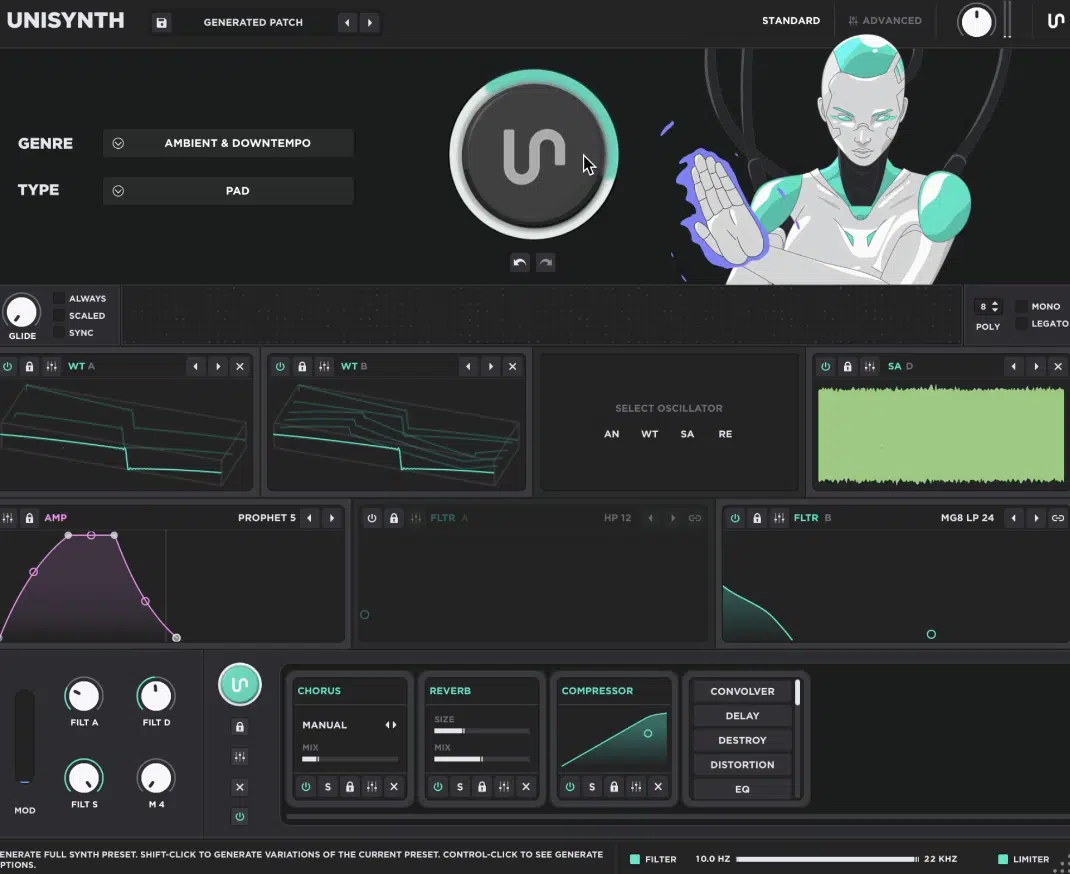
Unisynth is the #1 AI genre-specific generative synth plugin in the entire world (making major waves due to its straightforward yet super advanced/detailed nature).
It’s super simple 一 choose one of the 32 popular genres and 6 sound types, press generate, and boom you’ve got sick patches all day.
In Standard View, you can move quickly with the Generator Panel, Synth Panel, and FX Panel all in one very convenient place.
Advanced View, on the other hand, kicks things up a notch with:
- 4 independent oscillators
- 4 engine types per oscillator (AN, WT, SA, and RE)
- 2 primary filters with 95 filter types
- Up to 48 simultaneous modulators
- A full FX environment waiting for you
- 80 independent AI generators that control every individual section
Each oscillator can run as Analog, Wavetable, Sampler, or Resonator, so you can build anything you can think of, and then some.
Everything from a basic mono lead IR bass and a layered hybrid (sample-based) texture to a physically-modeled wind/brass instrument or metallic hybrid monster is possible!
Yes, with sampled attack, wavetable motion, sub-bass layer, and resonant tones stacked together.
On top of that, you’ve got drag-and-drop modulation, a Matrix tab for deeper routing, interactive XY controls and a wavetable editor.
Plus customizable envelope LFOs that can bend on your command, performance-based modulators (trackers), 4 macros, and full effects racks.
Here, you can easily reorder up to 24 FX units however you want or have any of the FX generators simply do the job for you.
So, Unisynth feels fast when you want instant inspiration for sure, but it also goes deep enough that you can get seriously surgical with the sound once you’re in the zone.
Now that you know what Unisynth is all about, let’s dive into the fun stuff: advanced tips, tricks, and techniques to help you bring your skills to the next level.
Most of these tips are my personal originals and can be used by both beginners as well as experienced producers and/or sound designers alike.
I’m going to kick things off with some of the more basic Unisynth techniques (still awesome, of course), and then dive into more advanced ones as we go on.
A. Creating Width with Stereo Offset in Unisynth
For the first one of these game-changing Unisynth techniques, let’s talk about creating width with stereo offset.
It’s all about making the left and right sides behave a little differently (increasing the stereo image), so the patch opens up without relying on:
- Heavy unison
- Huge detune
- A bunch of extra stereo FX
Usually the left and right channels are identical by default without additional stereo-imaging manipulation, even though they’re technically a stereo signal.
This results in a mono-like signal, right?
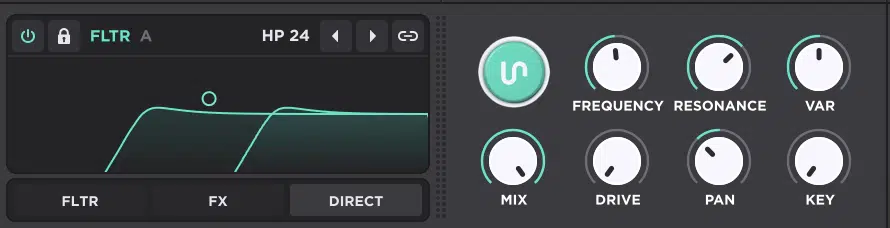
Well, in Unisynth, the filter section is perfect for this since each primary filter gives you Frequency, Resonance, VAR, Mix, Drive, Pan, and Key control.
Meaning, you can build width right into the patch before it hits the FX rack instead of stereoizing it later 一 widening the stereo image somewhat naturally.
This gives you way more signal-shaping options when filtering and applying modulation.
So, the move here is simple, my friends…
Start centered, push the filter off center, shape the tonal difference, and then dial it in until the patch feels wider but still super solid.
Now let’s break it down step-by-step for you so you really get the full picture.
Step #1. Starting With a Centered Sound
A centered sound means the patch is still living mostly in the middle of the stereo field, which gives you a clean reference point before you start spreading anything out.
A great place to start is with 1 oscillator active, unison between 1.00 to 2.00 voices, spread either off or very low, and no Width or Super Unison effect loaded yet.
It’ll keep the source tight enough that every stereo move is easy to hear.
For example, you could load a basic Analog saw, keep the oscillator level healthy and leave the routing straightforward into Filter A.
Just don’t forget to avoid stacking extra oscillators until the width trick is already working, otherwise things will go sideways, fast.
If you start with 3 or 4 oscillators, 6+ unison voices, and wide spread right away, the patch may already sound huge…
However, then it gets super hard to tell whether the filter pan is actually doing anything useful or not, which actually hurts the signal in the long wrong, so you might want to double-think that.
This will cause the opposite of what you’d want due to phase issues.
Therefore, you’re going to just keep the source a little plain at first so when the patch opens up later, you’ll hear exactly what caused it.
Step #2. Offsetting the Filter Pan
Filter pan is the control that shifts how the filter sits across the left and right channels, and in this technique, that’s the part that starts introducing the stereo split.
Once Filter A is active, you’re going to move the Pan control off center.
A good starting point is something moderate like 15% to 30% to one side instead of instantly cranking it to the extreme.
The left and right sides will stop getting filtered in exactly the same way, so even if the oscillator itself starts off pretty centered, the patch will start feeling wider/less flat.
If you push the pan too hard (say 70% to 100% right away) the sound can start leaning awkwardly to one side instead of feeling naturally wide, which usually isn’t the goal.
So, think of this like a nudge, not a hard shove 一 enough movement to break the symmetry, but not so much that the patch loses its center.
Step #3. Shaping the Stereo Signal
The stereo difference is the tonal contrast between the left and right sides, and that’s what makes this trick actually work instead of just sounding like uneven panning.
After offsetting the filter pan, start shaping cutoff, resonance, and VAR so the filter is doing something obvious enough to create a real side-to-side difference.
For example, you could try:
- Bringing the cutoff down to a lower-mid position
- Adding around 10% to 20% resonance
- Moving VAR a little if the filter type supports it
If you’re using a brighter source like a saw or harmonically rich wavetable, even a moderate cutoff move can make a significant difference.
One side will feel a little darker, a little sharper, or a little more focused than the other, which is where the width illusion starts getting super strong.
You can also try one of Unisynth’s more character-heavy filter types, such as Vowel, Vowel 5, Comb, Comb LP 12, Phaser, or Moog Ladder instead of a plain low-pass.
Since a more colorful filter gives the pan offset more personality to work with, that would be a pretty smart move to try out.
Just keep in mind that the overall goal here is contrast, not chaos.
So, every move should make the two sides feel different enough to sound bigger, but still similar enough that the patch feels like one cohesive sound.
Step #4. Fine-Tuning the Width

Fine-tuning the width means making sure the patch feels wider without getting blurry, weak, or off-balance, because nobody wants that.
After the stereo difference is working, start checking the filter pan amount against the cutoff shape and resonance level.
If the sound starts feeling hollow, try easing the pan back by 5% to 10%, or pull the resonance down a touch until the middle comes back.
You can also compare this move against Unisynth’s other stereo tools, like oscillator spread or the Width FX, for sure.
However, filter-based width usually feels a little more tucked into the sound itself instead of pasted on top.
Also, make sure to A/B the patch by toggling the filter off and on 一 if the “wider” version just sounds softer or less focused, you’ve probably gone too far.
The sweet spot is when the patch suddenly feels bigger, but the center still hits hard, especially on leads, plucks, and bass-adjacent sounds where too much stereo can wreck the impact fast.
Now you can either leave the signal as is, or add even more width by:
- Adding another oscillator
- Routing it through Filter 2
- Doing the same thing in the opposite direction
Or, you can split the signal while keeping just 1 oscillator and route the signal through Filter 2 using the filter routing slider, then repeat the same process.
This way, you have the same signal being split between 2 filters that are panned in opposite directions from one another, with slightly different cutoff settings.
It gives a beautiful natural width before the signal hits any additional processors.
PRO TIP: You can take it 1 step further and adjust the Mix level anywhere between 75% and 95%, letting part of the signal pass through (unfiltered) for your own custom mid-side type processing.
B. Modulating Filters
Next up, let’s dive into modulating filters in Unisynth.
It’s how you make a patch feel like it’s really moving instead of just sitting there with one frozen tone the entire time.
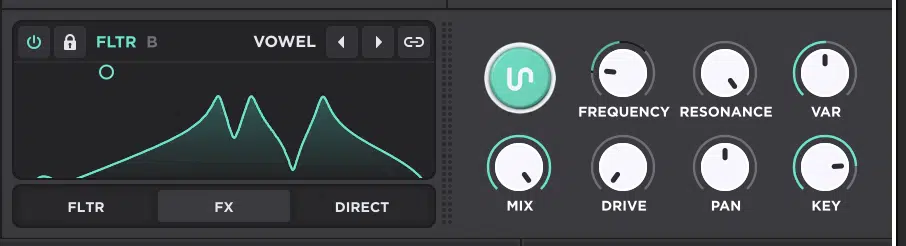
In Unisynth, that gets really, really fun because the two primary filters give you 95 filter types plus Frequency, Resonance, VAR, Mix, Drive, Pan, and Key control before you even add a single modulator.
The goal is all about picking a filter that already sounds cool on its own, shape it first, and then add movement that makes the patch feel more alive (not just more ‘busy’).
Step #1. Choosing the Right Filter
Choosing the right filter means figuring out exactly what kind of motion and tone you want before you start dragging LFOs all over the place for no reason.
Like I said, Unisynth gives you 95 filter types, so you’re not stuck with just a plain low-pass, that’s for sure.
You can choose from all different kinds, like:
- LP, BP, HP
- Notch, Peak, Bell
- Shelves & All-pass
- Comb filters, Vowel filters, Phaser filters
- Moog Ladder, Diode Ladder
- Korg-style filters, Oberheim-style filters
- So much more
They’ll all react very differently once they start moving, so this decision is definitely an impactful one.
If you want smoother sweeps on a pad or mellow pluck, start with something like MG LP 12, MG LP 24, or a Moog Ladder-style option.
if you want more attitude, a Vowel, Comb, or more unusual filter can make the movement sound way more obvious and textured.
NOTE: The more “effect-like” filter types and VAR (the extra variable control that changes behavior depending on the filter) are worth paying attention to.
So, never feel like you have to stop at the safe choices 一 get as creative as you’d like.
Step #2. Shaping the Filter First
Shaping the filter first means getting the static tone into a good spot before the movement starts.
This is because modulation always sounds better when the starting point already feels intentional (always remember that).
In Unisynth, you’re going to start with:
- Frequency 一 The cutoff point where the filter begins shaping the sound
- Resonance 一 The emphasis right around that cutoff point
Make sure those are sitting right before you even think about touching anything else
You can start by pulling the cutoff down until the sound loses just a little brightness, then adding around 10% to 20% resonance.
This way the movement will have a more defined edge once it starts sweeping.
After that, try VAR (the filter-specific character control) if the filter supports it, because on a lot of the more unusual types, that one knob is everything.
It’s where the really cool tone shift starts happening.
However, if the filter feels too aggressive at full strength, back the Mix down to something like 70% to 85%.
This way, the movement will stay present without completely taking over the patch.
Step #3. Assigning the Modulation
Assigning the modulation is all about deciding what’s going to move the filter and how controlled or chaotic that movement should feel.
The fastest way to do so in Unisynth is drag-and-drop, so start by grabbing one of the following:
- LFO (a repeating modulator that moves a target over time)
- Chaos (a random-value modulator)
- Tracker (a performance-based MOD source, like keytracking, aftertouch, etc.)
- Macro (a manual performance control)
- Any other modulation source in the menu
Then, simply drop it straight onto Frequency, Resonance, or VAR.
If you want cleaner, tempo-locked movement, start with an LFO, and a really safe first setting is a synced rate like 1/4, 1/2, or 1 bar.
It all depends on how obvious you want the sweep to feel, of course.
If you want the patch to feel less robotic and a little more unstable, use Chaos instead 一 it can step, glide, or curve between random values depending on the mode.
You can also right-click the target and assign the source that way, or open the Matrix when you want more precision (dealer’s choice).
I suggest that you keep the depth pretty moderate…
Enough that you clearly hear movement, but not so much that the patch starts sounding like a filter demo instead of a real sound you’d actually use in a track.
Step #4. Refining the Movement
Refining the movement is where you stop the modulation from sounding stiff, overdone, or randomly messy.
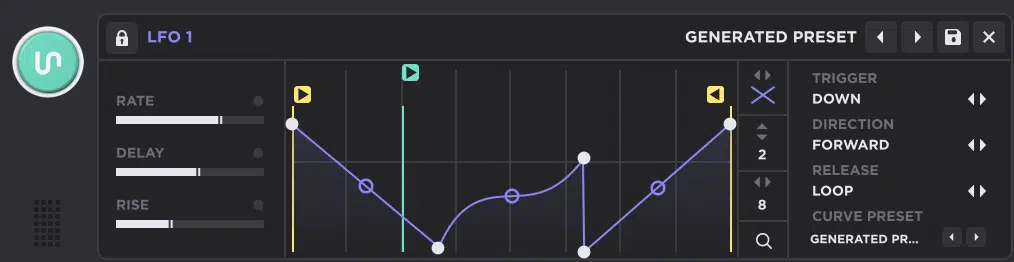
If you’re using an LFO at this point, make sure to start tweaking:
- Rate (how fast it moves)
- Delay (how long it waits before starting)
- Rise (how gradually the depth fades in)
- Trigger (when the LFO restarts or responds to notes)
- Direction (whether it moves forward, backward, ping-pong, or random)
- Release (what it does after note-off)
Do so until the motion actually lines up with the groove and feel of the patch.
If you’re using Chaos, mess with Rate, Delay, Rise, Mode (Step, Line, or Sine), and Bipolar (whether it moves in two directions around the starting point or just one) until the movement feels right.
You can start by setting an LFO to 1/2 bar with a short Delay and a little Rise, so the patch doesn’t start moving instantly.
Instead, it’ll kind of lean into the motion after the note begins.
You can also use a Macro as an aux source in the Matrix, so one knob controls how much filter movement you get.
For example, keeping it subtle in the verse and then opening it up harder in the hook.
PRO TIP: If you want the modulation to be somewhat chaotic, somewhat orderly you don’t need to throw a bunch of random modulators on it.
You can use just 1 or 2 of the same or similar LFOs, for example, but modulate the parameters at different values in opposite directions.
Just make sure to always A/B it at the end, because the best filter modulation usually feels like the sound suddenly has more life in it.
You never want it to sound like the filter is screaming for attention.
C. Advanced Unison Parameters
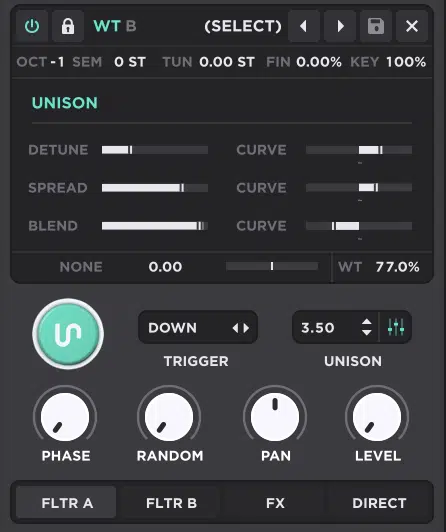
Advanced Unison parameters are the controls that shape how stacked voices spread, blend, and move against each other.
They help you make it so you’re not just cranking voice count and hoping it magically sounds huge, because that just won’t happen.
Plus, knowing exactly what they do gives you the best chance of manipulating them strategically, like a professional.
In Unisynth, Unison is the voice stack amount, and once you open the Additional Unison settings panel (the icon with 3 faders next to the Unison Voice Count box in Advanced View), you’ll get way deeper control over:
- Detune (how far apart the voices are in pitch)
- Detune Curve (how that detune is distributed across the voices)
- Spread (how wide those voices sit in the stereo field)
- Spread Curve (how that width is distributed)
- Blend (how strongly the extra voices are mixed in)
- Blend Curve (how that blend changes across the stack)
So instead of every unison patch sounding like the same washed-out supersaw, you can make one feel tighter, one feel wider, one feel more centered, or one feel more smeared and dramatic.
A great starting point for a big but still controllable sound is around 3.00 to 5.00 voices, Detune around 10% to 20%, and Spread around 35% to 60%.
Then you just have to adjust from there depending on whether you want width or focus.
The idea here is that Unison is really about stereo image and voice behavior — shaping how the stack behaves, not just making it “bigger.”
A helpful tip is, if the sound starts getting blurry, make sure to lower the detune before you lower the voice count.
This is because too much pitch separation usually wrecks the center faster than the extra voices themselves.
If the patch still feels too flat even with decent Unison settings, you can bring in Super Unison later from the FX section.
However, that’s a different kind of width and motion than the oscillator stack itself.
Once you get used to these controls, you’ll stop treating unison like an on/off “make it wide” button and start using it like a proper shaping tool, trust me.
D. Using Unisynth’s Chaos Modulator
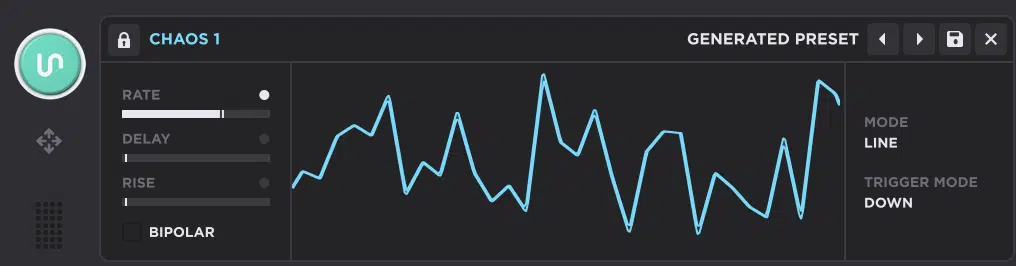
Chaos is Unisynth’s random-motion modulator, and it’s absolutely perfect for when a patch feels too perfect, too static, or too obviously looped.
Instead of repeating the same exact movement like an LFO, Chaos keeps changing values based on the settings you choose.
It can add anything from slight analog-style drift to properly unstable pitch or filter behavior, depending on the vibe you’re aiming for.
Remember, you can set Rate, Delay, Rise, Mode (Step, Line, or Sine), and Bipolar.
What I personally love doing is routing Chaos to Fine Pitch with a tiny amount 一 just enough for subtle analog-style drift.
It’ll get you closer to the slight wobble of older analog hardware gear without making the patch sound drunk.
Just keep in mind that Chaos should be treated on its own terms, instead of copied one-for-one from another synth, as it works best as a flavor tool, not just a gimmick.
If you want something more rhythmic and obvious, use Step mode with a medium rate, and when you want smoother wandering motion, Line or Sine will usually feel better.
You can even route it to filter cutoff, wavetable position, pan, FX mix, delay time, or pretty much anywhere else that benefits from a little unpredictability.
The real trick is keeping the depth under control…
A small amount of randomness usually sounds expensive and alive, while too much starts sounding like the patch is malfunctioning.
PRO TIP: The great thing about the Chaos modulator is that it shows you in real time what it’s actually doing, which helps you shape it based on your needs.
From subtle randomization to totally chaotic motion, the possibilities are endless.
E. Velocity Sensitive Presets
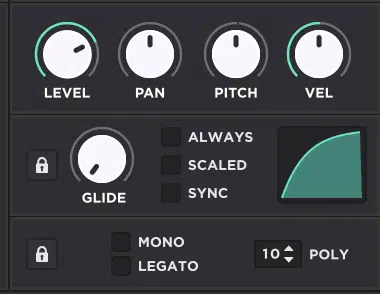
Velocity-sensitive presets respond to how hard you hit the key, so the sound feels more expressive instead of giving you the exact same tone every single time.
In Unisynth you can handle that with the help of:
- The built-in Velocity Curve
- The Vel control in the voicing section
- The Tracker modulator if you want more custom routing
You just have to decide what exactly should react to your playing 一 assigning velocity to the right target.
Then, shaping the response until soft notes and hard notes actually feel different in a useful way, not just randomly.
Side note, in synths like Unisynth, velocity sensitivity is not set up by default, so it needs to be implemented in various ways by assigning it as a mod source.
Step #1. Choosing the Response
Choosing the response means deciding what should change when you play softer or harder, because velocity doesn’t always have to mean simple volume.
Velocity can be used as a mod source and can manipulate any parameter, and a good amount of the time, the best move is brightness first.
This could be like letting harder notes open the filter a bit more (since that instantly makes the patch feel more natural and performance-ready).
In other cases, you may want velocity affecting amp level, filter cutoff, mod depth, or even something like reverb mix if you want the patch to bloom more when you dig in.
Just remember that Unisynth’s Velocity Curve is hardwired to the Amp Envelope by default.
Therefore you already have a built-in way to control just how much louder the patch gets with stronger note input, which gives you endless opportunities to play around with.
NOTE: Soft notes should sound slightly darker, smaller, or gentler, while hard notes should feel brighter, louder, or more energized.
It shouldn’t sound like you just switched to an entirely different preset because that’s honestly amateur hour.
So before you assign anything, always decide whether the patch needs more dynamic loudness, more dynamic tone, or both, period.
Step #2. Assigning Velocity
Assigning velocity means telling Unisynth exactly what note strength should be affecting.
If you want the classic “harder hit = brighter sound” behavior, simply use Tracker and choose Velocity as the source.
Tracker lets you route incoming note velocity to basically any control you want and shape the response more precisely.
So, anything that can be modulated can be tied to velocity in any way, including inverse modulation.
This means if you want soft notes to increase the strength of a destination, you can easily do that too.
Or if you need to get more creative by increasing the level of a parameter or destination because a certain effect/routing can’t be heard when you play too softly or you’re compensating for level differences, no problem.
Just remember, if you just want basic amp sensitivity, work with the built-in Velocity Curve and Vel amount first, because it’s faster and designed for volume response.
For example, you could keep the amp velocity moderate, then use Tracker to also push Filter A Frequency a little higher on stronger notes.
That gives you two layers of response at once (harder notes get louder and brighter), which typically ends up feeling way more musical than just making them louder.
Finally, if you want the patch to stay pretty controlled, make sure to keep the depth modest at first because minor velocity moves feel a lot more natural than exaggerated ones.
Step #3. Determining the Target Destination
Determining the target is all about choosing the destination that benefits from performance response instead of just assigning velocity everywhere for no reason.
One of the best starting targets is Filter Frequency, which is the cutoff point where the filter opens or closes the tone.
It’ll give you the familiar behavior of softer hits sounding darker and harder hits sounding brighter.
However, if you want the patch to get more animated the harder you play, you can always route velocity to:
- Resonance
- Wavetable position
- Effect mix
- Even mod depth
A nice combo in my opinion is something like velocity pushing the filter up a little while also increasing the depth of an LFO or easing in more vibrato.
This way, the patch doesn’t just get brighter, it gets more expressive overall.
Oh, and if you’re working on keys, plucks, or synth brass, that kind of routing can make the sound feel way more playable and expressive right away.
So, make sure to pick targets that change the emotion or phrasing of the patch — not just the raw volume.
Step #4. Adjusting the Curve
Adjusting the curve means shaping how the patch responds across the full velocity range, so you’re not stuck with a response that feels too stiff, jumpy, or strictly linear.
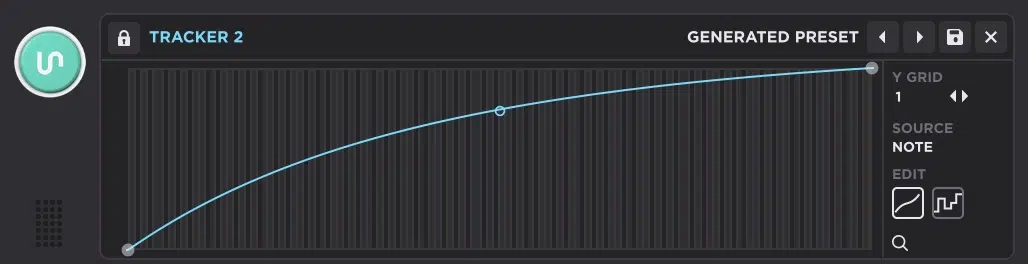
In Unisynth, you can knock this out using the Tracker as the velocity curve and selecting Velocity as the Tracker’s source.
By default, you’ve got 3 handles:
- One for minimum response
- One for maximum response
- One in the middle (that changes the curve from more logarithmic to more linear to more exponential)
But the amazing part about the Tracker is that you can add virtually as many points as you’d like, meaning you can get super creative with the shape of your curve.
You’re never limited to linear, exponential, or logarithmic response and can treat it more like an LFO shape if you want.
This means (although it’s not very practical) you could keep the standard minimum and maximum response while zeroing out the middle if that’s your thing.
That middle range could trigger nothing at all, is basically what I’m saying.
If the patch is reacting too hard too early, make sure to flatten the curve a bit so medium-strength notes don’t already sound maxed out.
If it feels too dull (unless you absolutely smash the keys) 一 raise the low end of the curve a little so softer playing still gives you some response.
What I personally like to do is strive for an organic curve by keeping a moderate minimum, a clear but not extreme maximum, and a center curve.
This lets the patch open up more naturally in the upper-middle velocity range instead of only at the very top.
Once that’s set, the whole patch will feel more “played” and natural, less like it’s just triggering the same static sound over and over again.
But remember that this can be manipulated in many different ways to match your unique goals, and you can certainly get more creative with your shapes.
Bottom line, if you want a typical velocity response, working from the default is best, and for more obscure responses, you can customize the curve like an LFO to perfection!
Try Out The Most Versatile Synth in the Game
F. Aftertouch and Pressure-Based Expression
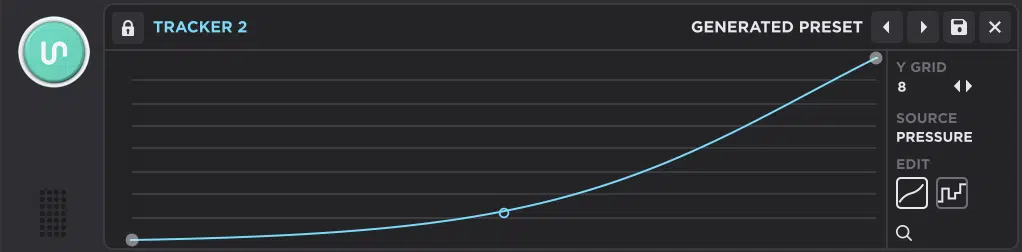
Aftertouch and pressure-based expression makes the patch react after the note is already pressed down, so the sound keeps evolving while you hold it.
In Unisynth, that usually means using Tracker sources like Pressure or Timbre to push something in real time (e.g., brightness, vibrato depth, reverb, or movement amount).
All without forcing the patch to do the same thing on every note.
So, this is where a lead starts feeling more alive, a pad starts blooming more naturally, and a held note stops sounding like a dead loop.
Step #1. Choosing a Performance Target
A performance target is the thing you want your finger pressure to control once the note is already being held.
It gives you unmatched hands-on control over what exactly the target is, like you have a macro built into each individual key you press in real time.
Doing so simply by applying more pressure as you sustain the note.
Now, the best target depends on what unique kind of patch you’re building…
For a lead, a great first move is vibrato depth. Not giant pitch bend, but a small amount of extra pitch movement that fades in once you press harder.
This usually includes a pretty tight range so it stays musical, so keep that locked in.
For a pad, Filter Frequency is often the better choice.
This is because leaning into the key and hearing the sound get a little brighter feels smoother and more controlled than instantly wobbling the pitch.
You can also route pressure to Reverb Mix, Delay Feedback, Wavetable Position, or even Macro depth if you want the patch to get more animated as you hold it.
And in the case of Macro depth, that lets it manipulate a wide range of parameters all at once without having to fiddle around or use an unavailable hand to turn a knob.
Just play the keys and modulate without worrying about another control.
However, the cleanest primary choices are always going to be filter opening, vibrato amount, or FX level, no doubt about it.
For example, if you’re making an R&B lead, Pressure opening the filter by a small amount while also increasing vibrato depth will sound way better than throwing all that motion into the patch by default.
Basically, the main idea is to pick something that feels like a natural extension of your hand — not something random that just happens to move.
PRO TIP: You can even get super creative and set this as an aux modulation source. Let’s say you have a dope LFO modulating a parameter for movement, right?
Well, you’re able to use Aftertouch or Pressure to trigger it or determine its depth, so it’s not always active, just when you decide as you play.
It can even be incorporated into a chord progression held down for 2 bars per chord to add some extra rhythm 1 bar into each chord as it sustains, adding rhythm 1 bar into each chord as it sustains.
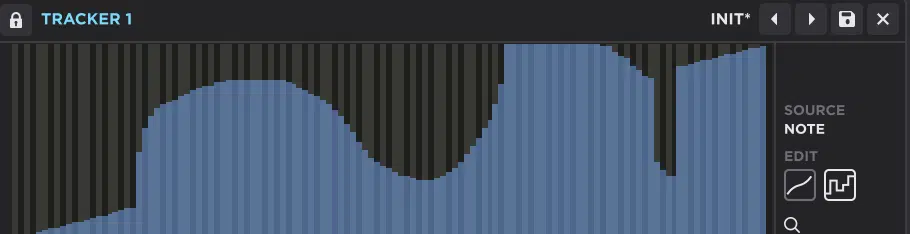
One more major bonus is to do away with the typical curve with points and opt for “discrete step mapping” by toggling it in the Tracker (shown below).
Then, make super unique curves with 1 stroke of your mouse in a brush-like manner.
Step #2. Bringing in Pressure
Bringing in pressure (and no, I’m not talking about the Drake song) means telling Unisynth where that extra performance data is coming from.
The easiest way to do that is with Tracker.
So, what you’re going to want to do is set the Source to Pressure if your controller sends aftertouch-style pressure data.
Or, test Timbre too if you’re using an MPE controller that separates those gestures more cleanly.
Once that’s in place, simply route it to a destination like Filter A Frequency, LFO depth, or FX mix, then play one long note and slowly lean into it.
This way you’ll be able to hear exactly how the patch reacts.
A really solid first test is Pressure into Filter A cutoff with a moderate amount 一 it’s very easy to hear when the note starts opening up too fast or not enough.
Now, if you don’t hear anything at all, either the controller isn’t sending that data, or the mod amount is too low to notice.
If it jumps way too hard, the routing is fine and the curve or depth just needs tightening.
So before getting fancy, always make sure the pressure signal is actually reaching the patch in a way you can clearly hear and control.
Step #3. Shaping the Response
Shaping the response means deciding how the patch reacts as pressure increases, because the same destination can feel smooth, touchy, or completely awkward.
It all depends on the curve itself, and in Unisynth’s Tracker, Curve mode lets you draw that response manually.
This is invaluable because you can make the first half of the pressure range very gentle and then let the movement build more in the upper half.
That usually feels better than a straight linear climb (especially on expressive leads and pads) since otherwise the sound often reacts too much from the second you touch the key harder.
For example, if pressure is opening the filter, a flatter lower curve and steeper upper curve gives you more control.
Now, light finger pressure won’t change much, but once you really lean in, the patch starts opening and speaking more.
If pressure is bringing in vibrato, a slower lower curve keeps the note stable at first, then lets the motion bloom later instead of sounding shaky from the jump.
So, the shape you draw is basically the personality of the response — whether it sneaks in, ramps in, or reacts immediately.
Again, like velocity, this can be done as creatively as you’d like, but a standard either exponential or logarithmic curve produces more predictable results.
With that said, creativity can shine with aftertouch curves, so always remember that.
NOTE: It can also be done strategically by making sure small pressure changes don’t trigger the modulation we set up.
Or, on the flip side, make the curve response more sensitive by ensuring that very small changes are responsive to the modulation you set up.
Step #4. Controlling the Range
Controlling the range is all about limiting how far the pressure can push the destination, and this is the part that keeps expressive control from turning into a mess.
So, the range works hand-in-hand with the curve, and when setting this up, adjusting the response curve and the range (going back and forth between the two) is the key.
Even when the response curve feels great, too much modulation depth can still wreck the patch — especially on sensitive targets like pitch, resonance, or delay feedback.
My rule is to start with a smaller range than you think you need, because pressure-based movement nearly always feels better when it’s controlled instead of dramatic.
For example, if pressure opens the filter, keep the movement in a zone where the patch gets brighter and more present.
Just make sure it doesn’t suddenly sound like a completely different preset!
Also, if pressure is bringing in vibrato, keep the depth tight enough that the note still feels centered/confident instead of bending around all over the place.
Remember, the best result usually comes from a range that’s obvious when you play, but still clean enough that you’d trust it in a real take instead of just as a demo trick.
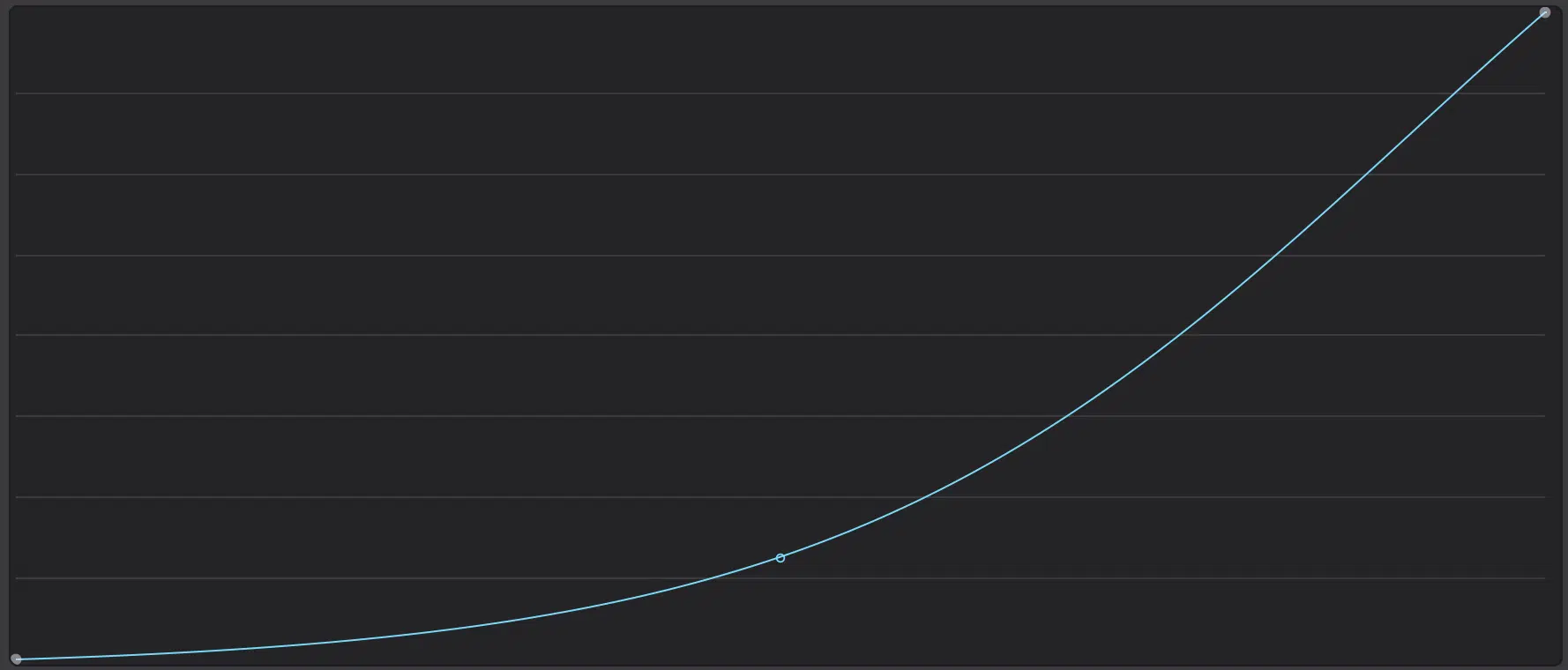
PRO TIP: One incredible feature in Unisynth is that, when creating intricate custom curves, you may need more precision than you can get in normal view.
So, any modulator can essentially be put into full-screen mode by clicking the expand icon, which makes small, intricate, and more designated alterations much more exact.
G. Controlling Phase Like a Boss
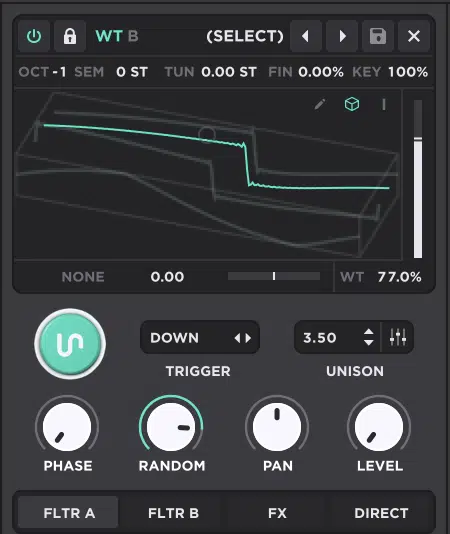
Phase is the point in the waveform cycle where the oscillator starts each time you play a note, and that affects:
- The attack
- The punch
- How consistent the patch feels, way more than people think
In Unisynth, each oscillator gives you Phase (the waveform start point) and Random (how much that start point shifts on every new note).
So, you’re able to decide whether the attack stays locked in or changes from hit to hit.
This may be barely noticeable at times, but as you get more into sound design, you’ll learn it’s these tiny factors that determine how professional your presets/tracks sound.
As they say, the difference between a pro- and amateur-sounding patch is the last 5% to 10%, so always remember that the next time you think a small change won’t matter.
If Random is high, the sound usually feels looser and less mechanical, but the transient can also hit differently every time.
Especially on basses, plucks, synth brass, and short leads where the first 10 to 50 milliseconds is everything, mind you.
When you’re building a bass patch, the best move is usually keeping Random very low or all the way off first, especially on the main oscillator and any sub-like layer.
That’s because the low-end wants consistency, period.
If the waveform starts from a different point every note, one bass hit can feel strong and centered while the next feels softer, duller, or slightly hollow for no obvious reason.
This is equivalent to phase issues in a mix (basically the same thing).
What Random is doing is essentially flipping or rotating the phase/polarity every time it’s triggered…
So, if you’re layering 2 oscillators, like a WT oscillator for midrange movement and an oscillator underneath for extra body, the moves would be different.
You’ll want to start with low Random on both, then test different Phase positions until the attack tightens up and the low-end feels firmer.
Sometimes a small phase change on just one oscillator is enough to make the whole bass suddenly sound more solid and on point.
However, on plucks and short leads, phase is less about huge low-end weight and more about keeping the front edge sharp instead of blurry.
If the patch has a fast amp envelope and a bright top end, even small phase differences can change whether the hit feels snappy or slightly smeared.
Therefore lowering Random and finding a stronger fixed Phase position usually helps.
On pads and slower textures, you can leave a little more Random in the patch, because a less identical attack can make the sound feel smoother/more relaxed.
It all gets more important once you stack 2 or 3 oscillators, or layer a sub under a brighter top sound, because those starts can either reinforce each other or soften each other and make the patch feel way smaller than it should.
NOTE: If repeated notes still feel inconsistent, the global reset behavior helps too, since it keeps the oscillator start behavior from wandering as much from note to note.
So, between Phase, Random, and reset behavior, you’ve got a LOT of control over whether a sound hits tight and repeatable, or drifts a little more and feels less rigid.
These things may sound unimportant, but trust me they make all the difference between a hard-hitting 808 and a blurry low-end that may sometimes hit, but not consistently.
H. Using the Sampler Engine Like a Noise Layer
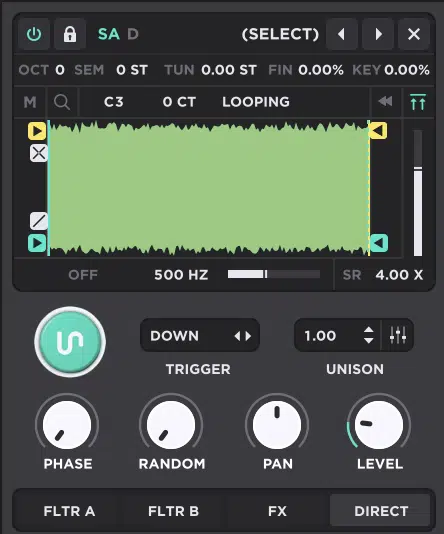
Using the Sampler engine like a noise layer means treating the SA oscillator as a source for extra attack, extra air, extra grit, or little mechanical details.
As opposed to thinking of it like it only exists to play back full melodic samples.
That works really well in Unisynth because you can shape:
- Playback Start
- Playback End
- Loop Mode
- Reverse
- Sample Rate
- Filter
- Detune
- Key
Meaning, you’re able to isolate just the tiny front edge or texture you want instead of the whole file (which is super valuable).
These are also various trigger modes and you can even apply Unison to the sample!
For example, you can load up a short sample with some click, hiss, breath, scrape, felt, or key noise in it, then keep that layer low.
Usually just enough that you miss it when it’s muted, but don’t hear it as its own separate sound when it’s on.
If you don’t want that layer changing pitch with every note, pull the Key amount down toward 0% to keep it more like a fixed transient/noise burst than a tuned instrument.
This gets even better when you combine it with the other expression moves we talked about earlier, trust me.
If you’re emulating keys, pianos, EPs, or clavs, you can use a tiny sampled key-on click or mechanical finger noise and then let velocity control how strong that transient layer gets.
This way, softer notes barely trigger it while harder notes bring out more of that front-edge realism.
It’ll feel way more natural than leaving the same click level on every note 一 real instruments don’t hit you with identical mechanical noise every single time.
PRO TIP: By setting the trigger mode to Up, you can even have it trigger release samples. This way, you’ll be able to flawlessly emulate a real instrument like a Rhodes piano not just by implementing a key-on noise, but also a key-off noise.
You can do so by either using 2 sample oscillators, or just 1 so you don’t have to waste an oscillator slot and can save it for something else.
Another option is setting the trigger mode to “Down & Up,” so the sample is triggered on key-on and key-off.
Also, you can use aftertouch or pressure to bring in more of the noisy layer only when you lean into a held note, which is great for expressive keys and textured pads.
As well as synth patches that need a little more edge on demand.
Another sick technique is routing that sampler layer to a Macro for full control over the level; the noise will only be there when you want the patch to feel more alive, and completely silent when you don’t.
Even better, that macro can be automated in your DAW, so the same patch can stay cleaner in the verse, then pick up more click, grit, or attack in the hook.
All without you having to build a second preset (awesome, right?).
You can also use the sampler’s HPF or LPF to keep only the airy top or only the sharper front edge, which helps it sit behind an Analog or Wavetable oscillator without filling up the middle of the sound.
For example, a pluck that feels too clean can get way more attitude from a tiny sampled hiss or key click layered quietly on top.
And, a fake piano or EP patch can feel a lot more believable once the transient noise responds to velocity instead of staying static.
So even though Unisynth doesn’t frame this as a ‘classic noise oscillator,’ the SA engine covers that job extremely well, no lie.
Once you start combining it with velocity, pressure, and Macro control, it goes from “extra texture” to a real realism and expression layer real quick.
I. Getting More Creative with Unisynth’s Sampler Engine
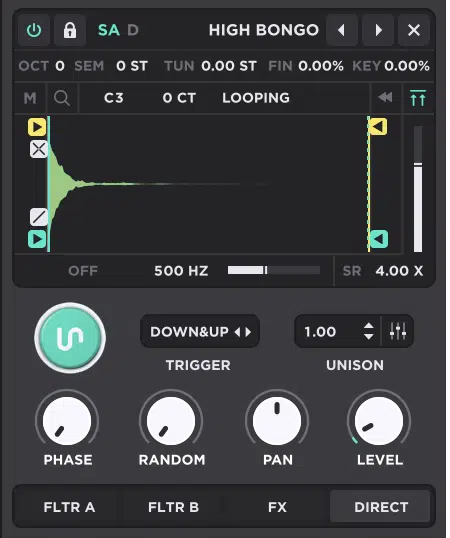
Getting more creative with Unisynth’s Sampler engine can help you seriously kick things up a notch and go way beyond “use a sample for attack.”
You’ll be able to turn it into a real sound-design layer with my following tricks.
Now, since the SA oscillator gives you Playback Start, End, Loop Start, Loop End, Fade, Crossfade, Reverse, Normalize, Sample Rate, and multiple loop modes, one sample can behave like a:
- Transient
- Repeating texture
- Sustain layer
- Weird in-between hybrid
It all just depends on how exactly you trim it.
For example, a vocal slice can become a breathy top layer if you skip the transient and grab a softer middle section.
A percussive hit, on the other hand, can transform into a sustained synthetic texture if you loop a tiny region in the body of the sample.
Dropping the Sample Rate can add rough digital grit, and reversing the playback can give you that sucking or swelling front edge before the main oscillator hits.
You can also use Ping Pong or Sustain loop modes to make the sample behave in a less static way while the note is held.
This opens up a lot more movement than just letting it play once.
And, if you stack that under a WT oscillator doing the harmonic heavy lifting (or next to an AN oscillator keeping the patch centered), the whole sound starts to shift.
It starts to feel more custom and less like it came from one obvious source.
Another good one is using the sample layer for something the synth side isn’t already covering 一 like noise, scrape, texture, or weird midrange detail.
This is instead of duplicating the same role twice, of course.
NOTE: Don’t forget to experiment with the trigger modes, as that’s the key to creating either hyper-realistic or totally synthetic hybrid textures. This is something you really don’t see in synths like Unisynth, or sample-based oscillators in general.
So once you stop treating the SA engine less like a support feature and more like a full-on character layer, you’ll be able to make patches feel more original all day.
J. Pitch Bend Techniques
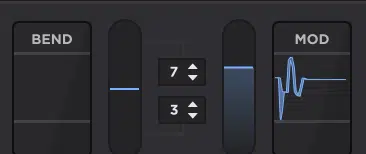
Pitch bend is the real-time control that lets you push a note above or below its played pitch, and the whole trick is setting the range so it actually fits the patch.
It also enables you to create melodic transitions, bends, and even improvise and alter melodies.
Not just as you play, but also once you’ve laid down the MIDI, since you can automate it on the fly in a way that fits the key of your track.
A small range like 2, 3, or 4 semitones usually works best for subtle melodic expression and implementing musical thirds based on whether you’re working in a major or minor key.
It lets you nudge into notes or add a little phrasing without the patch flying out of control, which you certainly never want.
A larger range like 7 semitones is great for fifth-style jumps, and 12 semitones gives you full octave movement when you want bigger transitions or more dramatic bends.
For mono leads, pitch bend gets way smoother when you combine it with Mono, Legato, and a little Glide, since that makes the phrasing feel more connected instead of stiff.
On bass patches, shorter ranges usually hold together better, especially if the line is fast and rhythmic.
Remember, too much bend can make the low end feel smeared or unstable.
On more expressive synths, a bigger range can sound great, but only if the patch still feels solid while it bends 一 otherwise it starts sounding sloppy really fast.
So, the best move in my opinion is to match the bend range to the actual job of the sound instead of leaving some default setting on everything like a rookie.
Once that’s dialed in, pitch bend will start sounding like a natural part of the performance (like you’re a true professional).
K. The LFO Section in Unisynth: Breaking It Down
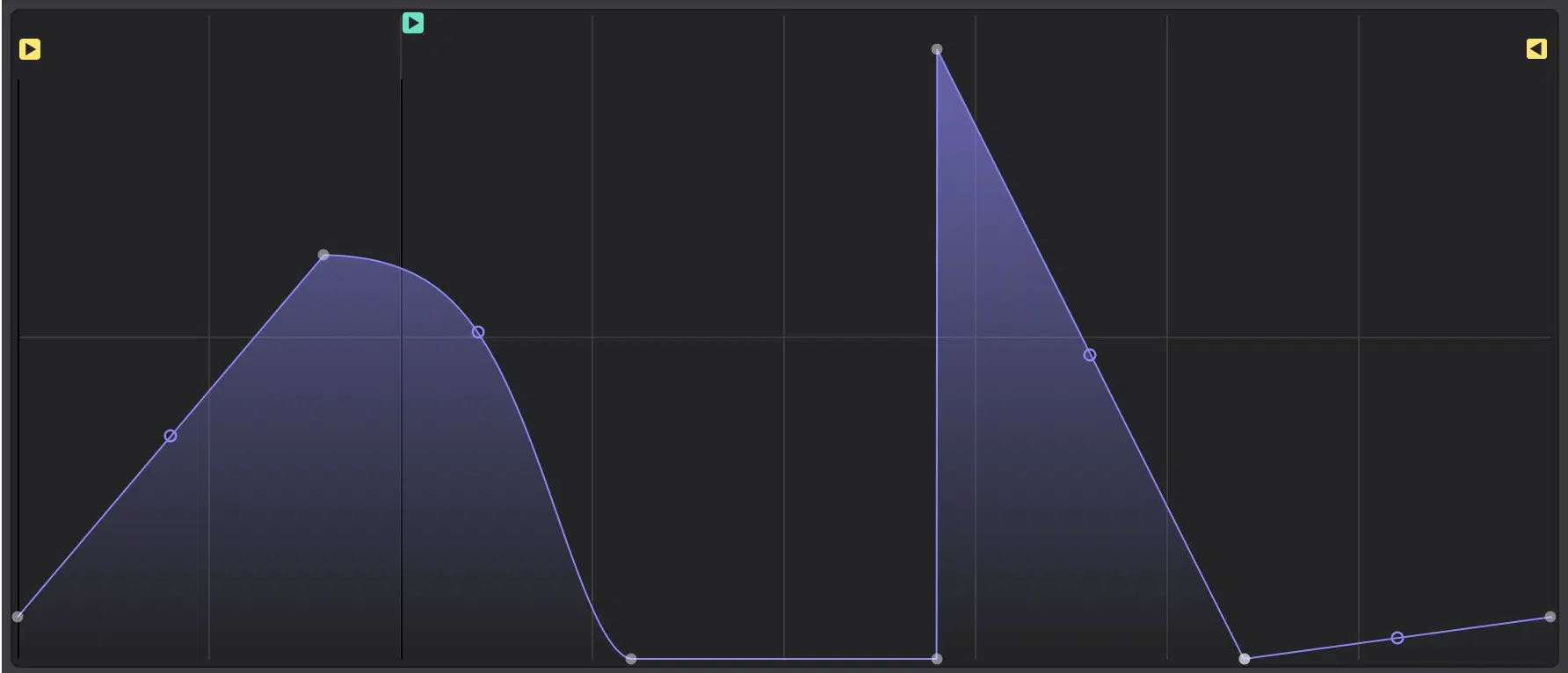
An LFO (low-frequency oscillator) is a repeating modulator that moves another control over time, and in Unisynth it goes way past the usual basic wobble stuff.
You’ll be able to do all kinds of crazy stuff, like:
- Draw custom shapes with nodes
- Snap those shapes to a grid
- Use brush shapes
Plus, control Rate, Delay, Rise, Start Pos, Loop Pos, Direction, Release, and Trigger behavior so you’re never stuck with one generic movement type.
Meaning, the LFOs work more like fully customizable multi-stage envelopes (MSEG) with virtually unlimited points and stages, so you can get as creative as you’d like.
You can even use them as a full-blown sequencer or arp (more on that below!).
If you want clean rhythmic motion, sync the rate to the DAW and use the grid so the shape lands right on real musical divisions like 1/4, 1/8, or 1 bar timing.
If you want something looser, switch to free timing and let the modulation move in Hz instead of locked divisions.
Delay lets the LFO wait before starting, Rise fades the depth in gradually, Trigger decides whether the movement restarts per note, reacts on release, or behaves globally.
Then you have Direction, which lets the shape run forward, backward, ping-pong, or random 一 changing the feel in a major way even if the shape itself stays the same.
Release, on the other hand, decides what the LFO does after note-off, so the motion can stop, pause, continue, or finish in a more controlled way.
Once you really understand the LFO section, it stops being just “the thing for movement” and becomes one of the strongest things in Unisynth.
For rhythm, phrasing, motion, and dynamic patch design, it’s truly invaluable.
L. Quantized Bass Modulation
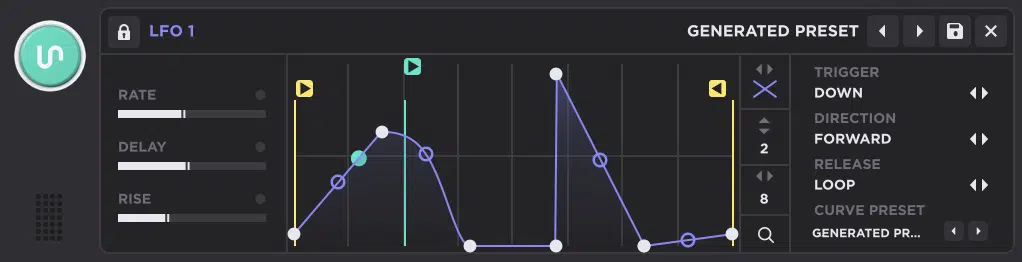
Quantized bass modulation is all about making the movement hit in time with the track, so the bass feels locked to the groove instead of just wandering around on its own.
In Unisynth, the best version of this is using a synced LFO with a snap grid, then drawing the movement so every rise, dip, and hold lands where the drums land.
So, if you want bass motion that feels tight, modern, and rhythmically intentional, this is one of the cleanest ways to get there.
Step #1. Starting With the Bass Patch
Now, to kick things off, you’re going to need a solid bass patch, period.
It needs enough harmonics in the mids to actually show the movement, because a pure sub won’t give you much to hear once the LFO starts working.
A great starting setup is:
- 1 WT oscillator for character
- 1 AN oscillator underneath for weight
- Both routed into Filter A
This way, the movement feels like one sound instead of two separate layers.
And if you want a modern moving bass, keep unison low (around 1.00 to 2.00 voices), and keep the stereo spread tight so you don’t soften the groove with too much width.
I also suggest keeping the brightest filter action living somewhere around 200 Hz to 2 kHz as that’s the range where filter sweeps/wavetable motion really speak on basses.
And if the patch already sounds huge before you even add the LFO, pull back some spread, extra FX, or stacked oscillators first…
The motion will hit way harder when the source is tighter.
Step #2. Syncing the LFO
Syncing the LFO means locking the movement to the m, so the bass rhythm feels glued to the track instead of floating over it.
A great place to start is 1 bar if you want the phrase to reset often, or 2 bars if you want the movement to take longer and feel more evolving.
If the bass pattern itself is busy (like lots of 1/8 notes or fast 1/16-note runs), shorter synced values like 1/4 or 1/2 bar will help things feel tighter and more controlled.
However if the bass notes are longer and more spacious, 1 or 2 bars gives the motion room to stretch out and breathe a little.
I’d also make sure the LFO is restarting in a predictable way.
Even a strong shape can feel sloppy if it’s not beginning in the same place each time the note or phrase comes back around.
Step #3. Setting the Grid
The grid is what makes the LFO shape snap to real musical divisions, so you’re not just drawing timing by eye and hoping it lands right.
A very easy starting combination is LFO rate = 1 bar and Grid = 8 if you want quarter-note-style chunks.
Or, Grid = 16 if you want smaller 1/16-note movement inside that bar.
Keep in mind that, if you set the LFO to 2 bars and the grid to 16, the edits feel more spread out and phrase-like.
It’s great when you want the modulation to evolve over a longer section instead of hitting the same move every beat.
For choppier bass movement, try to keep the grid tighter and the LFO shorter.
For more rolling or talking bass movement, I’d stretch the rate first and then decide whether the grid should stay simple or get more detailed.
And once the grid is set, you’re not guessing anymore like a newbie — every rise, drop, and hold can sit right where the kick, snare, or hi-hat pattern needs it to.
Step #4. Drawing the Pattern
Drawing the pattern is where you decide how the bass actually speaks over time, and this is the part that turns a static patch into something rhythmic.
I’d start with 4 to 6 main moves max…
For example, a fast rise, a short hold, a sharp drop, then a slower rise into the next phrase.
This is because that usually sounds stronger than drawing 20 little edits just because you can.
- If you’re modulating Filter Frequency 一 those moves will feel like brightness changes or the classic wobble bass-type movement, of course
- If modulating WT Position 一 they’ll feel more like texture/character shifting inside the note
A great habit is mixing one or two hard steps with one smoother ramp, because that contrast makes the movement feel less repetitive and less “template-like.”
And if the pattern starts looking too crowded, it probably is.
Remember, bass motion usually sounds better when each move has a clear purpose instead of constant twitchy activity.
Step #5. Locking in the Groove
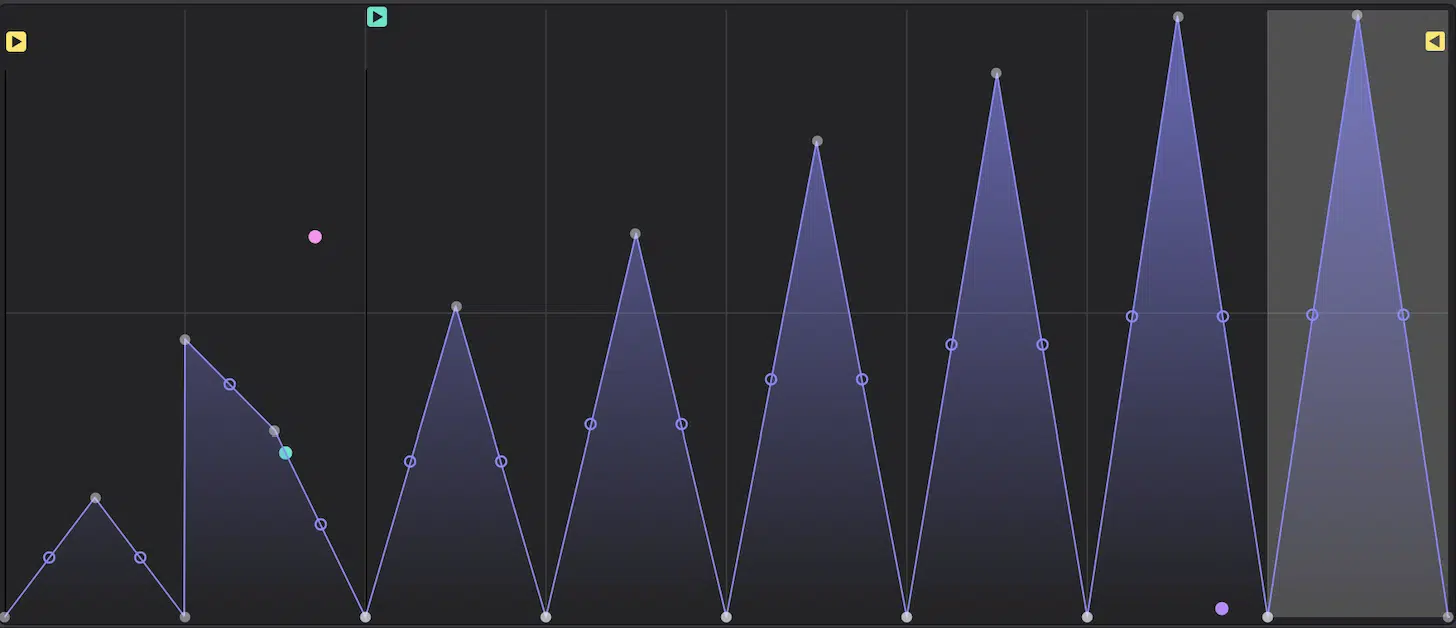
Locking in the groove means making the modulation feel like part of the beat, not like a separate loop happening on top of it.
Once the shape is drawn, I’d lower the mod depth first and build it back up slowly, because too much movement makes the bass feel disconnected from the notes.
Then check where the strongest move lands…
For example, if a big sweep happens right before the snare or just after the kick, it can make the whole phrase feel more intentional.
If the groove still feels stiff, smooth out one or two nodes instead of redrawing the whole LFO as tiny timing or curve changes often fix the feel faster than bigger edits.
I also like using a little Rise on the LFO sometimes so the movement leans in instead of slamming full-force from the first millisecond.
When it’s right, the bass should feel like it’s dancing with the drums, not fighting them.
NOTE: Locking in the groove means treating the LFO itself as if you were drawing in automation, so visualize the grid as if you were working in a piano roll.
Expanding the LFO in Unisynth so it occupies most of the screen/interface helps big time when you’re trying to lock rhythms.
Exclusive Pro Tip (Unisynth Techniques)
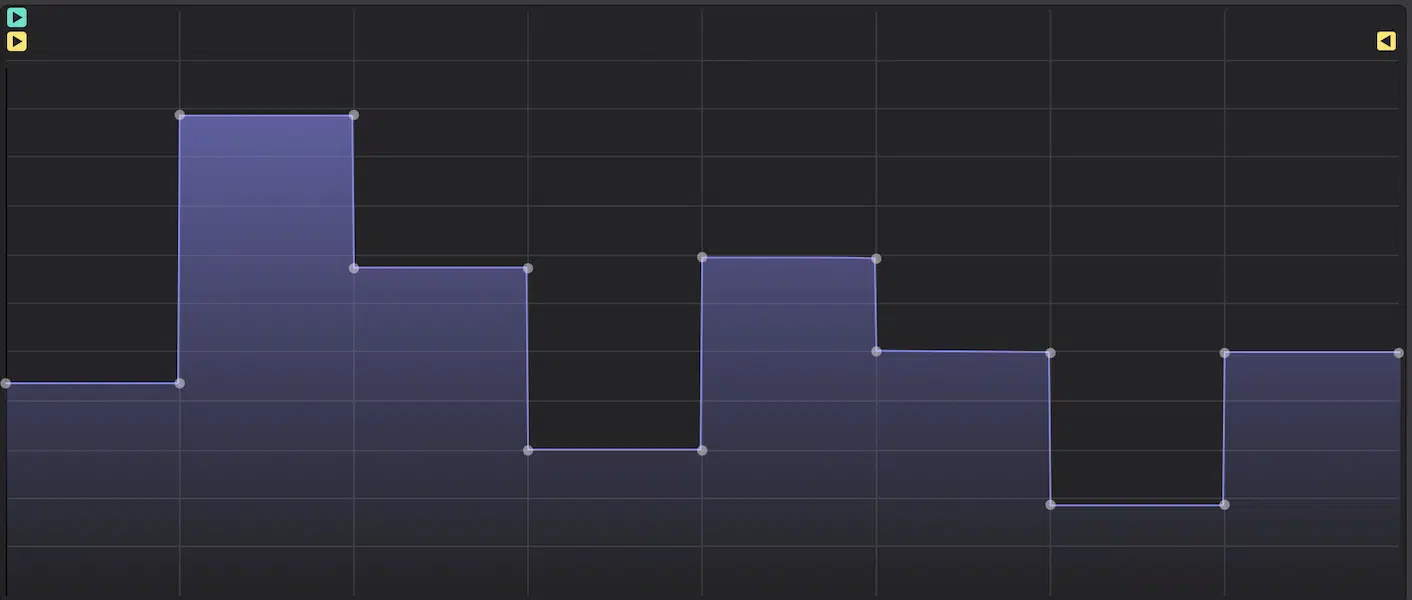
Locking in the groove also opens up another really cool move: you can use the same LFO section like a mini arp or sequencer.
If you draw it the right way and route it to pitch instead of filter or wavetable position, that is (otherwise, it’s just going to be a total mess).
The basic idea is simple:
- Draw step-like shapes instead of curves
- Turn tempo sync on
- Set the Rate and Grid so each block lands on its own musical division
This could be like 1/16, 1/8, or 1/4-note timing depending on how fast you want the sequence to move.
A great starting point is setting the LFO to 1 bar with the grid at 16.
That’ll give you 16 individual step positions across the bar, which is absolutely perfect for tighter arp-style motion.
Then you can increase the bar-length as you complete the rhythm to slow it down.
If you want something slower and more spacious, set the grid to 8 so each step has more room.
On the flip side, if you want a longer phrase, push the LFO rate to 2 bars so the pattern stretches out without cramming too much into one loop.
Then make sure to route the LFO to Pitch (this is the part that really matters)…
The modulation amount decides what actual note jumps you’re creating, so if the amount is sloppy, the “sequence” will sound out of key or land between useful note values.
I recommend keeping the pitch amount tied to musical intervals.
For example, if you set the pitch amount to move in 2-semitone jumps, you can get a simple whole-tone style pattern that feels super clean on basses/plucks.
If you push it to 3 or 4 semitone jumps instead, the pattern starts feeling more melodic and riff-like.
This is super cool for darker arp lines or more aggressive sequenced leads.
A 7-semitone jump can work great too as it gives you that perfect-fifth movement, which usually sounds a lot more professional than random pitch movement right out of the gate.
And if you want a more classic “mini sequencer” feel, try drawing 4, 6, or 8 repeated step shapes inside the bar first.
Then, set the pitch amount so the pattern moves through a tight group of notes instead of leaping all over the place.
You could also keep the step pattern rhythmically simple and automate the pitch amount later to make the same sequence evolve over time.
All without having to redraw the whole shape, which is great.
This way you’ll be stepping through semitone-based jumps in a controlled way instead of letting the pitch drift randomly.
Once that’s set right, the LFO will feel less like just a motion source, and more like a rhythmic pitch sequencer built right into the patch!
Try Out the #1 Synth Plugin in the Game Now!
M. Key Tracking
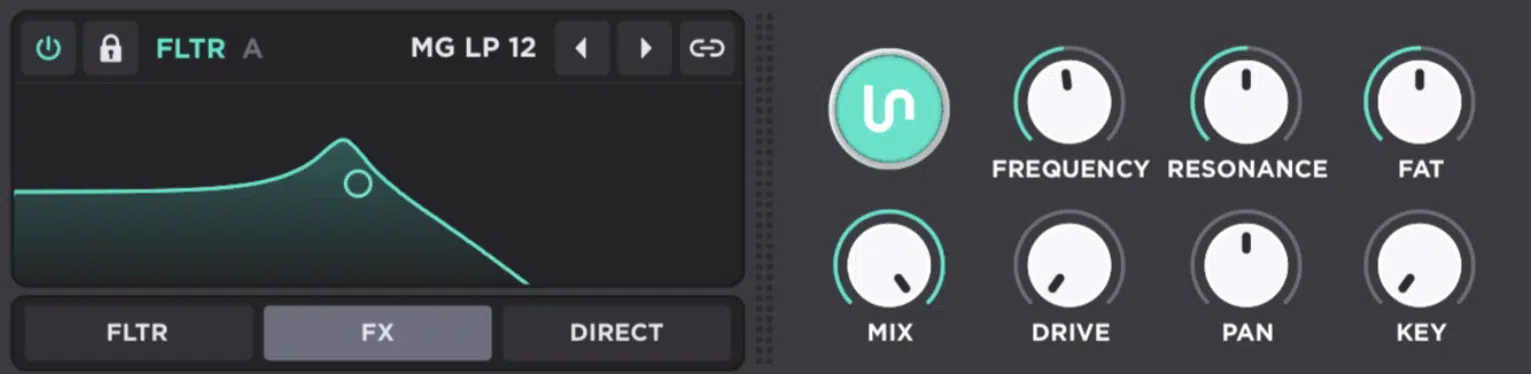
Key tracking means the sound responds differently depending on which note you play, so low notes, mid notes, and high notes don’t all behave exactly the same way.
In Unisynth, that can happen through the Key control on the oscillator side or the Key control on the filter side (both useful in different ways).
On oscillators, 100% Key means normal keyboard scaling, while 0% keeps the pitch fixed no matter what note you press, which is great for:
- Non-tonal layers
- Noise-like attacks
- Special FX
On filters, key tracking helps keep low notes from sounding too muffled and high notes from getting too bright.
This is because the cutoff follows the keyboard instead of staying frozen in one place.
I recommend, when starting on basses and plucks, to leave oscillator key tracking normal, then give the filter some tracking so the top notes stay clear.
Without forcing the low notes to lose weight, of course.
You can also use note-based tracking more creatively by routing note position into things like wavetable movement or modulation amount…
For example, you could let higher notes push the wavetable position a little further forward, which makes the top end feel more animated.
The lower notes will stay a bit more controlled and grounded as well.
You could also route note tracking to the amount of an LFO, so higher notes get slightly more movement than lower ones.
This could be a really cool way to make arp lines or melodic synth parts feel more expressive across the keyboard.
Another cool move is using key tracking on a filter-heavy pad, where the lower notes stay warm and full, but the upper notes open up just a little.
Enough to stop the patch from sounding dull once you move into the higher register.
And on hybrid patches with a noisy or sampled attack layer, key tracking can help keep the tonal part of the sound reacting normally while the non-tonal layer stays fixed.
This usually feels a lot more natural than making everything follow the keyboard the exact same way, so definitely keep that in mind.
NOTE: However I’d keep those ranges subtle at first so the patch still feels consistent across 2 to 4 octaves.
If you push it too far, the instrument starts feeling like a different preset on every part of the keyboard, and you certainly don’t want that to happen.
Bottom line, when it’s dialed in well, key tracking makes the patch feel a lot more even, a lot more polished, and a lot less stiff from low to high notes.
N. Using Aux Sources to Control Modulation Amount

Using aux sources is one of the cleanest ways to make a patch feel more playable.
You’re basically controlling how much modulation happens instead of just slamming a destination directly with another controller.
In Unisynth, that means building one modulation route first, then selecting a Macro, Mod Wheel, Pressure, or the like as an AUX modulation source to scale that movement up and down via the Matrix.
So, instead of one knob awkwardly forcing a filter open or closed, you can have that knob decide how animated the filter movement gets (much smoother results).
NOTE: This is by no means exclusive to Macros or controllers, as ANY mod source can also be used as an aux to use a modulator to control or scale another modulation.
You can have a ramp-up LFO set to 4 bars as an aux mod source for another LFO, so the LFO fades in over the course of 4 bars.
Yes, the same thing can be accomplished by using the Rise function, but it’s an easy way to visualize the potential.
Step #1. Creating the Main Modulation Entry
The main Entry is the original modulation path — the one you want to scale later with the aux source.
For example, LFO 1 to Filter A Frequency, because it’s easy to hear and judge when the amount is too weak or too aggressive, which is key.
I’d set that first Entry so it already sounds good by itself, with enough movement to be noticeable but not so much that it dominates the patch.
Another great example is LFO 1 to WT Position, especially on a wavetable bass or pad where the character shift is part of the vibe.
Keep in mind that, if the main Entry is boring, the aux won’t magically fix it later.
So make sure to build the first motion like it’s already a finished idea, and then use the aux to make that idea more flexible.
Step #2. Assigning the Aux Source
The aux source is the controller or modulator that scales the original modulation amount, and the easiest place to start in my opinion is usually Macro 1.
Once the main Entry exists in the Matrix, assign Macro 1 as the Aux Source, and now that Macro won’t directly move the filter or wavetable itself.
It’ll control how strongly the LFO affects the destination.
That usually feels a lot better under your hand, because the patch keeps its movement character while you decide how present that movement should be.
For example, Macro 1 could take a filter wobble from non-existent at 0% to really obvious by the time the knob reaches 70% to 100%.
You can also use Mod Wheel if you want a more performance-style control, or Pressure if you want the movement to build as you hold the note harder.
I’d start with a Macro first, though, because it’s the easiest one to hear and shape clearly.
Step #3. Setting the Aux Depth
Aux depth is the amount of influence the aux source has over the original modulation, and this is where things either feel smooth or get out of hand fast.
If the aux amount is too high, even a teeny tiny Macro move can take the patch from almost static to way too animated in a second.
Therefore, I suggest you start with a moderate Aux amount so the Macro gives you a useful sweep from “subtle” to “clearly active,” not from “off” to “chaos.”
For filter movement, that usually means:
- The low end of the Macro still leaves a little pulse or breath in the patch.
- The high end brings it forward without turning it into a full-on wobble preset.
On more sensitive destinations like vibrato depth or delay feedback, I’d keep the aux amount even tighter.
Those parameters feel exaggerated much faster than cutoff or WT position does.
So think of aux depth like a ceiling…
It’s deciding just how far the controller is allowed to push the movement before things stop sounding clean.
However, if you do want the Macro, for example, to work as a level fader from 0 to 100% or an on/off switch (depending on the modulator in the entry), you can set it at 100%.
Step #4. Shaping the Control
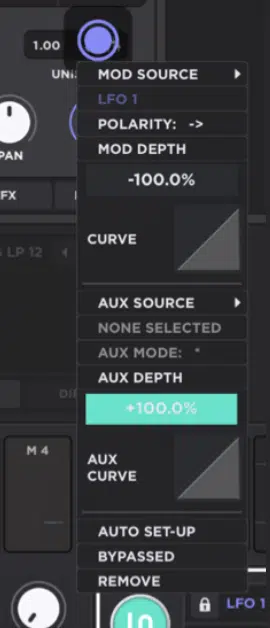
Shaping the control is all about deciding how the aux source ramps into that modulation.
This is where the feel of the knob or controller really starts to matter and in the Matrix, the Aux Curve changes whether the response feels:
- More gentle at the bottom
- More even across the throw
- More dramatic near the top
If Macro 1 is controlling filter movement, I usually like a softer lower response so the first 25% to 40% of the knob gives smaller, more precise changes.
But if the patch is meant to stay calm for most of the throw and then really open up later, a steeper top-end response will feel better for sure.
This is also where you make one control feel polished instead of clunky — the destination may be the same, but the way the control gets there changes everything.
So, don’t stop after assigning the aux source and amount, instead shape the curve until the controller feels like it belongs to the patch.
O. Setting Up Vibrato in Unisynth
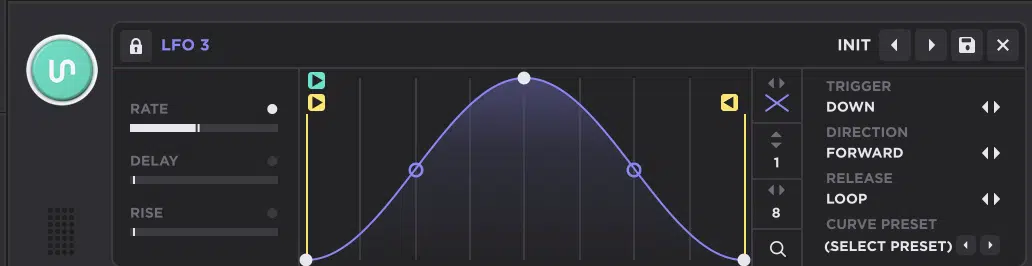
Vibrato is a small repeating pitch movement on a sustained note, and when it’s set right, it makes a lead, pad, or even a synth brass patch feel super alive.
In Unisynth, the cleanest way to do it is routing an LFO to a very small pitch destination, then controlling the shape, speed, depth, and start behavior.
The whole point here is to keep the motion smooth, keep the pitch centered, and make the vibrato arrive in a way that feels musical rather than instant and awkward.
So, let’s get into it…
Step #1. Routing the LFO
Routing the LFO means choosing the pitch control that should actually wobble, and the best answer here is almost always: Fine Pitch.
Fine pitch gives you very small movement, which is exactly what vibrato needs — enough to hear life in the note, but not enough to make it sound out of tune.
If you route the LFO to something bigger (like semitone or coarse pitch), the movement stops sounding like vibrato and starts sounding like an obvious effect.
So, I’d start with 1 main oscillator first and keep the other layers steady until the vibrato feels right and on point.
If you’re using 2 oscillators, make sure to test whether both need the motion or whether just the top oscillator should wobble while the lower one stays firm.
Most of the time, keeping the vibrato on the more expressive top layer sounds cleaner than shaking the whole stack, especially if it’s low-end heavy.
Step #2. Setting the Shape and Rate
The shape and rate decide what the vibrato feels like, and both need to stay smooth if you want things to sound natural and professional.
A sine shape is the safest starting point, because it moves evenly without sharp corners or sudden jumps, however a triangle is acceptable as well.
For speed, I’d start around 6 to 8 Hz, since that’s a very ideal range for natural-feeling vibrato on leads and held synth lines.
If the patch is slower, more emotional, or more vocal-like, 5.5 to 6.5 Hz usually feels great 一 if it needs a little more urgency, 7 to 8 Hz can sound tighter.
Once the speed climbs much higher than that, the vibrato will start sounding nervous or synthetic because a very high Rate can start to get into FM-like territory.
Just make sure to keep the motion rounded and medium-fast first, then adjust by ear instead of starting too extreme.
Step #3. Controlling the Depth
Depth is how far the note is allowed to wobble, and this is where most vibrato setups go wrong, so make sure to dial in my friends.
Vibrato almost always sounds better when the pitch movement is smaller than you think…
This is because once the note is visibly drifting around, the listener stops hearing “expression” and starts hearing “pitch issue.”
So, make sure to bring the modulation amount up very slowly and stop the second the note starts feeling unstable (and I really mean, the second).
What I like to do is bring it up to where it’s noticeable, around where I’d like it, then simply bring it slightly down to help from overshooting the effect.
If the vibrato is on a lead, it should add motion to the sustain without making the note feel weak in the center.
If it’s on a pad, I’d keep it even smaller, because stacked notes and chords reveal pitch wobble much faster than a single-line melody does.
So the best depth is usually the one that feels obvious when you hold the note for a second, but still subtle enough that you don’t notice it instantly from the first hit.
Step #4. Adjusting the Start
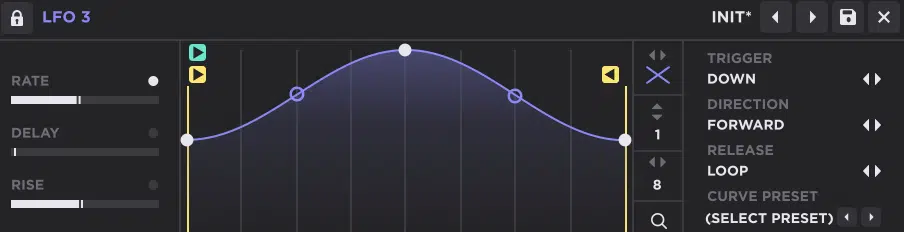
Adjusting the start means making sure the note begins in tune before the vibrato starts doing its job; simple and to the point.
One of the most common problems is letting the LFO begin from the wrong point in the cycle, which makes the note start already bent up or down instead of centered.
In Unisynth, that means checking the Start Pos and shaping the LFO so it begins from the neutral middle of the movement; not from the top or bottom of the curve.
I also like using the Rise parameter here because even a small fade-in (around 500 ms to 2 seconds) can make the vibrato feel way more natural.
On longer leads, ambient patches, or vocal-ish sounds, even 2 to 4 seconds can work really nicely if you want the vibrato to bloom later in the note.
So don’t just set the speed and depth and leave it 一 the start behavior is often what separates smooth vibrato from awkward vibrato.
NOTE: If you’re not using Rise, have the LFO set Retrigger On so it always starts at the same position. Unless you’re intentionally going for a more random feel, of course.
Step #5. Adding Performance Control
Adding performance is all about deciding when the vibrato comes in and just how strong it gets (instead of leaving it fixed at one setting the whole time).
Try using Macro 1 or Mod Wheel to control the vibrato amount, so the LFO route already exists, but your hand decides when the note gets more expressive.
That way, the patch can stay straight and confident at first, then pick up motion later during a held note or phrase.
I also like combining that with a little Rise because even when the controller is active, the vibrato still fades in instead of hitting all at once.
For example, Macro 1 could scale the depth from almost none at 0% to clearly present around 70% to 80%, while Rise is set around 1.5 seconds.
You can even have the Macro routed to the Rise parameter ever so slightly, so when the effect is more present it’ll also have a longer fade-in time.
The movement will feel more vocal and less mechanical.
So instead of treating vibrato like a static patch setting, let it behave like part of the performance — that’s when it starts sounding way more ‘human.’
Expert Pro Tip
This exact method and formula can be used to create a tremolo effect.
This is because it’s essentially the same mechanism except, just instead of pitch modulation, tremolo is achieved by modulating the level of the sound at hand.
This can be done by routing the LFO to any parameter that controls the level and sounds best for your unique/specific patch.
Meaning, you can just route the LFO to 1 oscillator’s level or, for a more noticeable global effect, the master level.
Or even something like the gain parameter for an even more creative spin. Whatever sounds best; dealer’s choice.
All the other steps, like Rate, will still apply for the most part, but make sure to tweak it appropriately based on the patch at hand.
And if you want to increase the rate so it’s super fast (audio-rate modulation territory), instead of producing an FM-like sound, it will alternatively create an AM-like effect.
This is because instead of modulating the frequency/pitch, you’re modulating the amplitude.
Bonus: The Lowest-Rate Modulation Trick in Unisynth Using Super Unison

This last bonus move is about getting width and motion so slow that you don’t hear “wobble,” you just hear the sound feeling richer, wider, and more alive over time.
In Unisynth, Super Unison is perfect for that because it gives you Rate, Shape, Envelope, Retrigger, Detune, Stereo Width, Voices, Feedback, and a filter all inside one effect block.
However, any modulation effect such as Chorus, Phaser, and Flanger can be applied to this as well, within Unisynth or in any setting (which is awesome).
What you’re going to do is:
- Start with the Rate as low as it’ll go
- Make Detune moderate
- Keep Stereo Width open enough to hear the spread
- Don’t go crazy with the voice count right away
A really strong place to start is with Voices around 3 to 5, Stereo Width somewhere around 40% to 60%, and Detune just high enough that held notes feel more open.
Without instantly sounding swirly or out of control, of course.
I usually like starting with a low rate, a medium width setting, and enough detune that the patch feels wider on held notes but not obviously chorus-y on shorter ones.
It works great on pads, ambient chords, sustained keys, and slower leads, because those are the sounds where you actually have enough note length to hear the slow drift.
On shorter plucks, tighter synth stabs, or bass-adjacent patches, I’d usually back the Voices down closer to 2 or 3 and keep the Detune even lower.
That’s because too much movement there starts sounding smeared and whack.
For example, if you hold a long 1-bar or 2-bar chord and the patch just feels a little wider, a little silkier, and a little more “finished” over time, you’re probably in a really good spot.
If the motion starts sounding seasick, simply lower the detune before you kill the width because too much detune gives the effect away faster than the slow movement itself.
If the center starts feeling hollow too, that’s usually another sign the Detune is a little too high, or that the voices are stacked more aggressively than the patch actually needs.
You can also test Retrigger on and off depending on whether you want every note to restart the drift or whether you want the motion to keep gliding through the phrase.
If Retrigger is on, rhythmic chords, arps, and repeated synth parts tend to feel tighter and more repeatable, if you know what I’m saying.
If Retrigger is off, longer sustained sounds feel smoother and a little more expensive because the motion keeps drifting naturally across the phrase.
Another sick move is using the filter inside the effect block to shave off a little top end if the spread starts making the patch feel too glossy, too wet, or too obviously “effected.”
Bottom line, when you set it to perfection, the effect doesn’t scream for attention — it makes the patch feel fuller/more expensive in a very sneaky way.
Unisynth Techniques: Final Thoughts
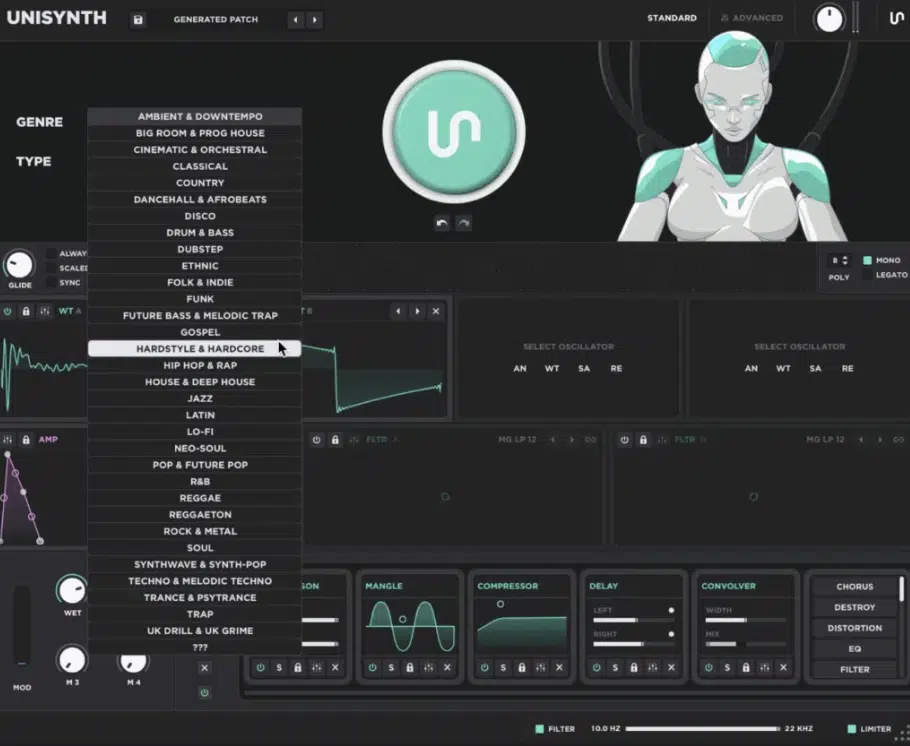
No wonder Unisynth is being praised as the #1 AI synth plugin EVER. I mean, look at just how much you’re able to do with it.
Its deeper controls are absolutely out of this world.
Between the filters, modulation system, sampler engine, unison settings, expression routing, and all the smaller details hiding under the hood, there’s endless possibilities.
You can shape sounds that feel way more custom and way more alive all day.
The more you understand how these sections connect, the easier it gets to make patches that hit harder, move better, and sit in your track with way more intention.
So, whether you’re trying to tighten up your basses, add more realism to your keys, or build more expressive leads and textures, Unisynth can get it done (fast).
It has more than enough depth to get you there, and some.
Now it’s just about opening it up, trying these Unisynth techniques for yourself, and seeing how far you can really push it 一 the sky isn’t even the limit, believe me.
Until next time…
Try These Techniques out For Yourself!




Leave a Reply
You must belogged in to post a comment.